
ThriveCart subscriptions include a bundled ThriveAcademy plan, so you can manage your ThriveCart account and Academy access from one billing flow. The Customer Hub lets you review your subscription, update billing details, view invoices, and make available plan changes without needing to contact support.
Understand how ThriveCart and Academy plans are connected
Your Academy level is determined by your ThriveCart subscription:
- ThriveCart Standard includes Academy Starter.
- ThriveCart Pro+ includes Academy Growth.
- ThriveCart Enterprise includes Academy Scale.
Academy levels are bundled with the ThriveCart subscription. They are not managed as separate subscriptions or standalone purchases.
For example, upgrading from ThriveCart Standard to ThriveCart Pro+ also changes your Academy access from Starter to Growth.
Access the Customer Hub
You can access the Customer Hub via https://checkout.thrivecart.com/updateinfo/
- Enter the email address used for your purchase.
- Click Send me my link.
- Open the email from ThriveCart and click the secure access link to log in.
- In the Customer Hub, click Subscriptions.
The Customer Hub uses a secure email link instead of a permanent password. It provides access to your purchase history, invoices, subscription details, billing information, and available subscription actions.
You can also access the hub link from the bottom of any ThriveCart receipt, by clicking the link to manage your billing details and view your purchase history.
View your billing status in Academy
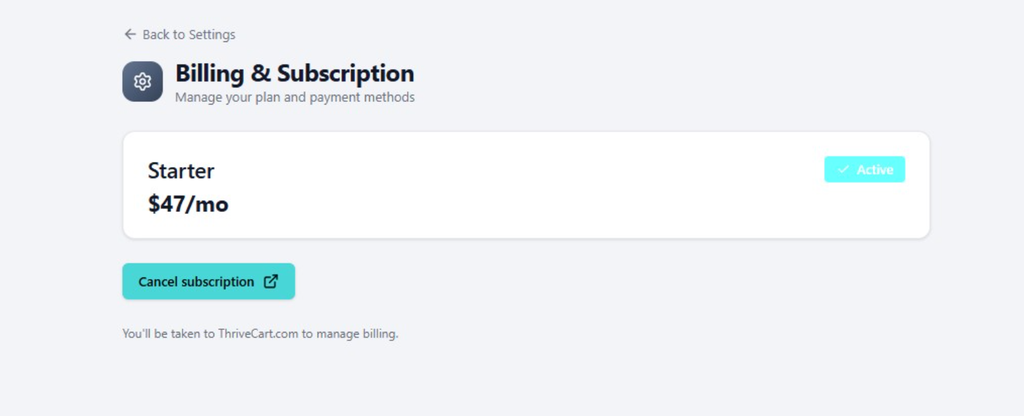
Academy shows your current billing information and plan status under Settings > Billing & Subscription (On mobile, open More, then select Billing).
Use the ThriveAcademy Billing page to review your status and tier, but for further details (such as billing dates, successful payments, and receipts), as well as to upgrade, downgrade, cancel, or otherwise manage the subscription, return to the ThriveCart Customer Hub via the steps listed above.
Upgrade your ThriveCart plan
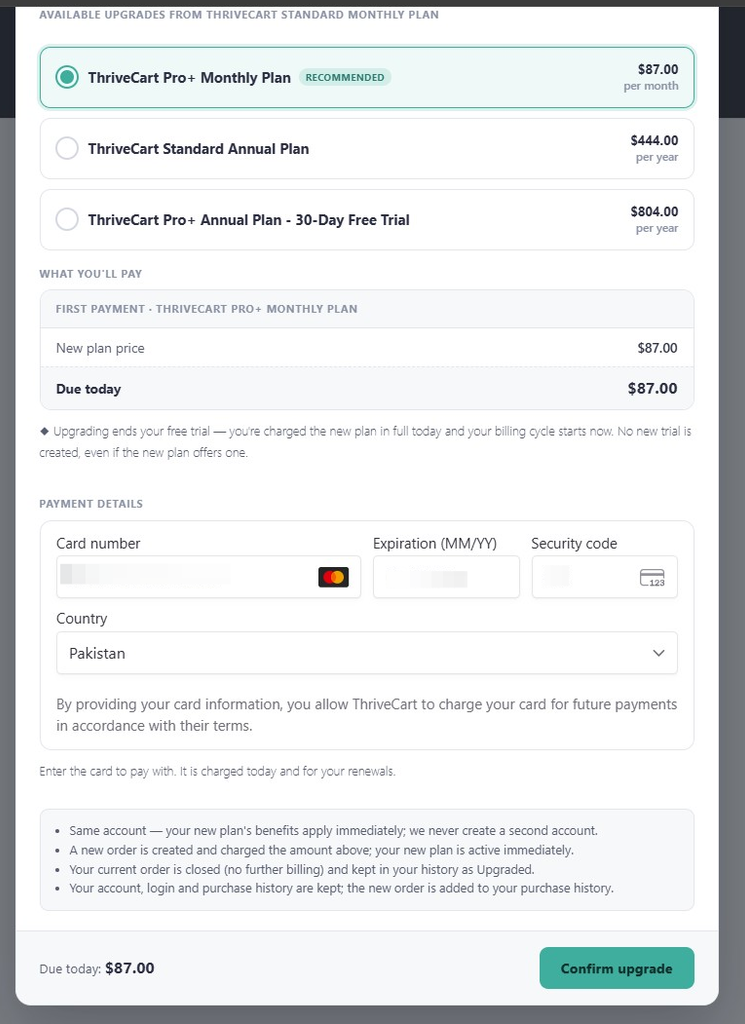
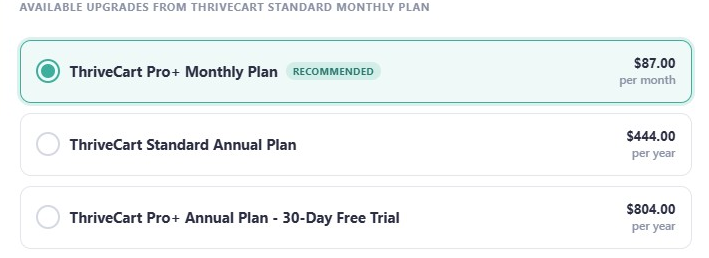
Available upgrades are shown in the Customer Hub when your current subscription is eligible.
- Open the Customer Hub and click Subscriptions.
- Locate your current ThriveCart subscription.
- Click Upgrade available.
- Review the available subscription types.
- Select the ThriveCart subscription type you want.
- Review the upgrade summary, including:
- Your new plan and billing amount.
- Any prorated credit for unused time on your current billing period. (Trial period is not extended. Even if you are still within the trial on your initial subscription, your new upgraded subscription starts today.)
- The amount due today.
- Your next billing date and future charge.
- Enter your payment details for this new upgraded subscription. This will be charged immediately based on your plan of choice.
- Click Confirm upgrade.
The upgrade flow calculates a credit for the unused portion of your current billing period. That credit is applied to the first payment for the new plan. If the credit is greater than the new plan amount, the amount due today may be $0, with the remaining credit carried forward. Tax is recalculated on the resulting charge.
After a successful upgrade:
- Your new ThriveCart subscription appears under Current.
- Your Academy level updates automatically to match the new ThriveCart plan.
- Your previous subscription is marked Upgraded rather than remaining active.
- Your new receipt is added to your purchase history and includes the prorated credit.
If the upgrade payment fails, your existing plan remains active and the upgrade is not completed.
Upgrading during a trial
Upgrading during a trial ends the current trial and starts the selected subscription immediately. The new subscription is charged according to the amount shown in the upgrade review. A new trial is not created as part of the upgrade.
Manage your existing subscription
Open Customer Hub > Subscriptions and select your subscription to view the available actions.
View invoices and purchase history
From the subscription details page, you can:
- View previous and current invoices.
- Download or print receipts.
- Review the plan associated with each purchase.
- Check subscription status and billing dates.
Update your billing information
For card payments:
- Open the relevant subscription.
- Select the option to update your billing or payment information.
- Enter the new card or billing details.
- Save your changes.
For PayPal subscriptions, ThriveCart will redirect you to PayPal because the billing agreement is managed through PayPal.
Cancel your subscription
If cancellation is available for your subscription:
- Open Customer Hub > Subscriptions.
- Select the subscription you want to cancel.
- Click Cancel subscription.
- Review the cancellation details and effective date.
- Confirm the cancellation.
Important: Canceling your ThriveCart subscription will close your ThriveCart account at the end of your current billing cycle. You will retain access until the cancellation takes effect. After the account closes, your ThriveCart account access and any Academy access included with that subscription will end.
If you see that a cancellation is already scheduled and you want to continue using the plan, select Keep plan before the cancellation date.
Manage your Academy plan level
Academy plan levels are managed through the ThriveCart subscription that includes them.
For example:
- Upgrade ThriveCart Standard to ThriveCart Pro+ to move from Academy Starter to Academy Growth.
- Canceling the ThriveCart subscription also ends the bundled Academy access when the ThriveCart account closes.
You do not need to purchase a separate Academy subscription to change the Academy level included with your ThriveCart account. Open the ThriveCart Customer Hub, select Subscriptions, and manage the ThriveCart subscription there.
Academy standalone purchase availability
New Academy-only purchases are not currently available. Academy access is provided through the applicable ThriveCart subscription.
Existing Thrive Learn and Learn+ users will receive updated instructions on how to access the free Academy plan tier at a later date. These accounts are not currently created automatically, and the tool for migrating content from Learn to Academy is still a work in progress. Until further instructions are provided, existing Learn users without Academy access should continue using their current Learn access.
FAQs
- Q:Why does my Academy level change when I upgrade ThriveCart?
- A: Academy access is bundled with your ThriveCart subscription. ThriveCart Standard includes Academy Starter, ThriveCart Pro+ includes Academy Growth, and ThriveCart Enterprise includes Academy Scale.
- A: Academy access is bundled with your ThriveCart subscription. ThriveCart Standard includes Academy Starter, ThriveCart Pro+ includes Academy Growth, and ThriveCart Enterprise includes Academy Scale.
- Q: Can I change my Academy level directly inside Academy?
- A: You can view your billing status and current Academy level from Academy > Billing, but plan changes are managed through the ThriveCart Customer Hub.
- A: You can view your billing status and current Academy level from Academy > Billing, but plan changes are managed through the ThriveCart Customer Hub.
- Q: What happens if I cancel my ThriveCart subscription?
- A: Your ThriveCart account closes at the end of the current billing cycle. You keep access until the cancellation takes effect, after which your ThriveCart access and bundled Academy access end.
- A: Your ThriveCart account closes at the end of the current billing cycle. You keep access until the cancellation takes effect, after which your ThriveCart access and bundled Academy access end.
- Q: Why do I not see Upgrade available?
- A: The current subscription may not have an available self-service upgrade path (such as the ThriveCart purchase was not a subscription, or was paid via PayPal). Check that you are viewing the correct subscription in Customer Hub > Subscriptions. If the option is still unavailable, contact ThriveCart Support.
- A: The current subscription may not have an available self-service upgrade path (such as the ThriveCart purchase was not a subscription, or was paid via PayPal). Check that you are viewing the correct subscription in Customer Hub > Subscriptions. If the option is still unavailable, contact ThriveCart Support.
- Q: Where can I find my invoices?
- A: Open the Customer Hub, select Subscriptions, and open the relevant subscription to view its invoices and purchase history.