
Connect your ThriveCart products to the right Academy content so students receive access automatically after purchase. You can sell a standalone course, a full community, or specific spaces within a community.
Connecting Courses, Communities, and Spaces to ThriveCart Products
There are three ways that students can access your content:
- A product purchase or free product enrollment grants access to a course, community, space, or space group.
- Community membership plus course-space rules grants access when the student belongs to the community and the course space is public or its unlock rules are satisfied.
- Manual enrollment grants access when a creator adds a student to a course or community. (See more on manually adding students here).
Step 1: Integrating your ThriveCart Account
In your overall account settings, you can integrate your ThriveCart account to ThriveAcademy and set Product Access Mapping rules.
To link ThriveCart, head to Settings > Integrations:
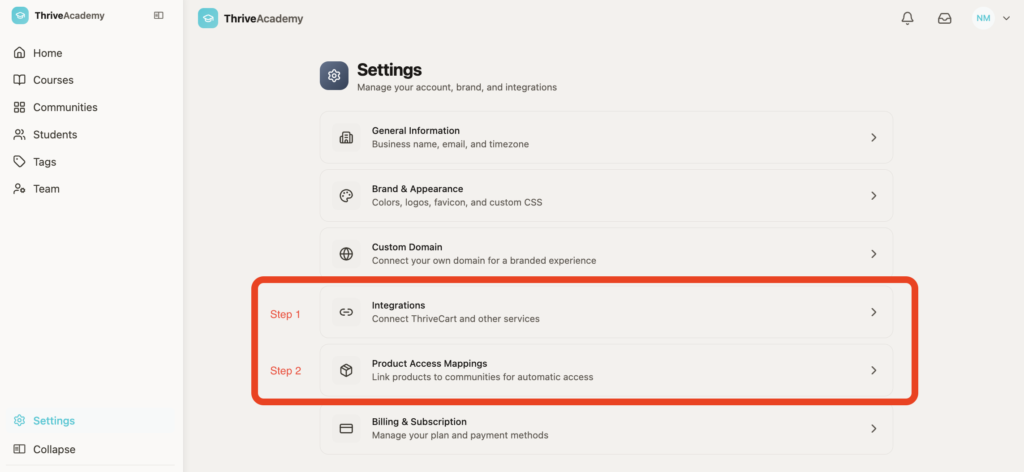
In Step 1, you’ll be directed to link your ThriveCart account to ThriveAcademy by logging into your ThriveCart account (if not already logged in) to authorize the connection.
Step 2: Link a Course, Community, Space, or Space Category
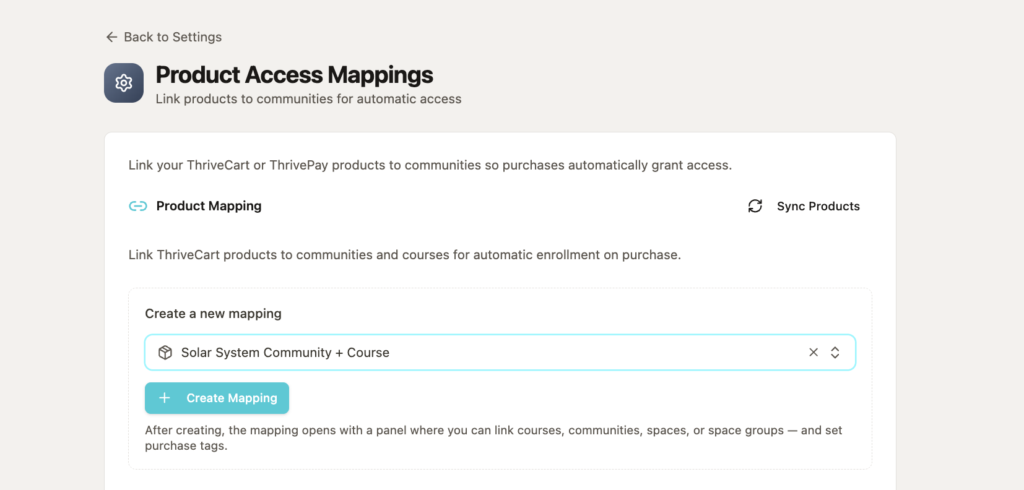
- In Settings, select Product Access Mappings.
- From the dropdown, find the ThriveCart product you want to configure (or click “sync products” to refresh the list)
- Click
+ Create Mapping. - Click Add target.
- Choose what the product should unlock:
- Course for course-only access.
- Community for community access and the courses inside it.
- Space for a specific community space.
- Space group for a group of spaces.
- Add multiple targets if you wish for one purchase to unlock multiple items (i.e. multiple courses, or a community + private course space + private community space)
- Add the checkout or offer link when prompted.
- Save the mapping.
- Complete a test purchase to confirm that access is working. (Remember that adding a
+sign to your email address is considered a brand new user in the system. So myemail@gmail.com could be myemail+teststudent@gmail.com and all emails will still be delivered to myemail@gmail.com)
Once you’ve selected your course, community, or space(s) that your product grants access to, you’ll see them listed below your product name in the overall mapping.
Which option should I choose?
Course
Choose Course when the product should give access to one Academy course without requiring students to join a broader community.
Community
Choose Community when students should join a community and access the courses or spaces available inside it.
A product can grant access to multiple courses through a community. This is useful for bundles or memberships.
Space or Space group
Choose Space or Space group when students should receive access to a specific part of a community rather than the entire community.
Setting your ThriveCart Product Fulfillment
You can also set fulfillment from the ThriveCart product side as well. Within your ThriveCart product, under the Fulfillment tab, you can set the fulfillment method to “Add them to my membership site” > ThriveAcademy, and select your course or Community from the dropdown as seen here:
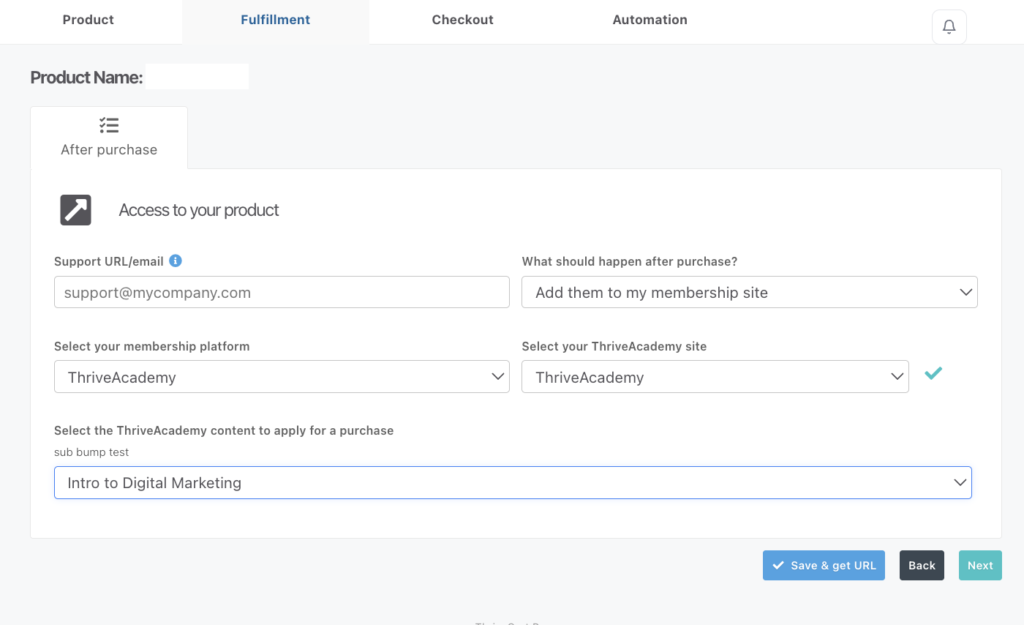
If you have bump products enabled, additional drop-downs will be available to link to specific resources for those individual bump purchases.
Upsell and downsell fulfillment would be set within the checkout editor. For more details on building upsells and downsells and setting their fulfillment, see our guide here.
Do not set up new access from Course Settings
The product access section inside an individual course shows older course-direct product links. Existing links continue to work, but course-direct mappings are deprecated for new setup.
For new products, always use:
Settings > Product Access Mappings
Do not delete an existing course-direct or Deprecated link just because it appears old. It may still provide access to students who already purchased through that product.
How student access works after purchase
After a customer purchases a mapped ThriveCart product:
- ThriveCart sends the purchase to Academy.
- Academy finds the product’s active mapping.
- Academy grants the mapped course, community, space, or space group.
- The student can sign in and access the purchased content.
If the product has no Academy mapping, the purchase does not create Academy access.
If the same student already has the content through another valid purchase, Academy keeps the existing access and does not create a duplicate student experience.
Setting up access for existing buyers
Adding a new course or community to a product normally affects future purchases. It does not automatically give the new content to everyone who purchased the product in the past.
To update existing buyers:
- Add students manually for a small number of students.
- Contact Support for a large enrollment request.
- Provide the target Academy course or community and the affected ThriveCart product.
If you are moving students to a completely rebuilt course, existing progress is not transferred automatically. Progress can only be matched when the old lessons and new lessons have a reliable mapping.
Changing or removing access
Changing a product’s target
Changing which Academy content a ThriveCart product delivers updates future fulfillment. Existing students may still retain access they already received.
After changing a live product, complete a test purchase and review the product mapping to make sure the correct content is being granted.
Removing one access row
Deleting an individual grant from a product mapping can remove access from existing students if that grant is their only route to the course.
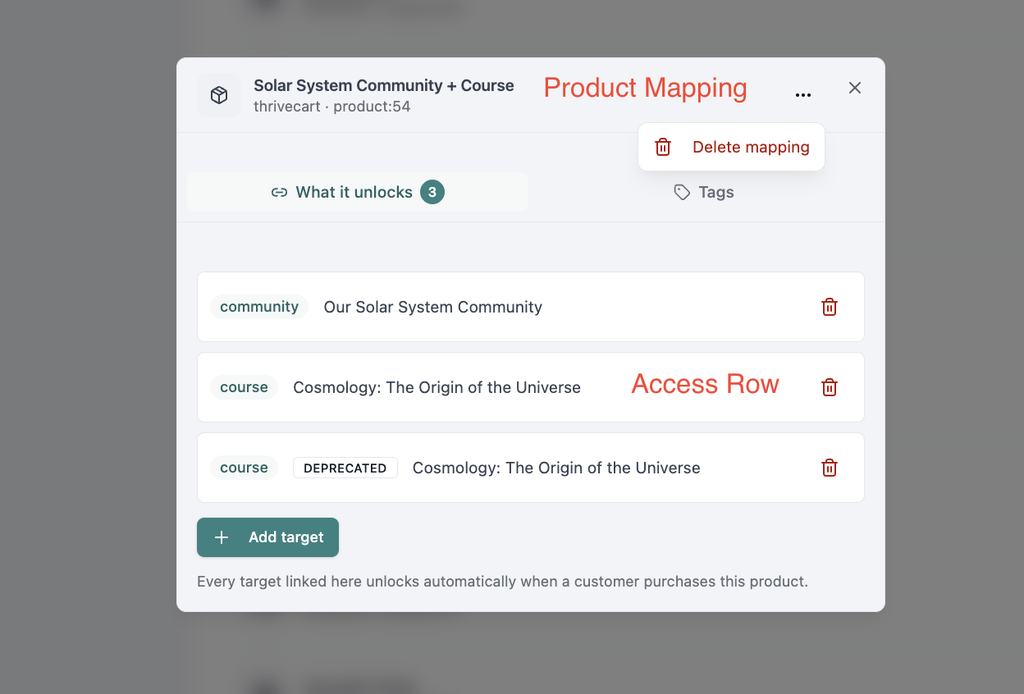
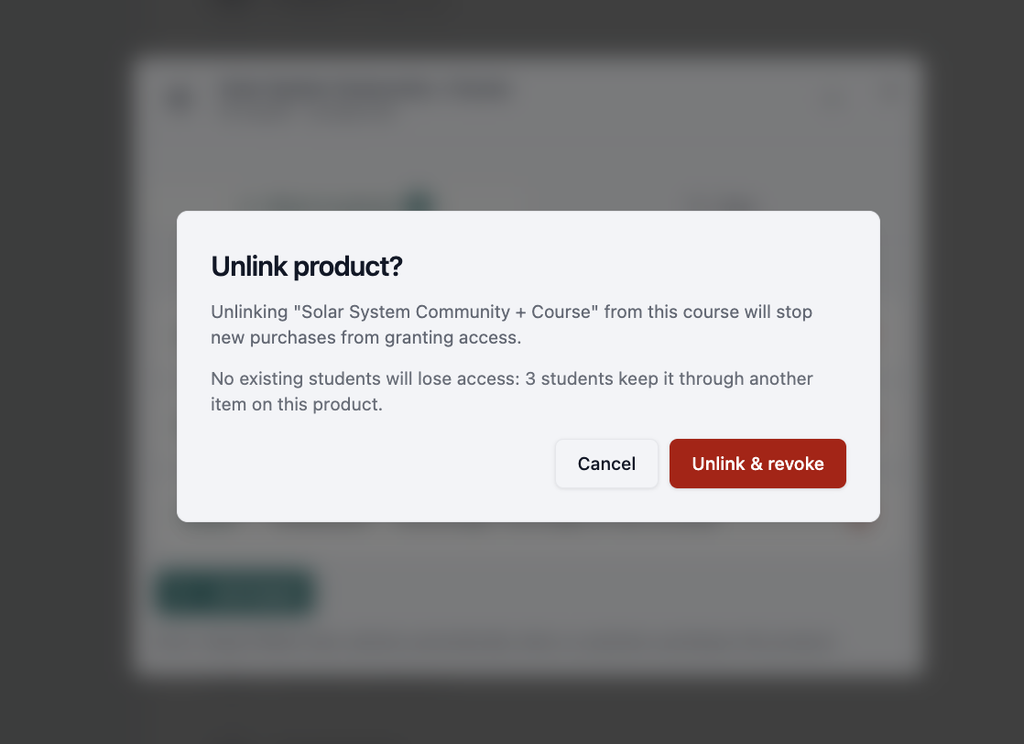
Before deleting a row, review the affected-student count shown in the confirmation dialog.
Deleting an individual access row can affect existing students. Review the affected-student count before confirming. If the product has existing buyers that do not retain access, contact Support before removing a row.
In the above screenshot, we can see that there were two mappings for the same course – one showing as deprecated. The one flagged deprecated is a mapping that was set within the course settings directly. Deleting it in this case will not revoke access, since there is another access row granting purchase of the same product to the same course.
Removing the whole mapping
Deleting the complete product mapping stops future purchases from receiving Academy access. It does not remove access that existing students already received.
Products that should not use Academy
If a ThriveCart product should send buyers to an external page instead of granting Academy access:
- Set the product’s fulfillment in ThriveCart to the external page (using the “Send them to a URL” fulfillment method), or to do nothing, set to “Display Invoice”.
- Do not add an Academy target for that product under Product Access Mappings.
- If Academy shows a failed fulfillment for the product, open Settings > Product Access Mappings > Failed fulfillments.
- Click Dismiss.
Dismissed failed fulfillments do not create enrollments and are not retried.
Granting Space Access via Unlock Rules
To sell access to one course or space inside a community, create a Course Space, set its visibility and access rules, and add the ThriveCart product under Unlock Rules. Students who purchase that product are enrolled in the course and granted access to the space.
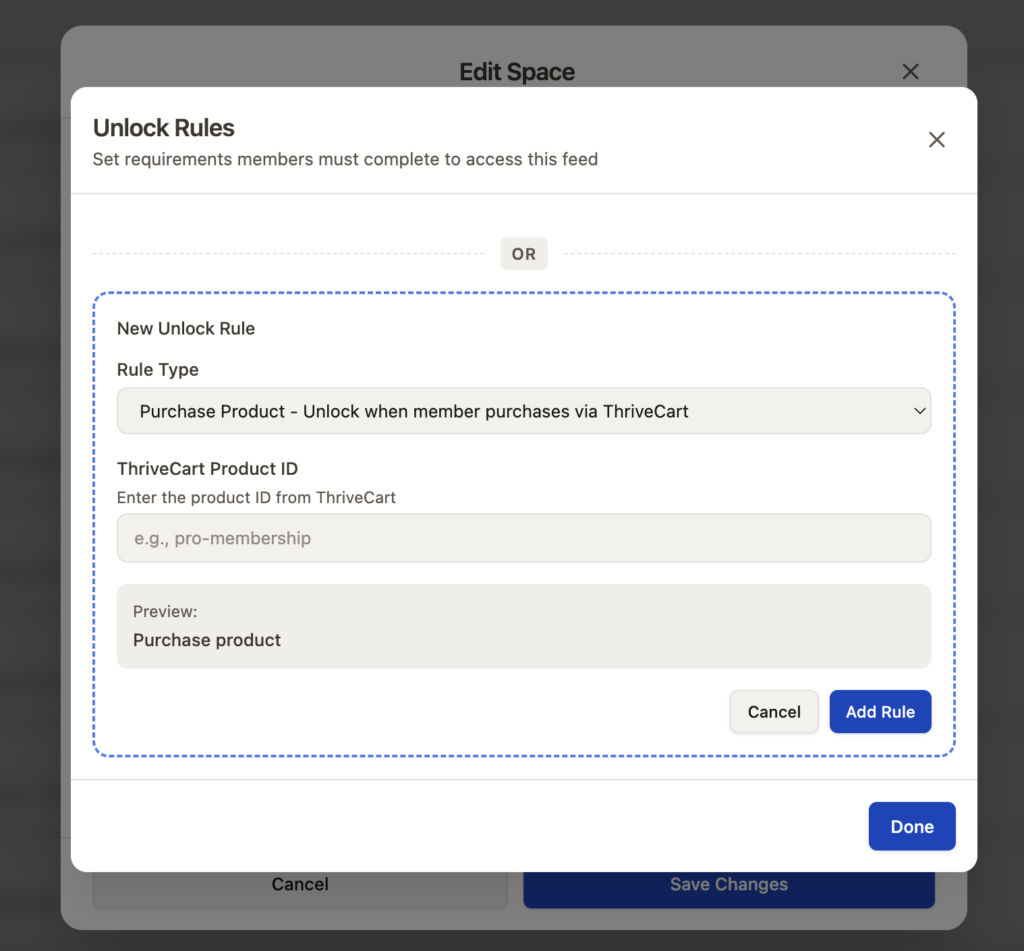
If unlock rules are set on your Community’s Course Space, every purchase of that product automatically enrols the student, creates their Community account, and grants access to the course. Tags set in product linking are applied at the same time, triggering any tag-gated access rules you may have configured.
Additional Access Unlock Systems
ThriveAcademy supports several ways to give students access to courses, communities, spaces, and individual lessons. You can combine these methods to create simple course access or more advanced learning paths.
- Community and Space Unlock Rules: Give students access to a community, then use a space’s visibility and unlock settings to control which content they can open. A space can be public to community members or locked until the student purchases a specific product, meets a certain XP level, or passes a quiz. Learn more about unlock rules here.
- Sequences: Automatically grant or revoke lesson or module access when a student completes an action, such as completing a lesson, applying a tag, completing a course, or unlocking content. Learn more about Sequences.
- Drip Content: Release lessons or modules according to a schedule, date, or the student’s enrollment timeline. Learn more about Drip Content.
- For setup instructions and examples, see Building Your Courses in ThriveAcademy. These access methods can be used independently or combined to create product-based, community-based, tag-based, scheduled, or progress-based learning paths.
FAQs
- Q: Where should I connect a ThriveCart product to a course?
- A: Go to Settings > Product Access Mappings, open the product, click Add target, choose Course, select the course, and save the mapping.
- Q: Should I use the access settings inside the course editor?
- A: No, not for new setup. That area shows older course-direct links. Use Product Access Mappings instead.
- Q: Will adding a target give access to previous buyers?
- A: Usually no. New mappings normally apply to future purchases. Contact Support if existing buyers need to be enrolled.
- Q: Can I delete a Deprecated product link?
- A: Do not delete it without checking first. Existing students may depend on it, and removing it can affect their access.
- Q: Why did a purchase appear as a failed fulfillment?
- A: Academy received the purchase but could not find an Academy target for that product. This is expected if the product is intentionally delivered elsewhere, and you can dismiss the entry under Settings > Product Access Mappings > Failed fulfillments.