
Give your Academy a professional, branded experience from the moment customers sign in. With a custom domain, you can replace the default ThriveAcademy and ThriveCart branding with a URL that matches your business, such as learn.mywebsite.com.
All ThriveAcademy accounts include a built-in Academy-branded URL for sign-in pages, courses, and communities, such as:
academy.thrivecart.com
You can personalize this URL by changing the slug:
mybrand.academy.thrivecart.com
If you want to remove the ThriveAcademy and ThriveCart branding entirely, you can connect a custom subdomain to your Academy.
How custom domains work
Custom domains can be configured at three levels:
- Account level: Applies to all courses and communities unless a different domain is configured for an individual course or community.
- Course level: Applies only to a specific course.
- Community level: Applies only to a specific community.
Before you start
You’ll need:
- A ThriveAcademy account on a Growth Plan or higher.
- Access to your domain host, such as GoDaddy, Cloudflare, or Namecheap.
- A subdomain that you want to use for your Academy, such as
learn.
Your final custom domain will look similar to:
learn.mywebsite.com
In this example:
learnis your chosen subdomain.mywebsite.comis your existing website domain.
Step 1: Add the CNAME record to your domain
Before adding your custom domain in ThriveAcademy, point your subdomain to ThriveAcademy through your domain host.
The exact process varies depending on your domain host, but you’ll need to add a CNAME record to your DNS settings with the following values:
| Setting | Value |
|---|---|
| Name/Host | Your chosen subdomain |
| CNAME/Value | alias.academy.thrivecart.com |
| TTL | Automatic, or any value between 300 and 3600 |
For example, if your existing domain is mywebsite.com and you want to use learn.mywebsite.com, configure the DNS record as follows:
- Name/Host:
learn - CNAME/Value:
alias.academy.thrivecart.com
Step 2: Add your custom domain in ThriveAcademy
After adding the CNAME record with your domain host, add the domain in ThriveAcademy.
The location where you add the domain depends on where you want it to apply.
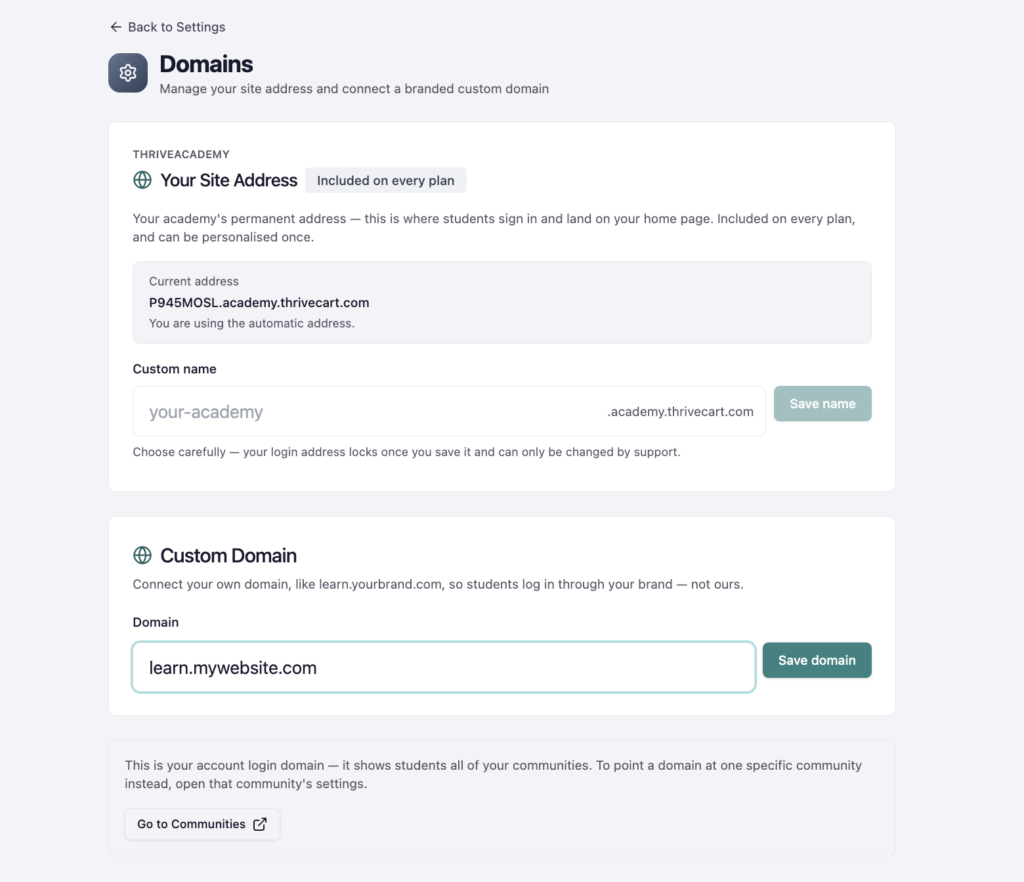
Add an account-level domain
Go to: Settings → Domains
An account-level domain applies to all courses and communities in your Academy unless a different domain is configured at the course or community level.
Enter the subdomain and root domain, then save your changes.
For example, if your custom domain is:
learn.mywebsite.com
Enter that exactly:
Add a domain to a specific course
Go to: Edit Course → Course Settings → Domain
Here, you can either:
- Customize the slug if you’re using the built-in Academy domain.
- Enter the subdomain and root domain that you configured with your domain host.
- Click Save domain.
For example, if your custom domain is:
learn.mywebsite.com
Enter:
- Subdomain:
learn - Root domain:
mywebsite.com
Your course will now use your custom domain instead of the default Academy URL. For example: learn.mywebsite.com/communities/your-course-name
Add a domain to a specific community
Go to: Edit Community → Community Settings → Domain
Here, you can either:
- Customize the slug if you’re using the built-in Academy domain.
- Enter the subdomain and root domain that you configured with your domain host.
- Click Save domain.
Your community will use your custom domain while retaining the community path. For example: learn.mywebsite.com/communities/your-community-name
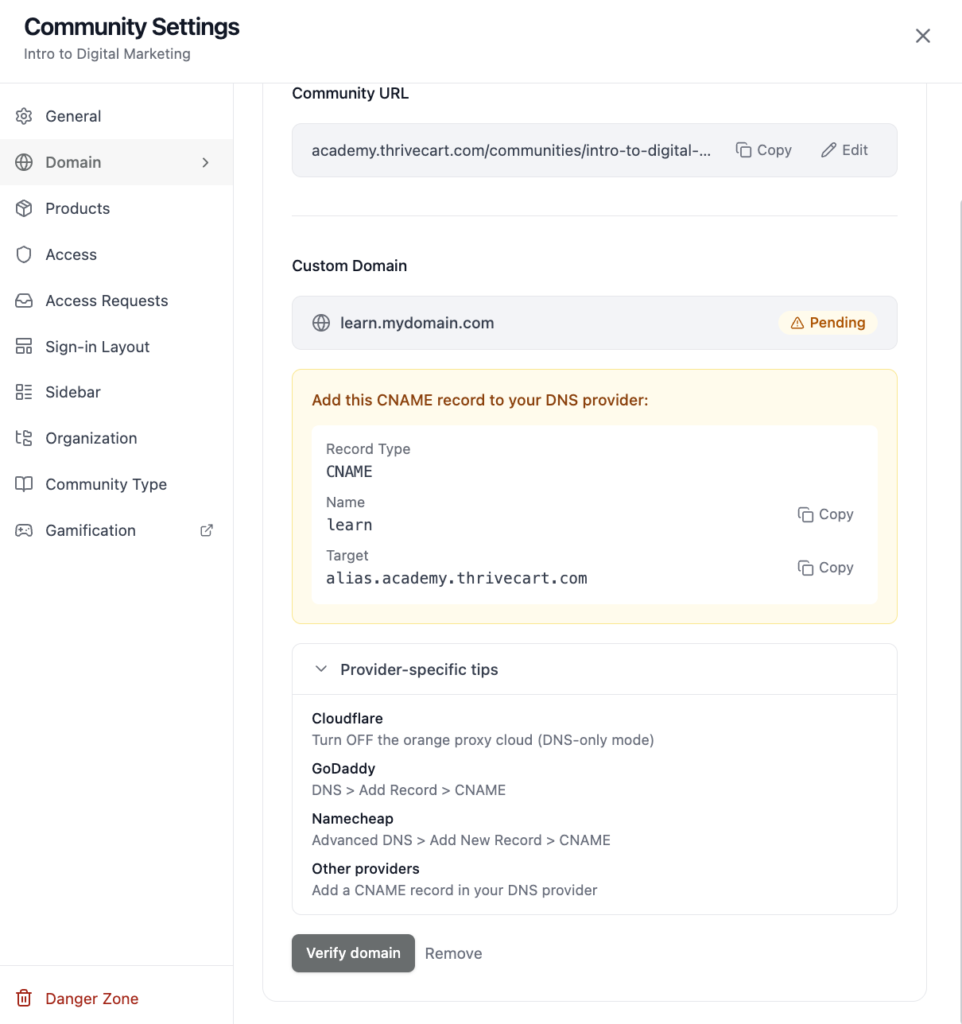
Step 3: Verification
Your domain will remain in a pending state while it’s being verified against your domain hosts DNS settings. A reminder will be presented showing exactly what should be set within your domain host, with the “Verify domain” button visible. Clicking this will verify whether your subdomain has propagated fully before being applied to your community, course, or account.
Domain configuration priority
If you configure domains at more than one level, the more specific configuration takes priority:
- Community-level domain
- Course-level domain
- Account-level domain
- Built-in Academy domain
This allows you to use one domain across your entire Academy while assigning different domains to individual courses or communities when needed.
Troubleshooting tips
If your custom domain does not work immediately:
- Confirm that the CNAME value is exactly
alias.academy.thrivecart.com. - Check that you entered only the subdomain in the Name/Host field.
- Make sure the custom domain is available on your ThriveAcademy plan.
- Allow time for DNS changes to propagate. This can sometimes take 24-48 hours.
- Check that another DNS record is not already using the same subdomain.
- Confirm that the domain was saved at the correct level in ThriveAcademy.
Frequently asked questions
- Q: Can I use a root domain instead of a subdomain?
- A: No. ThriveAcademy custom domains use subdomains, such as
learn.mywebsite.com. You cannot connect a root domain such asmywebsite.comdirectly.
- A: No. ThriveAcademy custom domains use subdomains, such as
- Q: What CNAME value should I use?
- A: Always use
alias.academy.thrivecart.comexactly. Using a different CNAME value will prevent your custom domain from working correctly.
- A: Always use
- Q: Do I need to change my existing website?
- A: No. You can add a new subdomain, such as
learn, without changing your existing website atmywebsite.com.
- A: No. You can add a new subdomain, such as
- Q: Can I customize the built-in Academy URL instead?
- A: Yes. If you do not need a fully custom domain, you can personalize the slug of your built-in Academy URL so that it would look similar to
mybrand.academy.thrivecart.com.
- A: Yes. If you do not need a fully custom domain, you can personalize the slug of your built-in Academy URL so that it would look similar to
- Q: Which ThriveAcademy plans include custom domains?
- A: Custom domains are available on Growth Plans and higher.
- Q: Can I use different domains for different courses?
- A: Yes. You can configure a domain at the course level. A course-level domain overrides the account-level domain for that course.
- Q: Can I use a different domain for a community?
- A: Yes. You can configure a domain at the community level. The community will retain its community path after the domain, such as:
learn.mywebsite.com/communities/your-community-name
- A: Yes. You can configure a domain at the community level. The community will retain its community path after the domain, such as:
- Q: How long do DNS changes take?
- A: DNS changes may take several hours to propagate, depending on your domain host and DNS configuration. If the domain does not work immediately, wait 24-48 hours and check the configuration again later.
- Q: Can I use the same custom domain for multiple courses and communities?
- A: Yes. Configure the domain at the account level to apply it across your Academy. You can also choose to have one domain at the account level and then assign different domains to individual courses or communities if needed.
- Q: What happens if I remove my custom domain?
- A: Your course or community will return to the Academy-branded domain unless another custom domain is configured at a more specific level.
- Q: I use Cloudflare, should I have proxy enabled?
- A: No, you’ll want to disable that setting for your subdomain and use DNS-only settings to prevent a conflict with our system as we generate SSL on your subdomain.