
Reaching a global audience is easier with ThriveCart’s Custom Language Translations. This feature allows you to translate your checkout pages and invoices, creating a fully localized experience for your customers. Once your translations are set, you can assign them to any product, delivering a seamless experience that aligns with your customers’ language preferences—building trust, boosting engagement, and increasing conversions.
Whether you want to create a custom translation or adjust a specific wording, ThriveCart makes it easy to manage this within your account.
While multilingual checkout setup is available, it’s not just the checkout process that gets translated. ThriveCart ensures a seamless experience for your customers by allowing translation of the following areas:
- Your checkout
- Your customers invoice receipt
- Your customer hub
- Learn emails and student dashboard
- Dunning emails
To start creating your own custom language profile, head over to your Settings > Custom Text & Translations area.

Clicking the “Add a language profile” button will then open up and begin the steps where you can go through and create your own language profile.
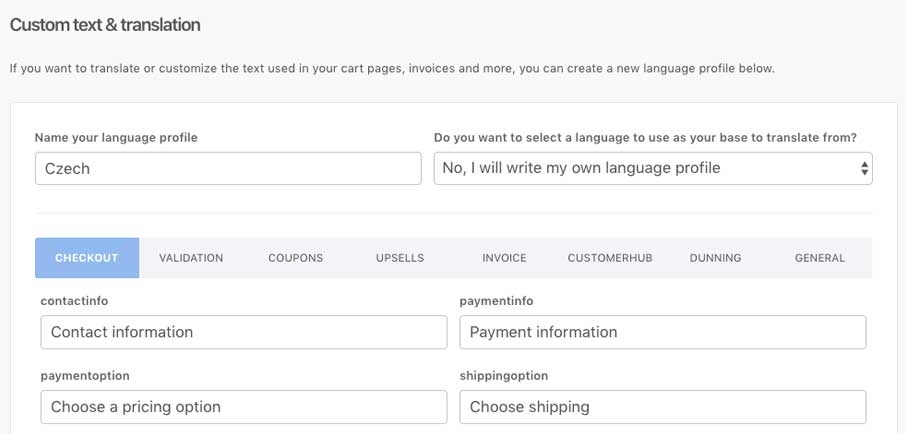
You can give your translation a name (note that this name will be public IF you also translate the customer hub).
After naming your profile, you can either create a completely new language profile OR select one of our supported languages (in case you want to tweak specific wording in the translation without wanting to write full translations).
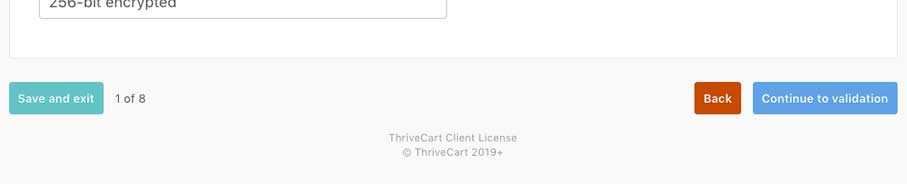
Translation fields are organized into different categories. At the bottom of each section, you can choose to go to continue or save your current progress.
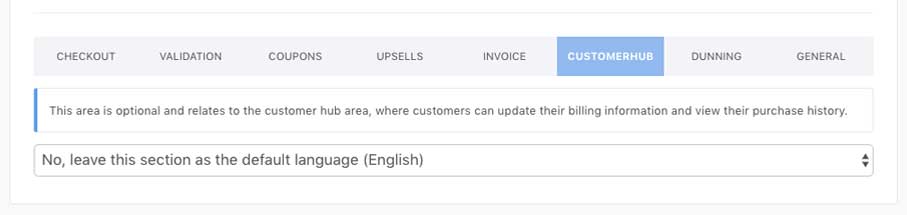
Some areas can optionally be enabled for translation, if you don’t choose to translate or tweak these, the system will use the base English versions where applicable.
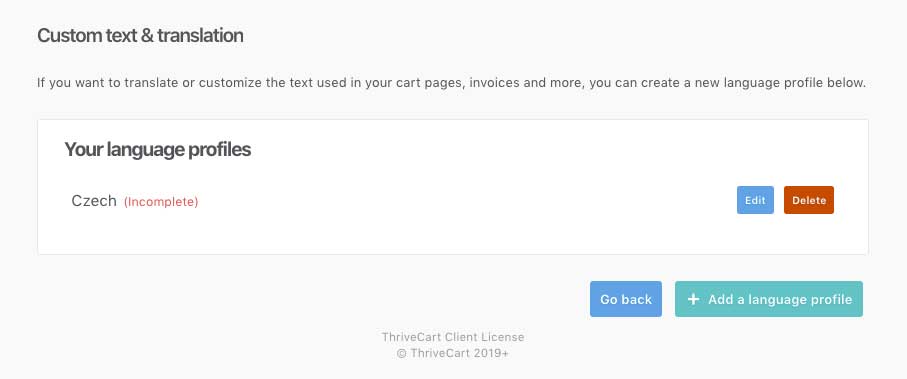
Once you’ve saved your language profile, you’ll see it in the list of custom languages you’ve set up in your account. If you haven’t gone through all the steps then we’ll let you know it’s ‘incomplete’. You can edit and update any of your languages at any point.
You can also create and add more language tweaks.
Set the language translation on your checkout
Finally, choosing the language for your checkouts is super easy and handled under your Product settings > Options tab. At the bottom, you can choose in the dropdown the language to apply to the product.

Frequently Asked Questions (FAQs)
- Q: How can I translate my product name?
- A: Your product name is a custom field that you would enter when setting up your product. When adding or editing a pricing option, you’ll be able to edit the name of it on the second stage in that pop-up window. So when heading to your product and opening the Pricing tab, then editing the price itself and clicking “Next”, you’ll be able to change the wording there to whatever you would like.
- Q: This only translates the default fields, does it translate my entire product?
- A: No. Any custom fields (the product name, labels, customizable text in the checkout, etc.) would need to be manually adjusted. This custom language profile will adjust system settings and text, but not custom texts.
- Q: Can I translate only certain parts of the checkout experience?
- A: Yes, you can translate specific elements like the checkout, invoices, dunning emails, or customer hub individually.
- Q: What happens if I leave some fields untranslated?
- A: Any untranslated fields will default to the base English version automatically.