
When a student purchases your course or joins your community, Thrive Academy handles the entire entry experience automatically. Account creation, enrolment, and first login all happen in under 60 seconds with no password, no registration form, and no friction. Inside the community, students have a unified experience — a social feed, structured course content, gamification, and account management — all in one place, under your branding.
ThriveAcademy puts community at the centre of the learning experience. Students getting access to your community don’t land in an isolated course player — they land in your community activity feed, with courses, discussions, and gamification all accessible from a single sidebar. Every account is tied to the student’s email address, meaning one login gives them access to every community they belong to across all creators on the platform.
How Students Access Your Community
Students access your Community in two ways:
1. After a ThriveCart purchase: Checkout automatically triggers account creation and enrolment. The student receives a magic link email within 30 seconds — one click lands them directly inside your Community. No separate account creation or login required.
2. Direct sign-up (free or invitation communities): Students arrive at your community landing page, create an account using their email, and enter via your chosen access model (Public, Free but Private, or Invitation Only).
The Student Dashboard
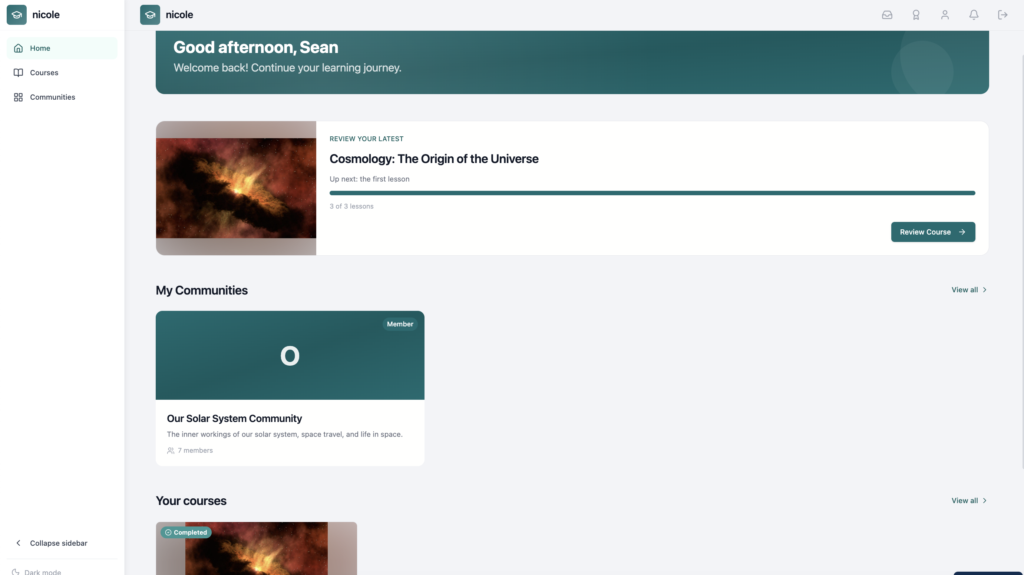
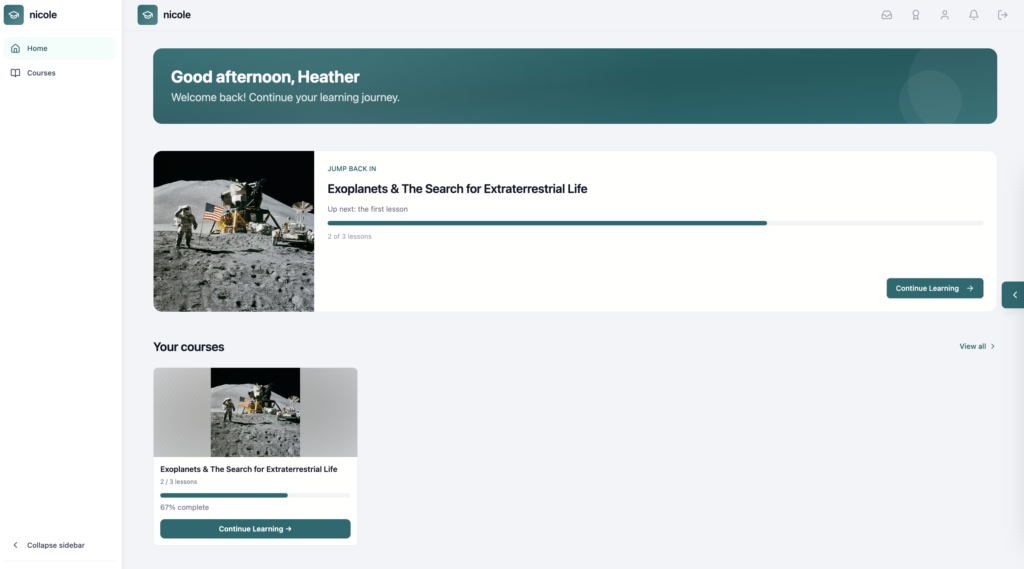
Creators can still opt to sell or manually enroll students into courses only, which they’ll access from their student dashboard showcasing their available courses and/or communities. Students enrolled in multiple communities and courses will see all available content from this unified dashboard.
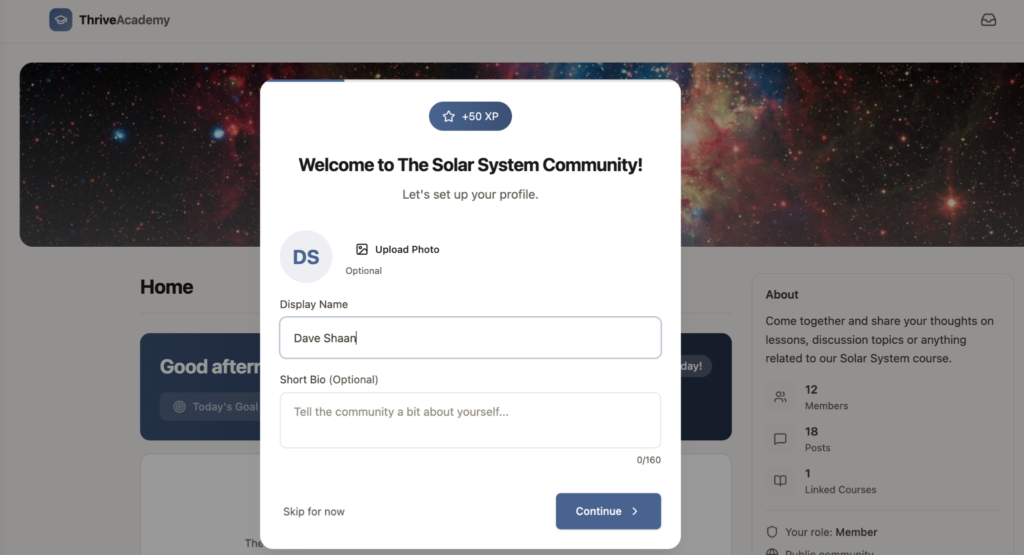
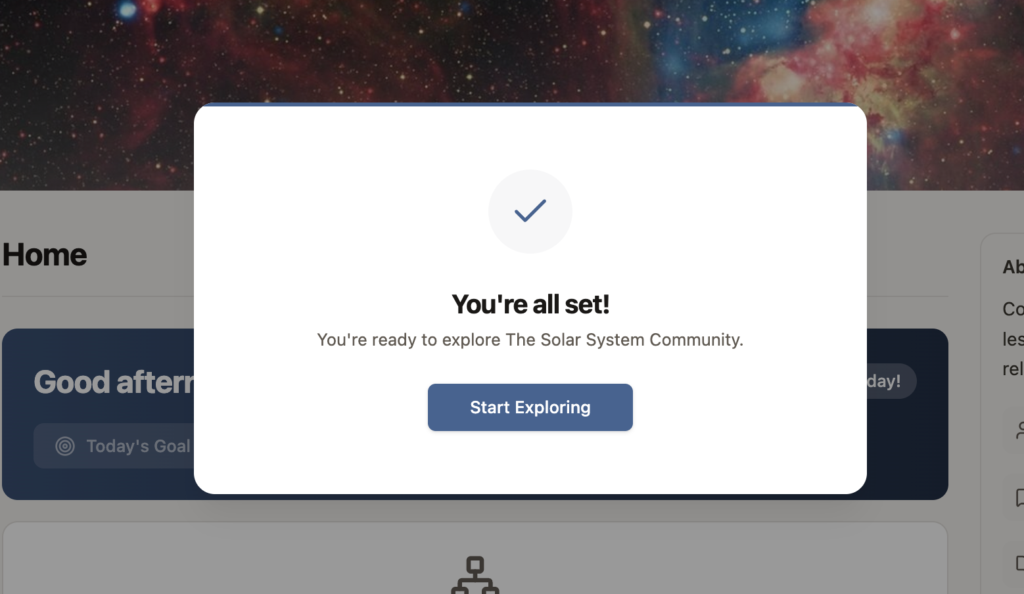
Once in your community, students move through an onboarding overlay that guides them to complete their profile, set a learning goal, and earn their first gamification points — before they ever open a lesson.
When joining for the first time, students are given the opportunity to set up their profile, including a profile picture, customizing their display name, and adding an optional short bio. If no photo is uploaded, their display name initials are used in their profile icon.
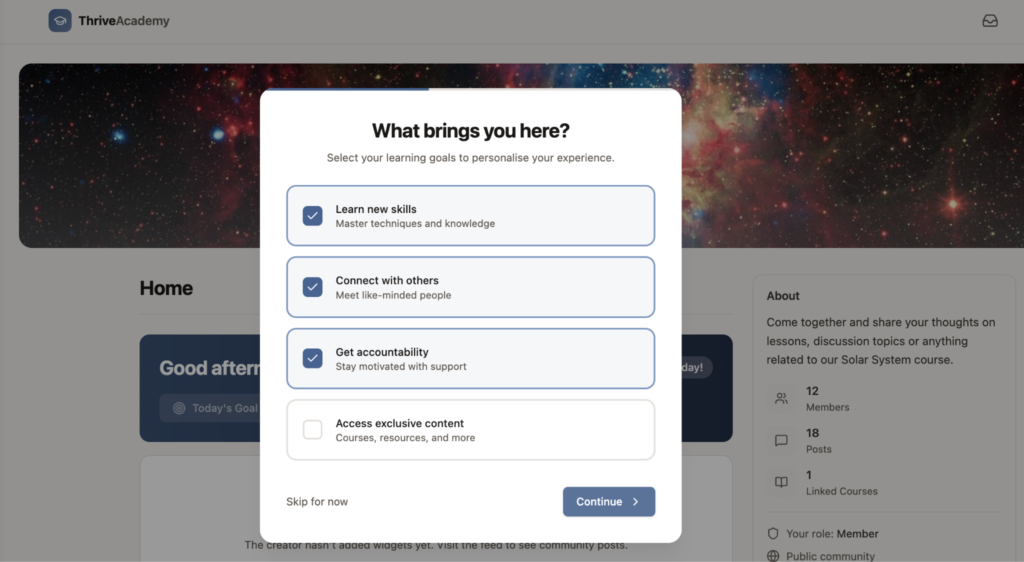
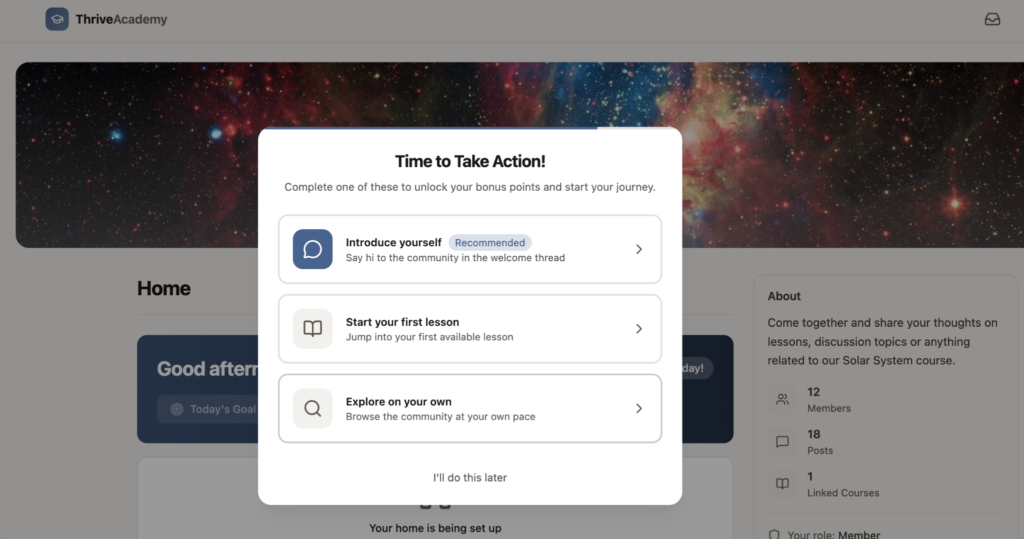
They walk through an onboarding process that gathers information about their goals in the community, and then launches them directly into courses, communities, or events.
Completing each stage in the onboarding process grants them XP, as set up under Gamification > Point Rules > Onboarding.
Password-less Login
ThriveAcademy is password-less by default. Sign-in codes are the primary login method, so students never need to create or remember a password unless they choose to.
Immediately after purchase, students are emailed a magic link to access the community or course.
How magic links (initial) and sign-in codes (from sign-in page) work:
- Welcome magic links (sent on first purchase) expire after 24 hours
- Students can request a new sign-in code at any time from the login page by entering their email and clicking Send sign-in code — it arrives in under 30 seconds
- After 3 resend requests, students are directed to contact support (a spam prevention measure that resets after 24 hours)
Returning student login options:
Students visiting the login page can authenticate via:
- Sign-in Code (recommended) — enter email, click Send sign-in code, enter the code received via email
- Password — only available if the student chose to set one after their first login
If a student belongs to communities from multiple creators, they’ll see a community selection screen after logging in, showing each creator with a badge indicating which is new or last visited.
Setting a password (optional): After first login via magic link, students see an optional prompt to set a password for faster future access. This is entirely skippable, and the platform never requires it. Students who do set a password can always use either the password or sign-in code method going forward.
Adding Students Manually
Creators can grant access to students who haven’t purchased — useful for beta testers, team members, complimentary access, or manual enrolments.
To add a student manually:
- From the main ThriveAcademy dashboard (Home), navigate to Students
- Click Add Student
- In the modal, complete the following fields:
- Full Name (required)
- Email (required)
- Course (required) — select the course to enrol them in
- Community — select the community to add them to
- Generate Password (optional) — to create a temporary password that can be shared with your new student
- Click Enrol Student
If the email address doesn’t already have an account, the system creates one automatically. The account starts with no password set — the student authenticates via magic link and sign-in codes until they choose to add one.
Bulk enrollment
Within a community, vendors can navigate to Management > Students > Add Students to bulk enroll existing students into that community by searching & selecting up to 20 students at a time.
Add courses to an existing student:
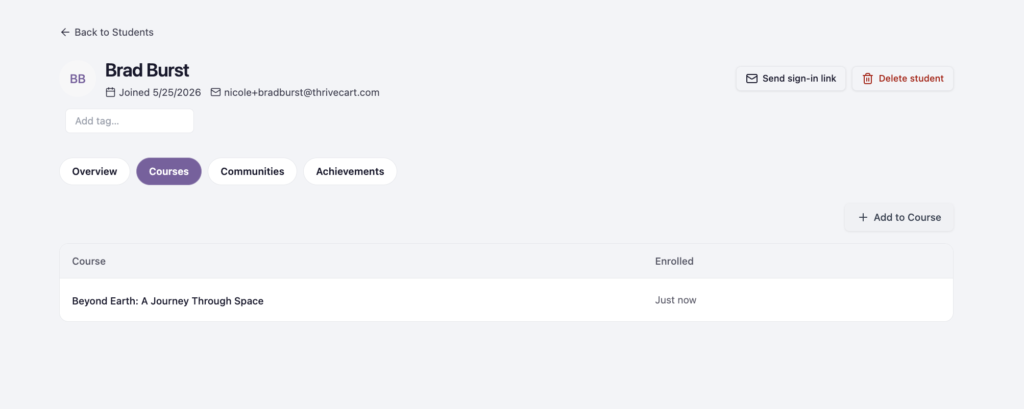
When viewing a students profile – from the main ThriveAcademy dashboard, not within a community – navigate to Courses to view which courses (if any) they are enrolled in.
You can then click the + Add to Course button on the right to choose to enroll them in any of your available courses.
Helping students who have lost login access:
If a student can’t log in, you can navigate to their profile and click “Send sign-in link”, which will send a magic link to their email address so that they can instantly login and access the content that they are enrolled for.
Customer self-service troubleshooting steps that you can detail in any email communications or website content include:
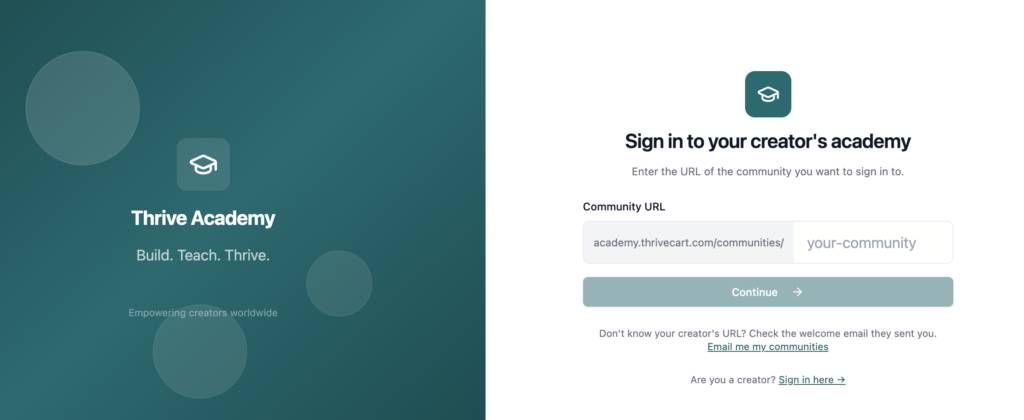
- Direct them to the general login page at: https://academy.thrivecart.com/auth/student/signin to request a fresh sign-in code
- The Student login page requires the Community URL that they’re wanting to sign in to. You can provide yours based on the sign in URL available under Settings > General Information > Student Login Link
- Confirm the email they’re using matches the one where they received their welcome email
- If they’ve locked themselves out after failed password attempts, their account unlocks automatically after 15 minutes, or they can reset via Forgot Password?
- For students who no longer have access to their original email address, the account recovery process requires creator intervention to update the email on the account.
- Any student who does not have the Community URL can click “Email me my communities” to enter their email address and receive a list of the communities that they are enrolled for, with their direct login URLs.
Deleting Students
If you need to permanently remove a student from your ThriveAcademy account – for example, to clear imported historical data or remove students who no longer have active access, you can delete them individually or in bulk from the Students tab.
To delete a single student:
- From the main ThriveAcademy dashboard, navigate to Students in the left hand sidebar
- Find the student using the search or filter tools
- Click the three-dot menu (⋮) next to their name
- Select Delete Student & type delete in the confirmation popup and confirm
- Alternatively, click into the students profile and click the “delete student” button in the top right
To bulk delete students:
- From the main ThriveAcademy dashboard, navigate to Students in the left hand sidebar
- Click the Select button to enable selection mode
- Use the select all checkbox to select every student in the list, or tick the checkboxes next to individual student names to choose specific students
- Click the Delete Selected button that appears
- A confirmation popup will appear:
“Delete selected students? This permanently removes [X] student(s) and all their progress, enrollments, certificates, and activity. This cannot be undone.” - Type delete in the field provided and confirm
⚠️ Important: This action is permanent and cannot be undone. Deleting a student removes all of their progress, enrolments, certificates, and activity from your account. It does not process a refund — refunds must be handled separately through your ThriveCart transaction dashboard.
Navigating the Community as a Student
When a student enters your community, they land in the home feed that includes their progress, active courses, unlock requirements to access content within the community.
The Community Activity Feed also includes a live stream of posts, announcements, and community activity such as milestones. From here, everything is accessible from the left sidebar:
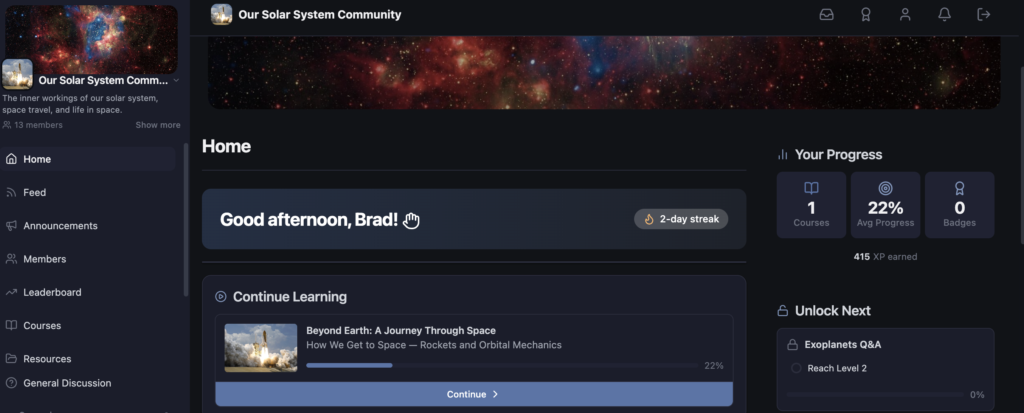
Sidebar navigation includes:
- Home: To navigate back to their main community dashboard
- Feed: Recent posts, the core place where students can engage with other users. They can post their own community discussions, or join in on existing ones by replying or engaging via emoji reactions
- Announcements: A full list of Admin Announcements
- Members: A full list of members within the community, where members can message each other
- Leaderboard: Community XP rankings (if gamification is enabled)
- Courses: A list of all courses the student is enrolled in, with progress indicators per module
- Spaces: Discussion areas such as Announcements, General, Q&A, Student Wins, and Resources. Space visibility depends on the student’s access level (public Spaces are always visible; private or secret Spaces show a locked gate if the student doesn’t have access)
The top navigation bar gives students access to:
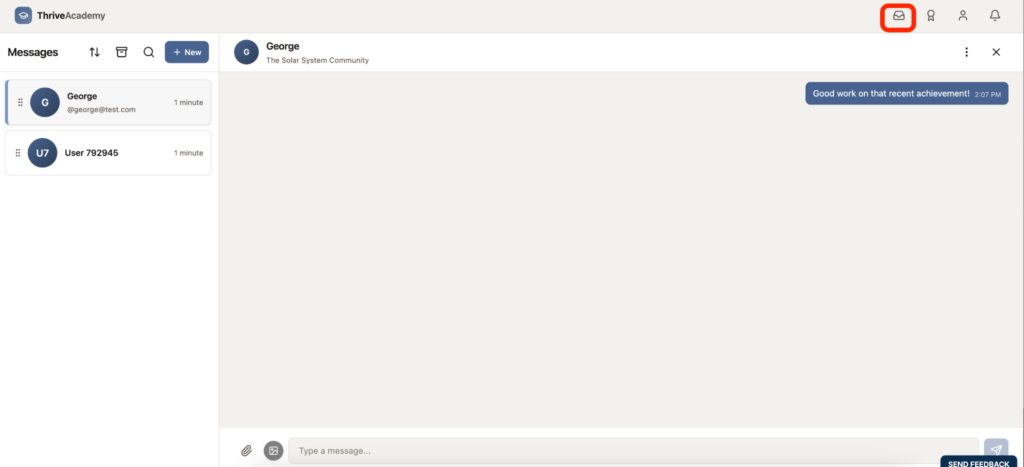
- Their inbox — Where they’ll have access to any direct messages sent by other community members, including the course creators, admins, and moderators
- Earned XP and Gamification — The badge icon opens their gamification dashboard showing all points earned, a calendar of login and learning activity, as well as any badges that they have earned.
- Profile & Settings — Avatar, display name, learning goals, notification preferences, and billing
- Notifications — Tracks all activity on their content such as DM’s received, if someone has replied or reacted to their post, community announcement has been posted, or dripped lesson content access has been granted
Viewing courses: Students click into any course from either their homepage, the left sidebar Courses section, or the course space to access the lesson player. The Main Courses section will include all linked courses within the community.
Content they can’t access yet shows a locked state, and they can head to their Home page to view the unlock requirements in the right-hand sidebar.
Tracking Progress: Video lessons save their position automatically and mark complete at 80% watched. Text lessons complete after the student scrolls to the bottom and spends at least 30 seconds on the page.
Understanding Achievements, XP, and Leaderboards
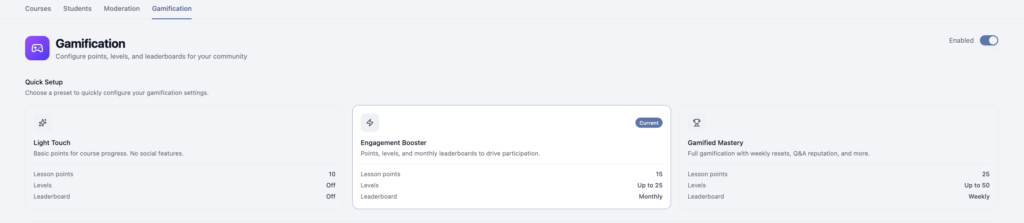
ThriveAcademy’s gamification system rewards students for learning activity and community participation. Creators can choose from three preset configurations — Light Touch, Engagement Booster, or Gamified Mastery — or customise point values individually. To see more on setting gamification and customizing XP in your community, see our guide on gamification here.
Achievements: Students earn points and unlock badges based on milestones in their learning and community activity. Each badge has a rarity score — Common, Uncommon, Rare, or Legendary — and triggers an in-platform celebration modal showing the badge animation, XP earned, and an option to share the achievement to the community feed. Points also move students through levels, which can be used in your unlock rules for bonus content for highly engaged students.
Leaderboard: Ranks students by XP within the community. Students can toggle between Today, This Week, This Month, and All Time views. Participation and visibility on the leaderboard can be adjusted by the creator in Community Settings, and individual students can opt out in their profile privacy settings.
Students earn their first XP during the onboarding overlay itself — before they’ve completed a single lesson. This is intentional: it introduces the gamification loop from the very first login, which significantly improves early engagement.
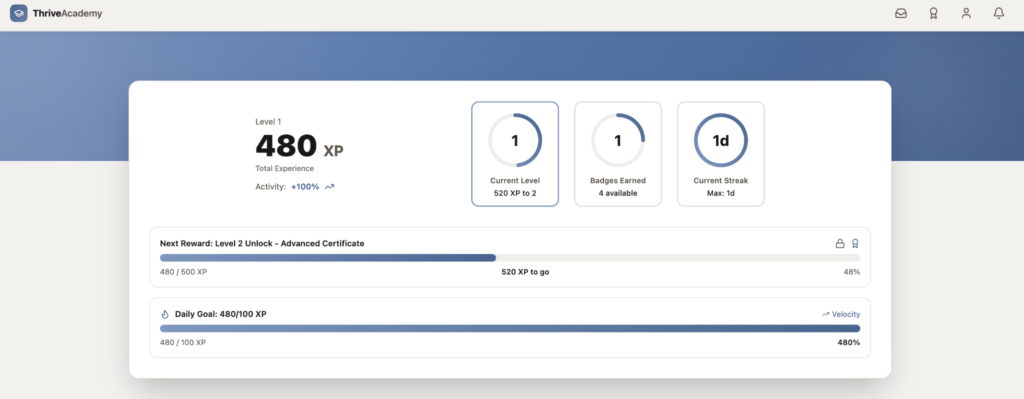
To review their XP and badges earned, students can click on the badges icon in the top right of their browser, where they’ll see a full overview of all points, levels, badges, and their daily streak count.
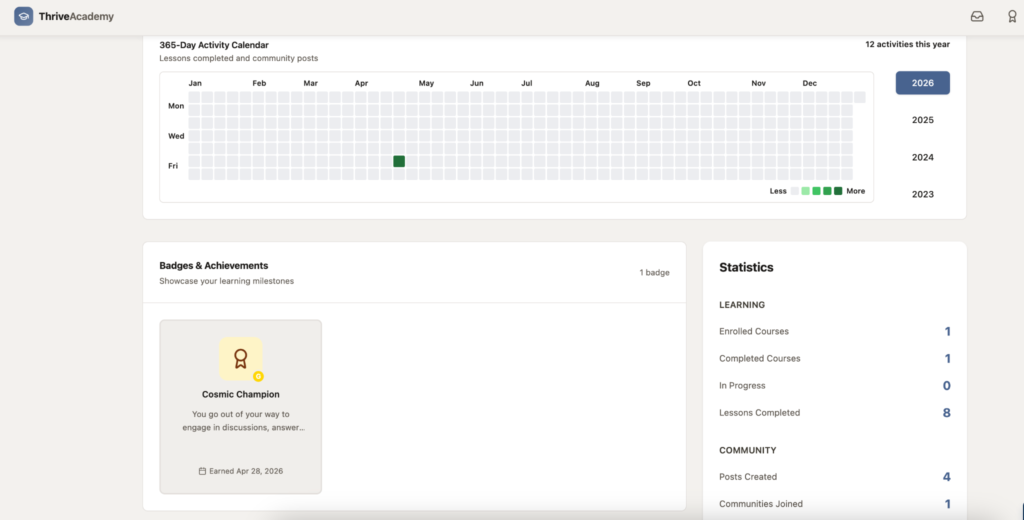
Farther down the page, they’ll also see details of their full activities, badges, and activity calendar.
Viewing and Messaging Members
Within the Members tab in the top-left sidebar, students have access to the community members list. From there, they can search and message other community members,
Hovering over a member will show their enrolled and completed courses (if any), as well as the number of posts they’ve created and how many days they are into a learning streak. Each member can create an “About” via the bio in their profile settings that will be public, and the preview will also show the badges that they’ve earned.
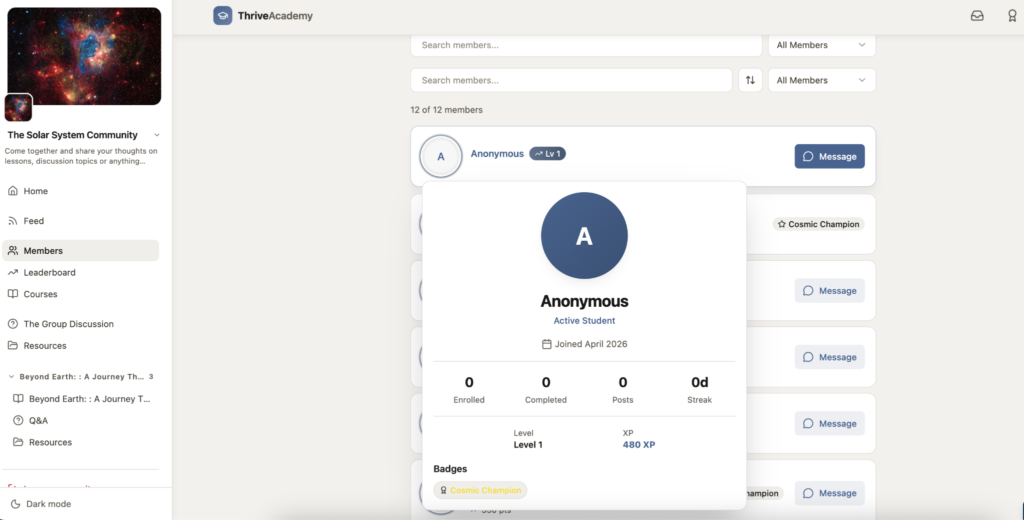
Any community member can message individual community members by clicking the “Message” button beside their name, which will open a messaging interface where they can attach files and images alongside their message.
Messages can also be reviewed by clicking the inbox icon in the top right corner of their dashboard, which will show all messages sent and received.
Group Messaging
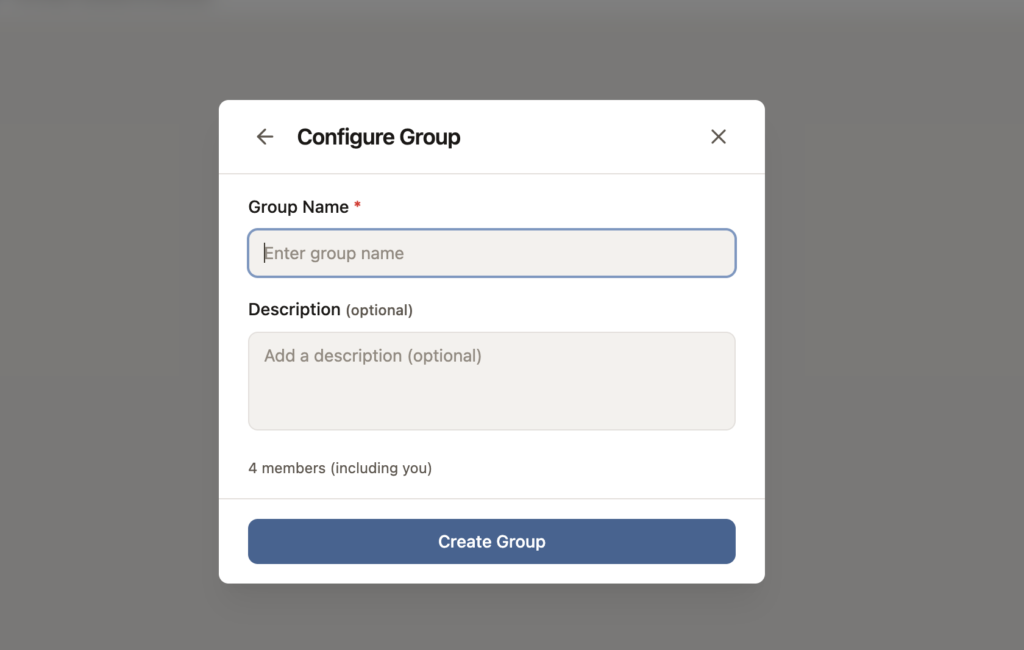
Group chats are a great way for students to work through things with a number of other students. This helps students collaborate if you’re assigning group projects or encouraging networking within your community.
Clicking “+ New” will allow them to generate a new message to community members, and clicking more than one member will generate a group chat:
Course Only Student Access
Creators not wishing to take advantage of community functionality can always manually grant just course access, or link their courses to specific product purchases only. Students will land in their dashboard with only their specific course content available, where they can then jump right into the course. No discussions, no distractions, just course content.
Frequently Asked Questions (FAQ’s)
- Q: Why didn’t my student receive their magic link email after purchasing?
- A: Confirm the student’s email matches the address used at ThriveCart checkout. Ask them to check their spam folder. Magic link emails expire after 24 hours — if expired, they can request a new one from the community login page, or you can resend it from their student profile.
- Q: My student says they can no longer access the community — what should I check?
- A: First, confirm their purchase status in ThriveCart. If a refund was processed or a subscription payment failed, their access tags will have been removed automatically, which revokes community access. To restore access, reapply the relevant tag from the student record. If the tag is in place and they still can’t enter, check whether the community’s access model has changed or whether the student is using the correct login email.
- Q: Can a student be part of multiple communities from different creators?
- A: Yes. A student’s ThriveAcademy account is universal — one login gives them access to every creator’s community they’ve joined. After logging in, students who belong to multiple creators see a community selection screen where they can choose which community to enter. They can switch communities at any time using the community switcher in their sidebar.
- Q: Can a student request a magic link more than 3 times?
- A: After 3 resend requests within 24 hours, the system directs the student to contact support. This is intentional — it prevents link sharing and spam. After 24 hours, the resend limit resets automatically and the student can request a new link from the login page as normal.
- Q: A student wants to cancel their subscription — how do they do it?
- A: Students can manage their subscription directly from the ThriveCart Customer Hub (student billing management is coming in future releases of ThriveAcademy). Once they cancel, access is revoked automatically. If they need a refund, that is handled through the standard ThriveCart refund process.