
With ThrivePages templates, you can turn your best page designs into reusable assets, apply them again in seconds, and easily share them with others. Save a template once, send the Share Key, and then the recipient can import it directly into their own ThriveCart account.
Save your ThrivePages designs as templates to reuse them in your own account. You can also share a saved template with a vendor or another ThriveCart user outside your account. The recipient can then import the template into their own account using the Share Key.
How it works
1. Open the ThrivePages editor for the design you want to save.
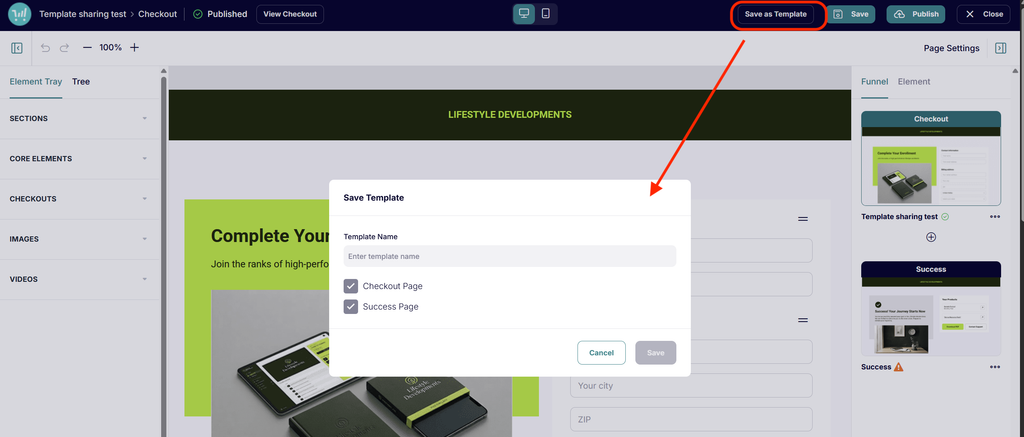
2. Click Save template in the top-right corner.
3. Enter a template name, then click Save.
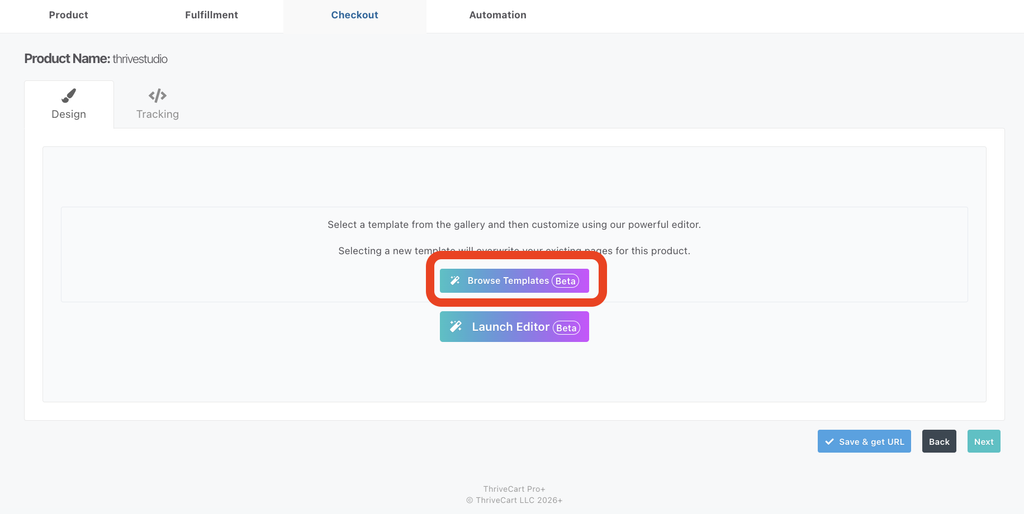
4. Exit the editor.
5. Click Browse Templates.
6. In the Custom Templates section, click the three-dot menu for the template.
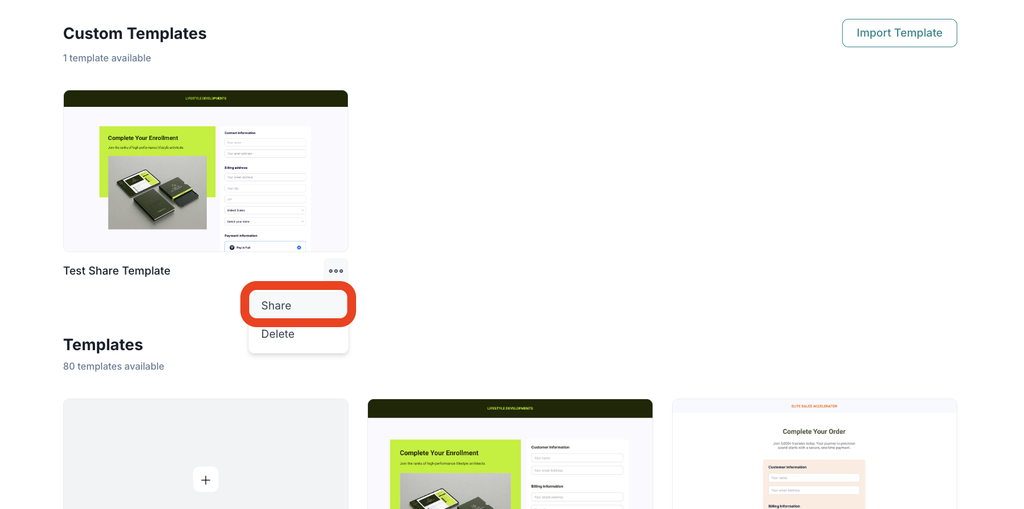
7. Select Share.
8. Copy the generated Share Key.
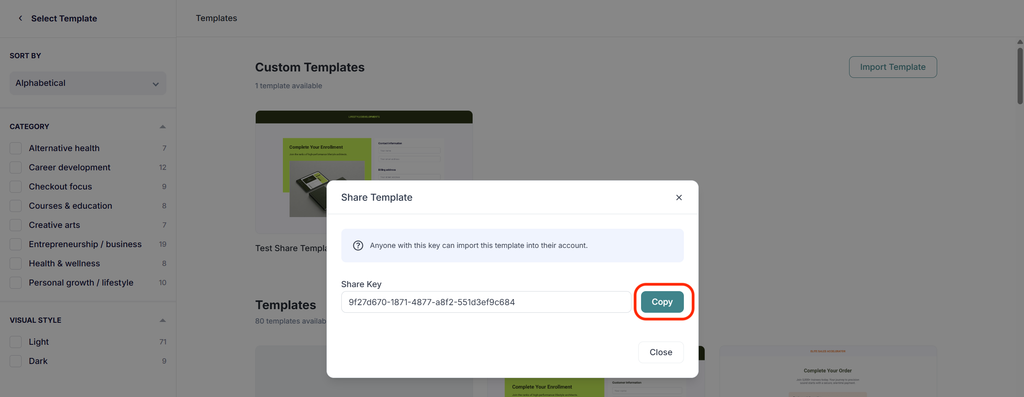
Send the Share Key to the recipient. They can enter it through the Import template button in their template gallery.
Save a Template for Reuse
Saving a template creates a saved template as a snapshot in time that is a reusable copy of your design in your own Custom Templates gallery. This is useful when you want to apply the same page structure or design to multiple pages without rebuilding it each time.
Before saving a template, give it a clear and descriptive name so it is easy for both yourself and the recipient to identify. For example, use a name such as Summer Sale Landing Page or Client Onboarding Page and consider adding dates if you may have multiple save versions.
Make sure the template is complete before sharing it. The recipient imports the saved version associated with the Share Key. If you make later changes, save a new version or provide an updated Share Key as needed.
- Your saved template will appear in the Custom Templates section of the template gallery.
- Saving a template is only required once. After it appears in your gallery, you can access it within your template gallery whenever you create or update a page.
- Making edits to the original template does not change the saved version. The saved version is always based on when you had originally saved it. If you’re wanting to share updates, you will need to re-save the template, and re-share that new Share Key.
- Saved templates can be deleted – but can block users from importing via Share Key. Delete with caution.
Share a Template with Someone Else
Sharing allows someone outside your ThriveCart account, such as a designer, agency, or customer, to add a copy of your template to their own account.
- Exit the editor after saving the template.
- Click Browse Gallery.
- Find the template in the Custom Templates section.
- Click the three-dot menu below the template.
- Select Share.
- Copy the generated Share Key.
- Send the Share Key to the vendor.
The Share Key identifies the template and allows the recipient to import it into their own account. Anyone with the Share Key can use it to import the template.
Import a Template from a Vendor
Whether you purchased the design, received it from a friend, or are simply re-using your own design across multiple self-managed ThriveCart accounts, importing is how you can add a shared template from one account into another.
- Open the template gallery via the “Browse Templates” button when viewing the checkout settings tab.
- Click Import template.
- Enter or paste the Share Key provided by the template owner.
- Follow the on-screen instructions to complete the import.
After the import is complete, the template will be available in the recipient’s Custom Templates section and can be reused in their account.
Saving, Sharing, Importing, and Converting: What’s the Difference?
These options support different parts of the template workflow:
| Option | What it does | Who uses it |
|---|---|---|
| Save template | Saves a design as a reusable custom template in your account | The template owner |
| Share | Generates a Share Key for a saved custom template | The template owner |
| Import template | Adds a shared template to another account | The recipient |
| Converting | The act of migrating an existing ThriveCart product’s checkout from an older editor version into ThrivePages using the importer tool. See more here. | Anyone using older checkout design versions. |
FAQs
- Q: Can I reuse a template without sharing it?
- A: Yes. Save the design as a template, then access it from the Custom Templates section of your own template gallery.
- Q: Does the recipient need access to my ThriveCart account to use the template?
- A: No. Share the template’s Share Key with the vendor. They can use Import template in their own account.
- Q: Does saving the template add it to a public marketplace of templates?
- No. Templates are only shareable via the Share Key and can not be discovered anywhere in the ThriveCart ecosystem. These are private keys that you can choose to share when and how you want to share them.
- Q: Where do I find the Share Key?
- A: Exit the editor, click Browse Gallery, find the template under Custom Templates, click its three-dot menu, and select Share.
- Q: What should I do if the Share Key does not work?
- A: Confirm that the key was copied completely and that the recipient entered it through the Import template button in the template gallery. Make sure the template still exists (has not been deleted) within your own account. If the problem continues, save the template again and generate a new Share Key.
Related Articles
- Getting Started with ThrivePages (Editor 2.0): ThrivePages
- Working with Sections, Elements & Properties
- Configure Funnel Pages – Checkout, Upsells, Success
- ThrivePages Design Tips & Tricks: Build Better Pages Faster
- Mobile Editing in ThrivePages
- ThrivePages Page Settings: SEO, Custom Scripts & Fonts
- ThrivePages Asset Library and ThriveStudio Image Editor
- Convert an Existing Checkout Page into ThrivePages via the Importer Tool