
ThrivePay Installments transforms flexible payment offerings from complex to effortless.
With just a few clicks, you can enable 3, 6, or 12 month interest-free payment plans on your products—no complicated setup, no spreadsheets to manage, and no chasing down payments.
The entire payment collection process runs automatically in the background, from the initial authorization through monthly installment processing, while you receive full payment upfront and maintain complete visibility of every plan right in your ThriveCart dashboard.
Whether you’re managing a handful of customers or scaling to hundreds of payment plans, you can configure Installment payments with ease so you can focus on serving your customers rather than managing their payment schedules.
Connecting ThrivePay Installments
- ThrivePay Installments can be enabled in one of two places:
- Under a specific product’s processors tab, click “Activate” next to ThrivePay Installments
- By heading to Settings > Integrations > ThrivePay Installments > Connect
- A Modal will pop up where you will be prompted to enter details. Enter your Brand Name – keeping in mind that this will be customer-facing.
- Enter your website and a Business Summary
- Select an industry from the dropdown
Submit Documentation and Set Payout Details
Once your initial business information is submitted, you’ll see an additional popup window with a 4-step process with required verification and payment information:
- Enter your phone number for 2-Factor verification before submitting sensitive information
- Address: Your business type (Individual vs. company), Email + phone number, Full Name, Full address
- Payment Method: Where you would like to receive ThrivePay Installments payments.
- Tax Forms: select the correct form for your business – W-8BEN for non-US individuals, W-8BEN-E for non-US corporations, or a W9 for US individuals/entities.
- Clicking “complete form” will load the related tax form you selected. This will need to be completed in full, including your ID #’s, and signed (digitally)
Make sure to complete all setup steps to ensure full verification can be completed, and more importantly, so you can get paid!
Once submitted, you’ll see your new ThrivePay Installments account ID (this always starts with ‘SPL_‘)with an “onboarding in process” badge within the Settings > Integrations section. All accounts will need to go through a verification process before the options will be available and before ThrivePay Installments can be enabled on your product.
The Verification Process
Account setup is not immediate, and once you have gone through the integration process detailed above, there is a brief review and verification process that can take 3-5 hours to complete.
You will receive an email once your account has been successfully approved for ThrivePay Installments, and you can then move on to enabling it on your desired products.
Setting up your ThriveCart Product
Once your account is approved for ThrivePay Installments, and ThrivePay Installments is enabled on the product, the feature will automatically appear as a payment option on your product checkouts.
- Create a one-time pricing option under your product’s Pricing tab. No need to create subscription or split-pay pricing options – ThrivePay Installments will do this for you.

- Simply connect ThrivePay Installments as a payment method under your product’s Processors tab, and one-time payments will be automatically split when choosing to pay with ThrivePay Installments.
Combining ThrivePay Installments with coupons:
Coupons and discount codes can still be used alongside ThrivePay Installments. Once the coupon code is applied to a checkout, the total one-time price is re-calculated and installments based on the after-coupon amount.
In an example where a product is $395, if a coupon is applied to checkout for a fixed amount of $300, then the customer’s installment options will be based on the remaining $95.
For example:
- 3 months: $31.67/month
- 6 months: $15.83/month
- 12 months: $7.92/month
ThrivePay Installments and funnels:
When a customer purchases a front-end product using ThrivePay Installments, and then also purchases your upsell products, the upsell will be added to their ThrivePay Installments payment plan automatically.
This means that the amount for their payment plan will increase with each funnel purchase.
When ThrivePay Installments is the front-end payment method, it’s not currently possible to change the payment method when purchasing funnel items, and so upsell/downsell purchases will always be added onto their installment plan.
The customer will be notified on the upsell/downsell page to this effect, and they will receive an email detailing their new payment plan amounts.
Reviewing ThrivePay Installments transactions in your ThriveCart dashboard
ThrivePay Installments is an available filter within your dashboard if you’re looking to isolate transactions processed solely with ThrivePay Installments:
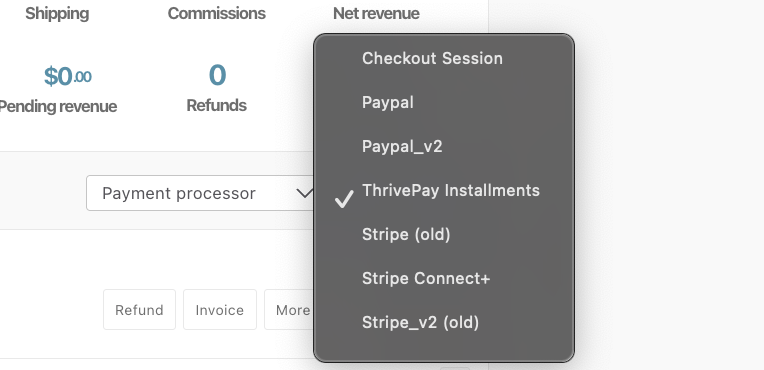
The ThrivePay Installments logo will appear on the right hand side of the transaction, and clicking “View” will give us more information about the customer and their payment plan.

Handling Refunds & Cancellations
If you need to refund a customer who purchased via ThrivePay Installments, the process is straightforward: action the refund through your ThriveCart dashboard as you normally would.
When refunding in full, customers will only be refunded what they have already paid, and any outstanding payments are zeroed out, effectively cancelling the customer’s payment plan.
The refund on any amounts already paid is handled by ThrivePay Installments, and it typically takes 5-10 business days to reflect on the customer’s credit card statement.
Partial Refunds
For partial refunds (such as when refunding an upsell but not the main product, or discounting their initial purchase price), ThrivePay Installments recalculates the installment schedule accordingly.
Partial refunds are always applied to future installments first. This means a partial refund does not return money to the customer right away. Instead, the remaining balance is recalculated, reducing the total amount left to pay, and lowering the customer’s upcoming installment payments accordingly.
Example:
- Customer purchased a front end product for $600 on a 6-month installment plan
- They also purchased an upsell for $1000, so this upsell is added to their installment plan
- They were charged $266.67 up-front, with monthly installments set to $266.67 – for a total outstanding payment plan balance of $1333.33
- The customer wishes to refund the upsell within their first month, and so this is processed as a full refund on that upsell via the ThriveCart dashboard.
- ThrivePay Installments calculates this as partial refund and therefore a deduction from their total payment plan, bringing their outstanding balance down to 333.33.
- Their installment plan is recalculated based on this remaining balance and new monthly installments set to $66.67.
A Breakdown of the Math After Full Refund of Upsell ($1,000):
- Remaining product value: $600
- Already paid: $266.67
- New outstanding balance: $600 – $266.67 = $333.33
- Remaining installments: 5 months
- Recalculated monthly payment: $333.33 ÷ 5 = $66.67
Essentially, the customer did not pay the full product amount, and so this simply reduces future owed amounts.
Cancellations
If a customer is asking to cancel their future installments on a single product purchase (no upsells/downsells added to their payment plan), but not refund anything that they have already paid, this is still processed within your ThriveCart dashboard as a partial refund.
To process a cancellation:
- You’ll want to confirm the outstanding balance on their ThrivePay Installments payment plan (within the ThrivePay Installments dashboard).
- Within your main ThriveCart dashboard, you can then refund that outstanding balance to cancel out their payment plan.
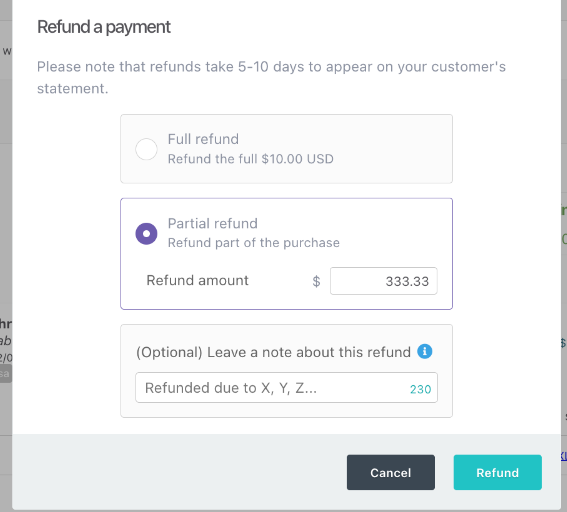
For example, if we’re wanting to fully cancel the payment plan in the above example, without refunding the installment they have already paid, we would submit this as a partial refund for $333.33:
Chargebacks & Failed Payments
Customers may still process chargebacks or disputes through their credit card company, in which case you will want to submit evidence of the case in order to address their dispute and provide evidence that they were given access to the product.
We have a full guide on the chargeback process here to walk you through collecting and submitting evidence from your side.
If a customer’s monthly installment fails (expired card, insufficient funds, bank decline), ThrivePay Installments automatically sends them email notifications with instructions to update their payment method. This is handled entirely by ThrivePay Installments—you don’t need to manually reach out.
What happens after a failed payment:
- Customer receives immediate email notification
- Grace period provided (7 days)
- Multiple reminder emails sent (to both the customer and the vendor)
However, customers may contact you directly. Here’s how to help: Direct the customer to update their payment method through the link in their ThrivePay Installments email. Alternatively, you can reach out to ThriveCart support on their behalf if they’re having technical difficulties updating their card.
Since you as the vendor have been paid in full for this customer’s payment plan, product access is not revoked automatically at any stage in the process. You may, however, wish to reach out to assist your customer with updating payment information to ensure their payments continue.
Troubleshooting Common Issues
Issue: Customers Can’t See ThrivePay Installments at Checkout
If your customers report that ThrivePay Installments isn’t appearing as a payment option, here are the usual causes:
- Check customer location: ThrivePay Installments only displays for customers in supported countries (US, UK, Canada, Australia by default). The option automatically hides if the customer’s billing country isn’t supported. This is intentional—showing an unavailable option would create poor user experience.
If you have international customers requesting installment options, contact support to discuss expanding country availability. Keep in mind that adding countries requires additional compliance and configuration. - Verify product eligibility: Not all products may be configured for ThrivePay Installments. If you’re only seeing the option on some products but not others, check your product settings.
- Browser issues: Rarely, browser extensions or ad blockers can interfere with payment options loading. If a customer reports missing payment options, have them try a different browser or incognito/private browsing mode.
Issue: Customer’s Payment Authorization Failed
If a customer attempts to use ThrivePay Installments but their authorization is declined, several factors could be at play:
- Insufficient credit limit: This is the most common reason. ThrivePay Installments requires authorization for the full purchase amount. If your product costs $800 and the customer only has $500 in available credit, the authorization fails. Advise the customer to use a different card with higher available credit or choose a standard payment method.
- Card from an unsupported country: The customer’s card must be issued from a supported country. Even if their billing address is in the US, if their card is issued in Brazil, the authorization may fail. Suggest using a locally-issued card or an alternative payment method.
- Card issuer decline: Sometimes banks decline installment plan authorizations as a fraud prevention measure. The customer should contact their bank to authorize the transaction or try a different card.
How to help affected customers: Direct them to your alternative payment options. If ThrivePay Installments doesn’t work for them, they can use standard credit card payment or, depending on their location, Stripe’s BNPL options (Klarna, Affirm, AfterPay).
Issue: Customer Is seeing two charges
This is expected behavior based on how ThrivePay Installments verifies the card for the payment amount. However, these are not two charges.
The customer will be seeing today’s charge, and then an authorization for the remaining payment plan amount.
This authorization will fall off their statement within 7-30 days (depending on their financial institution).
For more details on the differences in these two transactions, see our customer-facing guide here.
Issue: Customer Wants to Pay Off Balance Early
Occasionally, customers who set up installment plans want to pay off their remaining balance ahead of schedule. Customers wanting to pay off their balance can do so by logging into their Shopper Portal.
Note that there’s no interest to save by paying off the balance early (since the plan is 0% interest), but some customers prefer to close out payment obligations for personal financial management.