
If you’re selling to a global audience, you already know the problem: a UK customer lands on your USD checkout and bounces. A Euro buyer sees pricing that doesn’t feel right for their market. So you end up creating separate products for each currency, maintaining them all individually, and juggling multiple URLs across your ads and emails.
Advanced Adaptive Pricing solves this in one step. Enable it on any existing product, set your local prices for each currency, and ThriveCart takes care of the rest — detecting each visitor’s location server-side and routing them to the right checkout automatically. No need to update your existing URL in marketing, ads, or email campaigns. Your customers see prices in their own currency without any visible redirect or delay.
Advanced Adaptive Pricing is one of the most powerful tools available for international merchants on ThriveCart, and setup takes minutes rather than hours.
Legacy PayPal, Legacy Stripe, and Stripe Enhanced are not currently supported for Advanced Adaptive Pricing. If your product has any of these legacy payment processors enabled, you’ll need to either disable them or disable Adaptive Pricing for that product. You cannot run both simultaneously.
What is Advanced Adaptive Pricing?
Advanced Adaptive Pricing is a geographic routing system built directly into your product URL. When a visitor clicks your link, ThriveCart detects their country via IP and serves the checkout for the currency variant you’ve mapped to that region — all server-side, with no visible redirect or currency selector.
Your existing product URL becomes the Advanced Adaptive Pricing entry point. You don’t get a new URL, and your ads, emails, and social posts continue pointing to the same link as before. The same URL simply becomes smarter.
You set local prices for each currency once. ThriveCart handles the rest: cloning your funnel, mapping countries to currency variants, auto-approving your affiliates across all variants, and tracking performance per currency in your dashboard.
A platform surcharge applies only to transactions where a visitor is routed to a currency variant other than your primary product. If a visitor from the US purchases your USD primary product with no rerouting, no surcharge applies.
Quick Setup
Before setting up, you’ll want to:
- Choose an existing product with a fully configured funnel (bumps, upsells, and downsells should be set up before you start as the wizard clones your entire funnel into each currency variant)
- Note that you’ll have to create at least one currency variant beyond your primary product currency in order to activate routing
Step 1 — Navigate to Advanced Adaptive Pricing for your product
From your product page, click the “Create New Currency Variant” button underneath your desired product to open the wizard related to your chosen original product.
Step 2 — Add your currency variants using the guided wizard
The wizard walks you through currency selection, pricing, country mapping, fulfillment, and automations — all in a single session. You can configure multiple currencies at once without running the wizard separately for each one.
Step 3 — Review, confirm, and copy your Advanced Adaptive Pricing URL
After confirming, all variants are created in a single action. Your success screen shows your Advanced Adaptive Pricing URL (which is the same as your existing product URL), a summary of all variants created, and affiliate confirmation. Copy the product URL and you’re live.
Configuring Your Advanced Adaptive Pricing Setup
To start, click “Create New Currency Variant” to open the setup wizard, which will run in five steps.

Step 1 — Select Currencies
Choose one or more currencies you want to offer. Some are suggested, but you can search for additional currencies to add. You can select all of them in a single session, you don’t need to run the wizard again for each currency later.
For each currency you select, ThriveCart pre-selects a built-in country group (for example, GBP automatically selects the UK and GBP territories; EUR pre-selects Euro countries). You’ll have the chance to adjust these in Step 3.
Your primary product’s base currency appears as a locked indicator so you always have context on where you’re building from.
The variant will also be automatically given a product tag for internal use only based on that variant locale. For example `AP-marketing-course-eu” for the EURO product variant.
You can also set a custom URL slug for each variant from this screen. Variants are named automatically with clean names, for example “marketing-course-eu” for the EURO variant, but you can edit them at this stage if desired.
Step 2 — Review and Set Pricing and taxes
This screen shows every monetary amount across your entire funnel for each selected currency: main product pricing options, order bumps, upsells, downsells, as well as ThrivePay Installment plan prices (where available).
All amounts are pre-populated with FX-based suggestions using live exchange rates from OpenExchange. These are estimates — we recommend reviewing and adjusting each country & its currency before confirming. No amount is locked in without your explicit review.
Sales Tax treatment is handled inline at the bottom of this screen:
- If your primary product has tax collection enabled, you’ll see inclusive/exclusive radio buttons per currency variant country, as well as additional buttons if you have tax profiles set.
Inclusive/Exclusive selections are pre-set to regional defaults (for example by setting GBP and EUR to inclusive taxes; but CAD and USD to exclusive). - If your primary product has no tax collection set up, you’ll see the option to enable tax settings for your variants. You can proceed without acting on it, but it’s worth setting up before you go live internationally.
If you’re not sure of tax rules in specific countries you’re selling to, we recommend reaching out to a sales tax specialist that can help clarify your tax requirements and remittance responsibilities in those regions. But you can see sales tax setup guidance in our article here.
If ThrivePay Installments aren’t available for a specific currency, those fields will appear greyed out with a clear explanation. You can still proceed — ThrivePay Installments simply won’t be offered for that variant.
Step 3 — Map Countries to Currencies
Each currency starts with a suggested country group. Review the group and add or remove countries as needed.
You can choose to remove individual countries from a preset group, leaving them unmapped so that they use the primary product as the fallback.
Country mapping is country-based. It does not represent a general targeting system for cities, regions, or postcodes.
The checkout also offers a Convert currency prompt when the shopper’s billing-country information entered in the checkout does not match the currency selected through geo-routing. This behavior is controlled by the currency-switch setting under “Fallback”. It is a conditional correction flow, not a permanent currency selector.
Step 4 — Configure Fulfillment
Review fulfillment for each currency variant, and corresponding bumps and funnel items. Depending on the product, this may include:
- Setting country-specific digital download URLs
- Course or membership access
- Physical-product shipping settings for region-specific delivery
Many settings are inherited from the primary product when a variant is created, so no need to set those again. Verify the fulfillment settings for the main product, bumps, upsells, and downsells before publishing, especially if different regions require different content.
Step 5 — Review and Create
Before variants are created, you’ll see a full summary, including the following for all currency variants:
- Prices for all pricing options
- Bump, upsell, and downsell prices
- Tax setting (inclusive or exclusive – tax category and business address inherited from main product)
- Country mappings
Everything is visible in one place. When you click Confirm, all variants are created simultaneously. This will:
- Create product variant clones
- Ensure checkout, upsell/downsell and success page designs will be preserved
- Apply and activate country mappings immediately
- Automatically approve affiliates (if enabled on the main product) for those new product variants
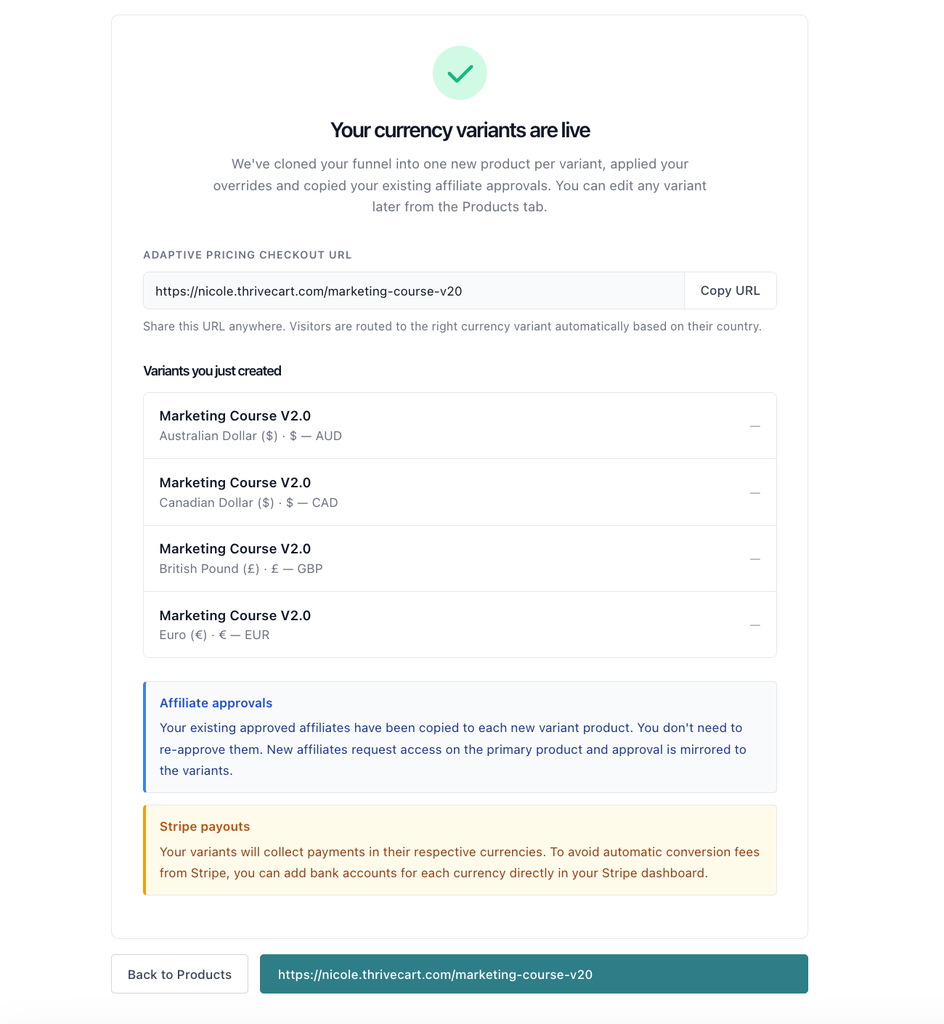
After variants are created
Currency variants are separate product entities, with separate checkout URLs that you can opt to use for targeted country campaigns, but for the most part you still always use the main product’s URL when promoting your products. The system will automatically identify and direct traffic to the correct currency variant’s checkout.
To test this flow, you may want to consider enabling a VPN in your browser to set different countries/locations and then navigate to your checkout URL.
The system clones the relevant product and funnel data, but you should verify the result.
There are a number of settings that you will want to check, update, or customize, for these different regions. This includes, but is not limited to:
- That coupons are set to apply to these new product variants
- That each product variants payment settings are correct
- Fulfillment for each funnel component makes sense for that specific currency variant setup
- Complex funnel paths (i.e. custom upsell pages) are verified
- Custom upsell pages would need to be re-created on your website for each variant to ensure that the upsell embeds are unique to each variant, and the currency is therefore carried through your funnel properly. Find those updated embed URLs within your product variants checkout editor.
- Pricing settings such as:
- Pro-rata (previous subscription cancellation) applied to replace new variants (we recommend setting currency variant upgrades to replace the purchase of any of your currency variants in case a customer purchased in USD and then upgrades in GBP for example)
- Retention offers set for specific currencies
- Customize Automation Rules for specific variants to organize your lists based on the customer’s geographic location. Purchases from the CAD variant, for example, can be set to add to a Canadian-specific email list within your autoresponder.
- Checkout/funnel tracking links
- Webhooks (such as Zapier integrations) that may be set based on a specific product ID purchase
Affiliate Approval
Affiliates already approved on your primary product are automatically approved on every new variant. No manual affiliate setup required. Affiliates will get paid in the currency that the variant was purchased in, PayPal will do the FX for them (at a cost to the affiliate).
If you’re enabling affiliates after the creation of your variants, you will need to enable affiliates on all variants, and we recommend setting an affiliate rule (see more here) where affiliates approved for your main product are also approved for your variants.
Editing your variants
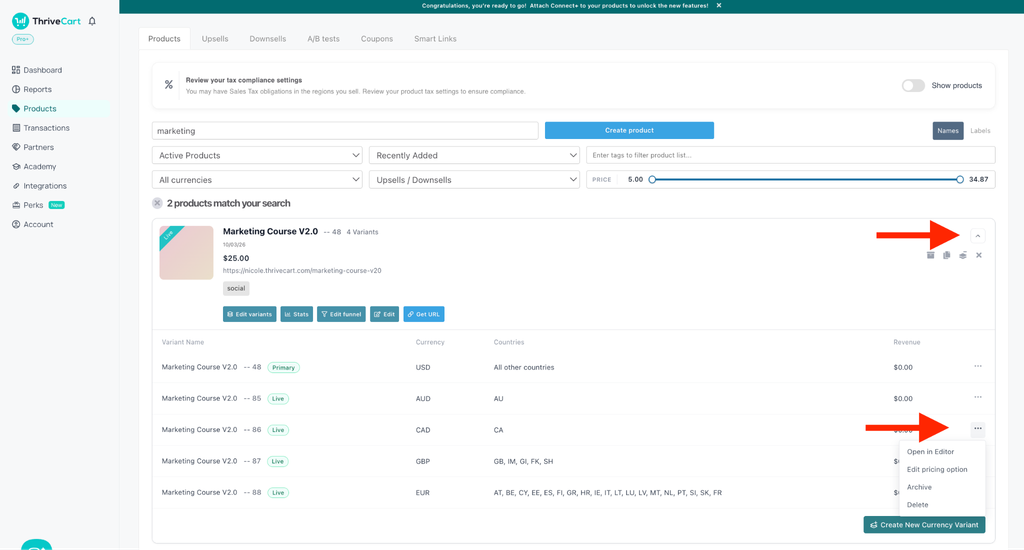
Your currency variants are not visible as standalone products in your main Products tab, but they do have their own product ID, with a unique checkout URL. They’re discoverable and manageable as nested variants under your primary product. This keeps your product list clean and your AP configuration centralized.
If you’re wanting to change automations for different geographic regions, customize checkouts on these variants, set things like unique pro-rata functionality, retention offers, or set unique tracking links targeted to specific regions, this is still possible.
To open the product editor for a specific currency variant, click the arrow to the right side of your primary product to open the dropdown to view your nested variants, and choose “Open in editor” to open the checkout editor directly, or “edit pricing options” to open your products settings.
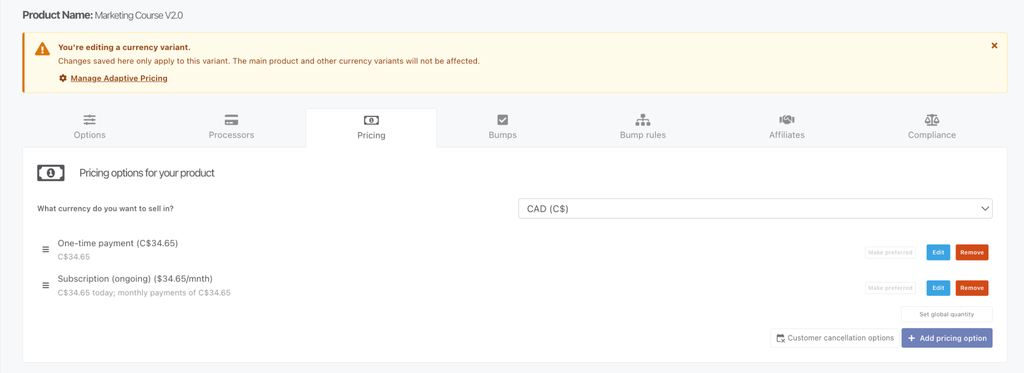
When editing your specific variants, a warning banner will appear as a warning that changes made here will not affect any other variant.
When editing your primary product, however, when making changes to your product and saving, a modal will appear asking whether you want to apply changes to all variants. Not all changes can be carried over this way, but some will prompt you to update your variants at the same time.
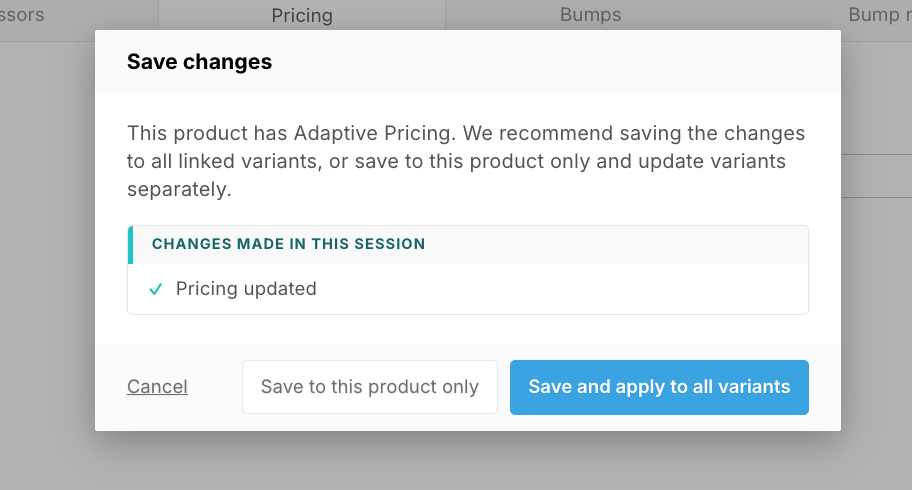
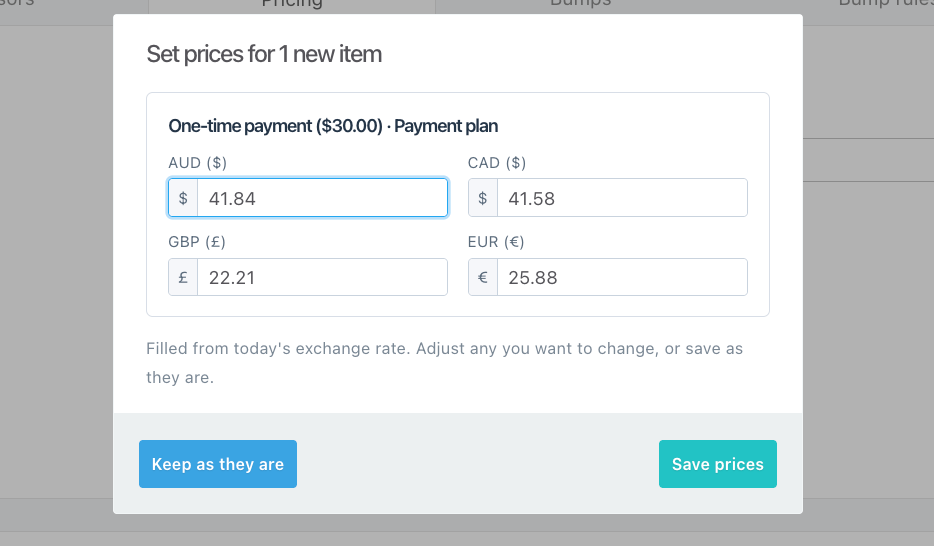
Additional modals may also appear, depending on what was changed, confirming customization options. In the example above the changes made were to change the one-time price from $25 to $30, and “Save and apply to all variants” was chosen.
The below modal then allows you to review the new prices based on today’s exchange rate and save as they are, or to customize those prices to your liking.
To re-open the Advanced Adaptive Pricing wizard, you can simply click the “Edit Variants” button underneath your primary product.
The Customer Experience
When a customer clicks your product link, ThriveCart detects their country server-side and loads the appropriate checkout. There’s no visible redirect, no interstitial, and no currency selector. The page loads directly in their local currency.
If a customer visits using a VPN or has an IP location different from what they entered in checkout, (for example, a UK customer on holiday in the US entering their UK address) that change to their billing address can trigger a “Convert currency” prompt that appears after the billing address section, before the payment step. This prompts the customer to switch to the checkout in their billing country’s currency, with the new price shown upfront before they decide.
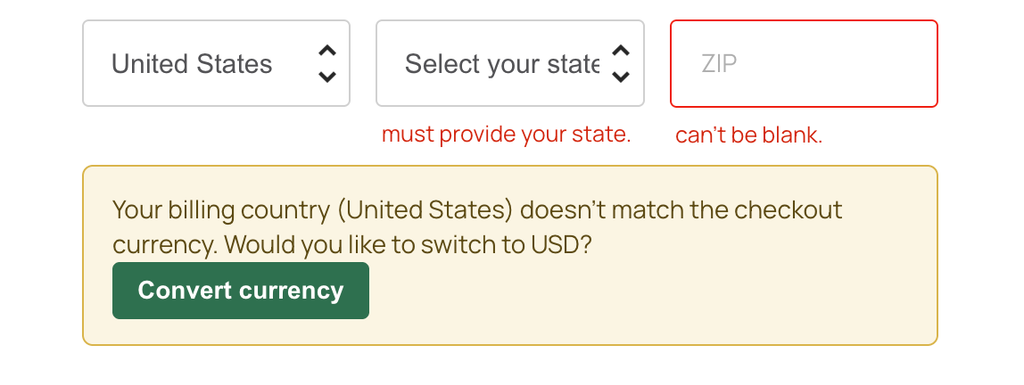
This setting is on by default and can be turned off per product via the opt-in checkbox “Allow customers to switch currency at checkout?” that can be found in your adaptive pricing product settings from the country setup step.
Customers who complete a purchase within 24 hours of clicking an Advanced Adaptive Pricing URL are attributed to that configuration in your analytics — no cookie required, attribution is server-side.
Viewing Advanced Adaptive Pricing Transactions and Analytics
Since your currency variants are standalone products, those product purchases will be purchased under a new product ID.
The currency purchased will be visible when filtering your transactions by that currency, and the currency will be shown on the transaction, for example `C$99.00 CAD`.
If you want to be able to easily identify transactions further, you could consider adding labels to your product variants such as “CAD”. See more on adding labels to your product in this guide.
Review Advanced Adaptive Pricing performance
Advanced Adaptive Pricing gives you a clear view of performance across every currency you sell in. In Reports, Advanced Adaptive Pricing merchants see All currencies selected by default.
This view combines revenue and sales volume across currencies and converts the totals into your primary currency, so you can quickly understand overall performance without switching between reports.
Want to focus on one market? Use the currency dropdown to select a specific currency, such as GBP or USD, and choose your product variant or the product tag assigned during creation. This makes it easy to compare the performance of a localized variant with your primary product using the same reporting period.
Non-Adaptive Pricing merchants will see no change, and currencies will continue to be separated in reporting.
Understanding the Advanced Adaptive Pricing Platform Fee
ThriveCart charges a platform surcharge on transactions where Advanced Adaptive Pricing routes a visitor to a currency variant other than your primary product.
This applies regardless of currency: if two variants share the same currency but serve different markets, the surcharge still applies when a visitor is routed away from the primary product. The fee is calculated on the gross transaction amount before processor fees are deducted.
The surcharge:
✅ Is calculated on the gross transaction amount before processor fees.
❌ Does not apply when the primary product is purchased without rerouting.
❌ Does not apply when an unmapped country falls back to the primary product.
❌ Does not apply to ThrivePay Installments, which have their own fee structure.
✅ Is included in the existing platform-fee calculation rather than shown as a separate customer receipt line.
Essentially, the surcharge only applies when routing actually happens. If a visitor from your primary product’s country lands on the primary checkout with no rerouting, no fee is charged.
Similarly, if a visitor’s country isn’t mapped to any variant and they fall through to the primary product, no surcharge applies. Transactions processed through ThrivePay Installments are also exempt — ThrivePay Installments carries its own fee structure, and the Advanced Adaptive Pricing surcharge is not stacked on top.
| Scenario | Surcharge? | Notes |
| Visitor from another country is routed to a different currency variant (e.g., UK visitor → GBP variant instead of USD primary) | ✅ Yes | Classic reroute case; product ID mismatch confirmed |
| Embedded checkout where visitor is served a different currency variant | ✅ Yes | Same rerouting logic applies as hosted checkout |
| Visitor’s country maps to the primary product (no reroute occurs) | ❌ No | No routing service was provided |
| Visitor’s country has no mapping and falls through to the primary | ❌ No | No routing service was provided |
| Transaction via ThrivePay Installments (TPI) | ❌ No | TPI carries its own fee structure; explicitly exempt |
| Transaction via PayPal | ✅ Yes | Surcharge is Stripe-only due to PayPal fee collection constraints |
| Legacy/Enhanced Stripe merchant transaction | ❌ No | Advanced Adaptive Pricing is unavailable on products using our older payment integrations |
| Advanced Adaptive Pricing is disabled after prior transactions | ✅ Historical | Past surcharges are not reversed |
Additional Scenario Examples:
When the fee applies: A merchant based in the US sells an online course. Their primary product is priced at $297 USD. They’ve set up Advanced Adaptive Pricing with a GBP variant at £249 for UK buyers and a EUR variant at €269 for Euro buyers.
A visitor from Germany clicks the merchant’s product URL, gets routed to the EUR checkout, and purchases for €269. Because the customer purchased a different product than the primary (the EUR variant, not the USD primary), a 1.5% surcharge — €4.04 — is calculated on the gross transaction amount and added to the existing platform fee.
When the fee does not apply: A visitor from the US clicks the same product URL. ThriveCart detects the US as the primary product’s country, serves the USD checkout directly, and the customer purchases for $297. No rerouting occurred — the customer purchased the primary product — so no surcharge is applied.
The same is true for a visitor from Japan, where no variant is mapped: they also fall through to the USD primary checkout, and no fee is charged.
The Actual Fee
Fees vary based on your plan level, and are included within your Stripe “Transaction fee” line found on your invoice under Account > Accounting.
- Standard and Pro+ Lifetime Accounts: 0.25%
- Standard subscription accounts: 0.10%
- Pro+ subscription accounts: 0%
These are subject to change, but up-to-date processing fees can always be found on our page here, with an Advanced Adaptive Pricing table available with fees by settlement country.
Stripe payout currencies
If you collect payments in multiple currencies through Stripe, review your Stripe payout configuration. Stripe may convert funds into your settlement currency if you do not have appropriate currency accounts configured, and Stripe’s payout-conversion fees are separate from ThriveCart’s Advanced Adaptive Pricing surcharge.
ThriveCart displays general guidance about this in the setup success experience. It does not verify your Stripe bank-account configuration or guarantee that Stripe will not apply its own conversion fees.
FAQs
- Q: Does my existing product URL change when I enable Advanced Adaptive Pricing?
- A: Your existing primary product link remains the customer-facing Advanced Adaptive Pricing entry point. For hosted checkout, the browser will be redirected to a country-specific variant slug, so the final browser path can differ from the link used in your campaigns.
- A: Your existing primary product link remains the customer-facing Advanced Adaptive Pricing entry point. For hosted checkout, the browser will be redirected to a country-specific variant slug, so the final browser path can differ from the link used in your campaigns.
- Q: What happens if ThriveCart can’t detect a visitor’s country?
- A: If the geo-location service is unavailable (due to a VPN, IP lookup failure, or other reason), the visitor is served your primary product checkout. No error is shown to the customer.
- A: If the geo-location service is unavailable (due to a VPN, IP lookup failure, or other reason), the visitor is served your primary product checkout. No error is shown to the customer.
- Q: What if a visitor is in a country that isn’t mapped to a specific currency?
- A: They see your primary product checkout in your default currency. The fallback is always your primary product.
- A: They see your primary product checkout in your default currency. The fallback is always your primary product.
- Q: Is Stripe’s native Advanced Adaptive Pricing fallback available?
- Not in the current Advanced Adaptive Pricing wizard. Unmapped countries will fall back to the primary product.
- Not in the current Advanced Adaptive Pricing wizard. Unmapped countries will fall back to the primary product.
- Will my currency variants show up in my Products tab?
- A: Yes and No. Your Products tab shows only the primary product, with your variant products nested below it.
- A: Yes and No. Your Products tab shows only the primary product, with your variant products nested below it.
- Q: Can I use Advanced Adaptive Pricing with PayPal?
- A: PayPal Enhanced is supported, however PayPal Legacy is not.
- Q: When does the surcharge apply?
- A: The surcharge applies when a visitor is routed to a currency variant that’s a different product from your primary. If a visitor purchases your primary product directly (no rerouting occurred), no surcharge applies. ThrivePay Installment transactions are exempt from the Advanced Adaptive Pricing surcharge.
- A: The surcharge applies when a visitor is routed to a currency variant that’s a different product from your primary. If a visitor purchases your primary product directly (no rerouting occurred), no surcharge applies. ThrivePay Installment transactions are exempt from the Advanced Adaptive Pricing surcharge.
- Q: Can I have more than one currency variant for the same currency?
- A: No, it is currently only possible to have a single currency product variant.
- A: No, it is currently only possible to have a single currency product variant.
- Q: What’s the maximum number of products I can include in one Advanced Adaptive Pricing configuration?
- A: There is no limit to the number of variants that you include in a single Advanced Adaptive Pricing configuration.
- A: There is no limit to the number of variants that you include in a single Advanced Adaptive Pricing configuration.
- Q: Can I edit my Advanced Adaptive Pricing setup after it’s live?
- A: Yes. To open the AP wizard again, click the “Edit Variants” button beneath your primary product. This will show your current configuration and you can navigate through the full wizard again to adjust your settings such as countries, fulfillment, prices, etc.
- A: Yes. To open the AP wizard again, click the “Edit Variants” button beneath your primary product. This will show your current configuration and you can navigate through the full wizard again to adjust your settings such as countries, fulfillment, prices, etc.
- Q: Does the currency adjust dynamically based on changing FX rates?
- A: No. When creating your product variants, those prices are set based on the FX conversion rate for the day of creation. You can edit your product variants via the AP setup wizard (“edit variants” from your primary product) to re-calculate FX rates and apply those changes with any updated rates.