
Gamification in Thrive Academy is more than a points counter. When configured well, it drives course completion, deepens community participation, and gives students a reason to return daily. Every community comes with a full gamification engine including XP, achievements, leaderboards, streaks, and challenges that you can activate in under a minute using a preset, then customise as your community grows.
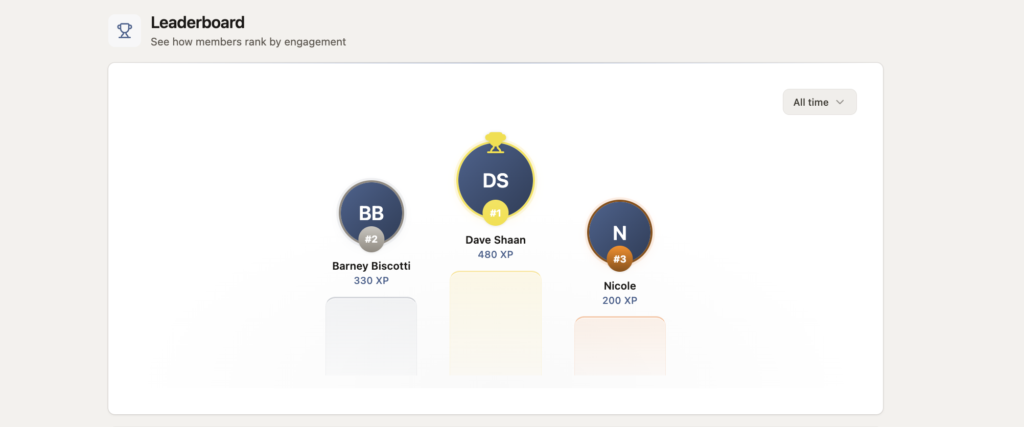
What Is Gamification in ThriveAcademy?
ThriveAcademy’s gamification system rewards students for learning activity and community participation. It runs automatically in the background — you set the rules, and the platform awards XP, unlocks badges, updates leaderboards, and tracks streaks in real time. Students see XP notifications instantly as they complete actions, and achievement modals surface at meaningful milestones to celebrate their progress.
The system is built around five components that work together: XP (points), Levels, Achievements (badges), Leaderboards, and Streaks.
Quick Setup: Activate Gamification with a Preset
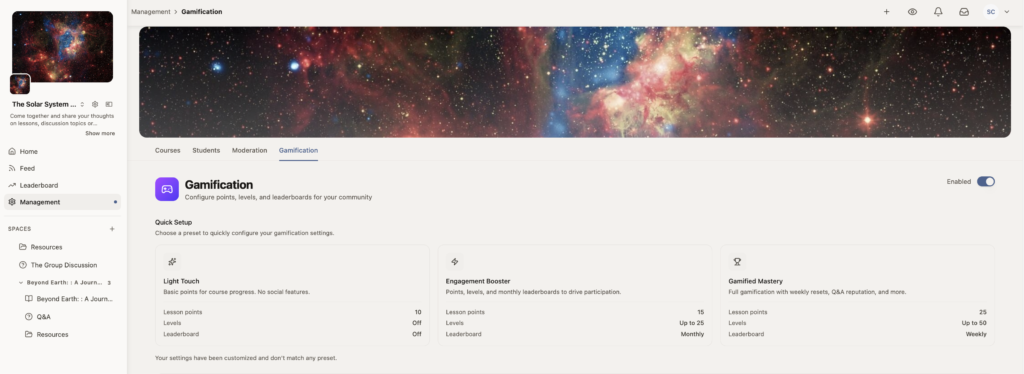
ThriveAcademy provides three presets so you can activate a complete gamification configuration in one step rather than configuring each setting individually.
1. Open Gamification Settings Navigate to Communities → View Dashboard → Community Settings → Gamification. If you’re setting up a new community, the Configure Gamification step appears directly in the Setup Checklist.
2. Choose your preset Select one of three preset cards based on the type of experience you want for your students:
| Preset | Post XP | Comment XP | Level Cap | Leaderboard | Badges |
| Light Touch | 10 | 5 | 5 | Off | Basic |
| Engagement Booster | 25 | 15 | 10 | On | Full |
| Gamified Mastery | 50 | 30 | 20 | On | Full |
3. Confirm and save Click Apply Preset. Your community settings update immediately. You can change presets at any time, and even opt to adjust specific settings at a later date — past earned points and badges are never affected when you switch.
Configuring Gamification Settings
Toggle XP System (On/Off) The XP system is the foundation of all other gamification. Turning it off removes XP accumulation entirely, hides the leaderboard, and stops achievement triggers. Existing points and badges already earned are retained but no new ones will be awarded.

Set Point Rules
Navigate to Gamification Settings → Point Rules to rename “XP” to any term that fits your community’s brand — for example, “Credits”, “Karma”, “Stars”, or “Points”. The setting is scoped to each community, so different communities under the same account can use different names.
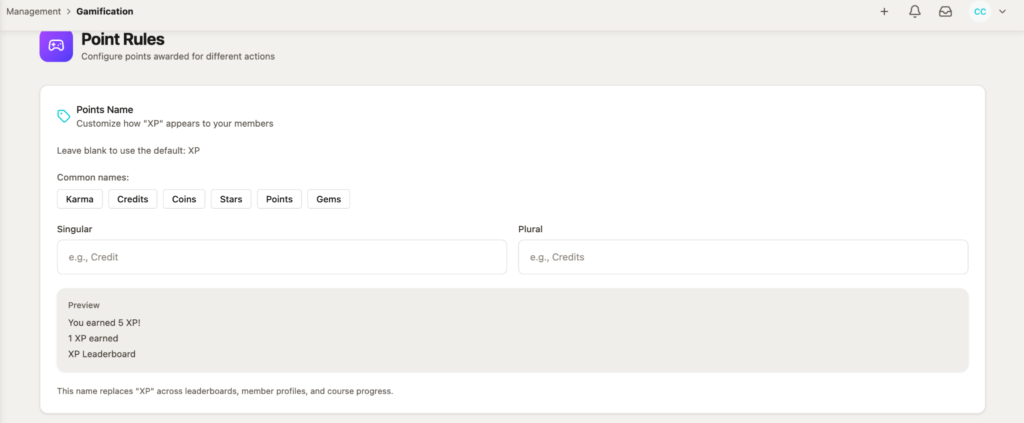
The field defaults to “XP” if left blank, and a maximum of 20 characters applies to each field, but if updating you’ll want enter both a Singular (e.g., “Credit”) term, as well as a Plural (e.g., “Credits”) term.
If you’re wanting to customize beyond the preset point settings, then creators can adjust individual XP values by heading to Gamification > Point Rules for true customization and to match your community goals.
XP can be earned on the following actions, when enabled, and their default XP amounts include:
| Action | Default XP | |
| Learning | Starting first lesson | +25 |
| Lesson completion | +10 | |
| Module completion | +50 | |
| Course completion | +100 | |
| Quiz passed | +25 | |
| Perfect Quiz Score | +50 | |
| Q&A | Question Asked | +10 |
| Answer Given | +30 | |
| Answer Upvoted | +5 | |
| Answer Downvoted | -2 | |
| Community | Post Created | +10 |
| Comment Added | +5 | |
| Reaction Given | +2 | |
| Engagement | Daily login | +10 |
| Streak Day | +20 | |
| Onboarding | Profile setup (onboarding) | +50 |
| Goals Set | +25 | |
| Tour Completed | +25 | |
| First Action in community | +10 |
Set Achievements (Badges)
Badges are one of the most visible ways students experience your brand inside ThriveAcademy. Every badge you create is a milestone marker — a moment where your community recognizes that a student did something worth celebrating.
You choose the name, the icon, the colour, and the criteria. Whether it’s completing your flagship course, making their first post, or hitting a 30-day learning streak, each badge tells a student: you showed up, and it counted.
Once earned, badges live in three places students actually see:
- Their profile — displayed prominently alongside their XP total, level, and leaderboard rank
- The Achievements tab — a full gallery of all XOP and every badge earned, plus locked badges with progress tracking so students always know what they’re working toward
- The community feed — when a badge is earned, students can share it as a celebration post, turning a personal win into a community moment
How to Create an Achievement Badge
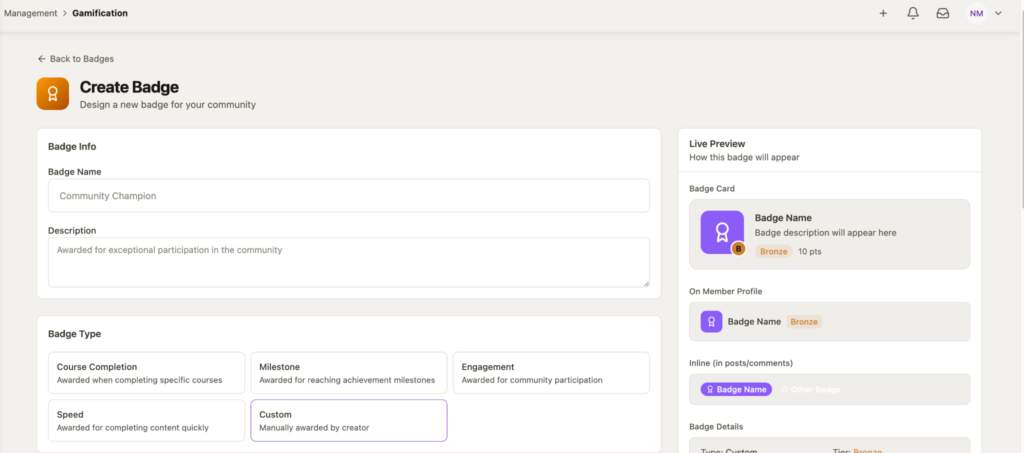
Badges can be created and designed based on 5 Badge Types:
- Course Completion
- Milestone
- Engagement
- Speed
- Custom
Choose the badge color and icon image on the left and watch the preview update on the right-hand side

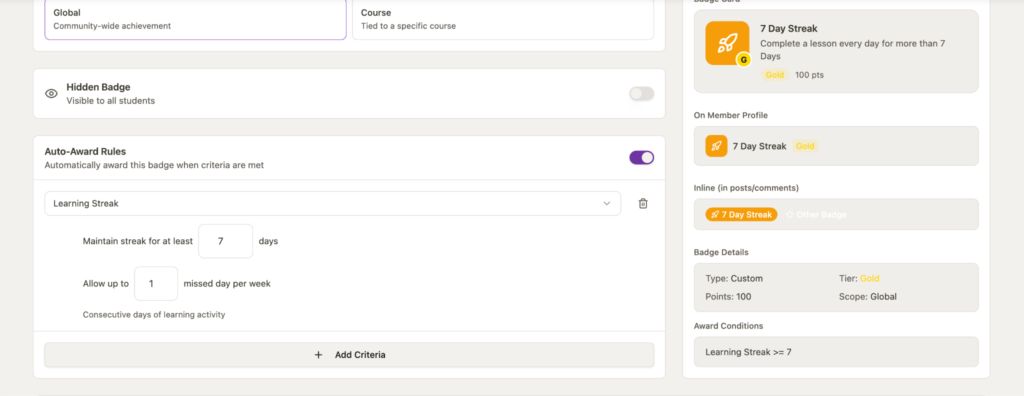
To automatically apply a badge to a member, you’ll want to enable the “Auto-Award Rules” at the bottom of the Badge setup:
You can choose from a number of Lesson or Course milestones, Engagement levels, Achievements, or Quiz Achievements where you can then configure specifics related to that rule type.
For example, setting a Learning Streak rule will award members a badge if they complete a lesson each day for at least 7 days.
Rules that can be set for achievements include:
Lesson Milestones:
- Complete any lesson – Good for starter badges, reward brand new students to get them excited about badges
- Complete a specific lesson – Choose a specific course and lesson to grant a badge once complete
- Lessons in course – Set to award once they’ve completed X number of lessons in a specific course
Course Milestones:
- Complete any courses – Specify a number of courses to complete before getting a badge
- Complete specific course – Achievement awarded once the chosen course has been completed
Engagement
- Points Earned – Granted once members hit a specific points milestone
- Posts Created – High context engagers who create a specific number of posts to boost overall engagement
- Replies Given – To reward helpful hands who are answering questions and engaging with the community regularly
- Reactions Received – If a set number of reactions have been received on their posts
Activity
- Learning Streak – Issue a badge for students who complete X number of lessons across X number of days
- Days Active – Grant achievements for members who keep coming back
- Member Since – Award your original or longstanding members with a badge
Quiz Achievement – Awards for # of quizzes completed above a specific, customizable score.
Combine Rules
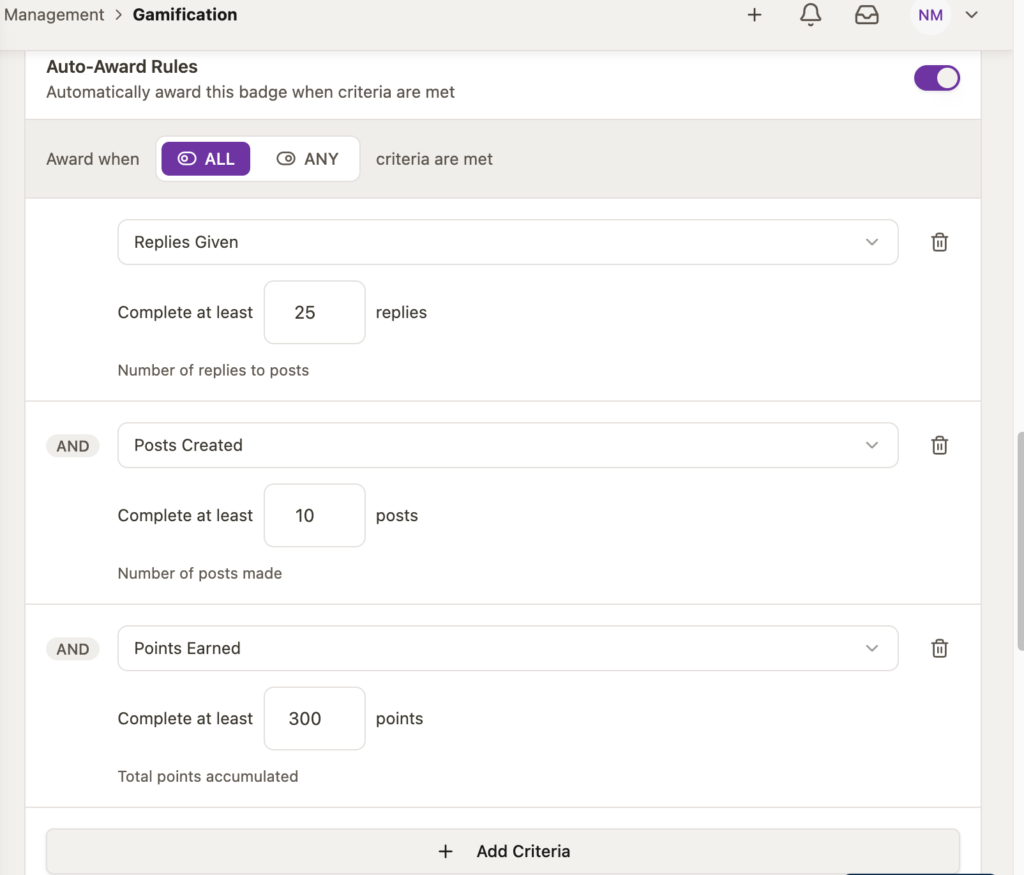
When selecting “Add Criteria” you can combine a number of rules based on ALL or ANY of your created rules. For example, if you’re wanting to create a highest level engagement award, you could create a rule to be awarded once someone replies at least 25 times, creates 10 posts, and has earned 300 points.
Q&A Reputation Points
Grant Reputation Scores and badges for top question answerers. Community members who answer the most questions can receive badges set to be visible on their profile and beside their name when posting replies – to show other community members that they are a trusted source of information.
Levels
Students progress through levels as they accumulate XP. The default level thresholds scale logarithmically, requiring proportionally more effort at higher levels:
| Level | XP Range |
| Level 1 | 0–500 |
| Level 2 | 500–1,500 |
| Level 3+ | Scaling |
The Level Cap is set by your preset (5, 10, or 20) but can be adjusted manually. Reaching a new level triggers a Level Up modal for the student with a confetti animation, XP summary, any unlocked badges, and an option to share the milestone to the community feed.
Leaderboard
The leaderboard ranks students by XP within your community. Students see their current position, XP needed to move up, top members, streak icons, and status labels such as “Top 5%.”
Configuration options:
- Reset frequency — Weekly, Monthly, Every 90 days, or Never (cumulative all-time)
- Display mode — Top 3 only, Top 10, or Full list
- Anonymous mode — hides student names for communities where privacy is a concern; students appear as “Anonymous #[rank]” to others but can still see their own rank
Students can opt out of the leaderboard entirely from their profile privacy settings. Opting out removes their name from public rankings but they can still view their own position privately.
Streaks:
Streaks track consecutive days of learning activity and consecutive weeks of community participation. Bonus XP can be awarded for maintaining streaks (if enabled within Point Rules), and streak badges can be awarded at the 7-day and 30-day milestones.
Configuration options:
- Enable/disable daily learning streak
- Enable/disable weekly community participation streak
- Set bonus XP awarded per streak milestone
When a student breaks a streak, they see a motivational message and, if configured, an optional restart XP bonus to re-engage them rather than leaving them feeling penalized.
The Student Experience
Students interact with gamification at every point in their learning journey — not just in the course player.
Community Home: Students see their XP counter, current level, next-level progress bar, and any active challenge banner as soon as they enter the community.
Lesson player: XP celebration notifications appear inline each time a lesson is completed. The progress bar updates in real time, and contextual prompts (“You’re one lesson away from your next level!”) appear when students are close to a milestone.
Achievement modal: When a badge is earned, a full-screen modal appears with the badge animation, XP awarded, and the option to share to the community feed.
Profile → Achievements tab: Students can view their complete XP history (as a graph and event log), all badges earned and locked (with progress toward locked ones), leaderboard rank, challenges completed, and any certificates earned.
Onboarding: Students earn their first XP during the 4-card onboarding overlay itself — before they’ve completed a single lesson. Profile setup awards +50 XP, starting the first lesson awards +25 XP, and making a first post awards +100 XP, but XP amounts can be customized within your gamification settings directly. This is intentional: it introduces the gamification loop from the very first session.
Frequently Asked Questions
- Q: If I switch presets, do my students lose their existing XP or badges?
- No. Changing presets updates the point values and toggles for future actions only. All XP already earned and all badges already unlocked are permanently retained regardless of preset changes.
- Q: A student says their XP isn’t showing after completing a lesson — what should I check?
- First, confirm the XP system is enabled in Gamification Settings. If it’s on, XP awards are queued during high-load periods and display on the student’s next page load — ask them to refresh the community. If XP is still missing after a refresh, use the Resend Achievement option from the student’s Actions menu to manually trigger a recalculation. Duplicate awards are automatically deduplicated, so triggering a recheck is safe.
- Q: Can I turn off the leaderboard without turning off XP entirely?
- Yes. The leaderboard is an independent toggle within Gamification Settings. Students can continue earning XP, leveling up, and unlocking badges with the leaderboard hidden from the community entirely.
- Q: Can a student see what badges are locked and how close they are to unlocking them?
- Yes. In Profile → Achievements, students see two sections: Earned badges (showing the badge and how it was earned) and Locked badges (showing the badge name and their current progress, e.g. “Progress: 42/100 reactions needed”). This is fixed — it cannot be hidden from students.
- Q: Can I rename XP to something different for each community I manage?
- Yes. The custom points name is community-scoped, not account-scoped. Each community can have a completely different name for its points currency.
- Q: What happens to gamification if I disable it after students have already earned points?
- Disabling the XP system freezes all new point awards and hides the leaderboard, but every point and badge already earned by students is preserved in their profile. If you re-enable gamification later, the existing data immediately becomes active again. Platform-level XP (awarded for cross-community milestones) is separate from creator-level XP and is never affected by creator-level gamification settings.