
Stay in control of ThriveCart customer subscriptions with a centralized dashboard where you can quickly review active and paused subscriptions, spot overdue accounts, and manage recurring payments with confidence.
You can easily search for customers or filter your subscriptions by their status, a specific product, and by time period. You then have further filtering and sorting options available to you.
If you’re wanting to find your completed, cancelled, active and paused subscriptions, or those behind on payments, this is where you will be able to easily filter and identify them.
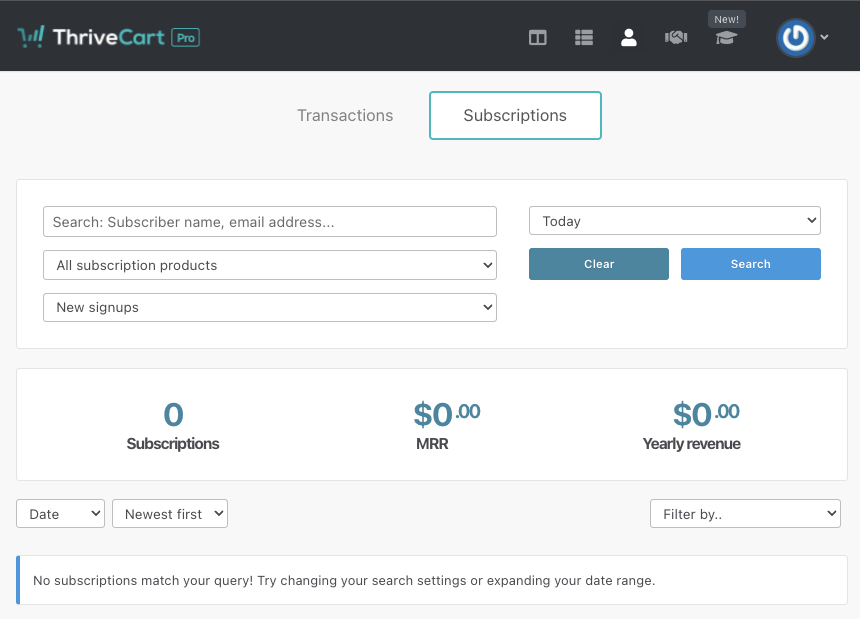
The subscriptions dashboard is clear and simple to navigate, with your expected search and filtering options at the top. We also give you a breakdown of the number of subscriptions that match the search options, the monthly recurring revenue they bring in, along with the yearly revenue.
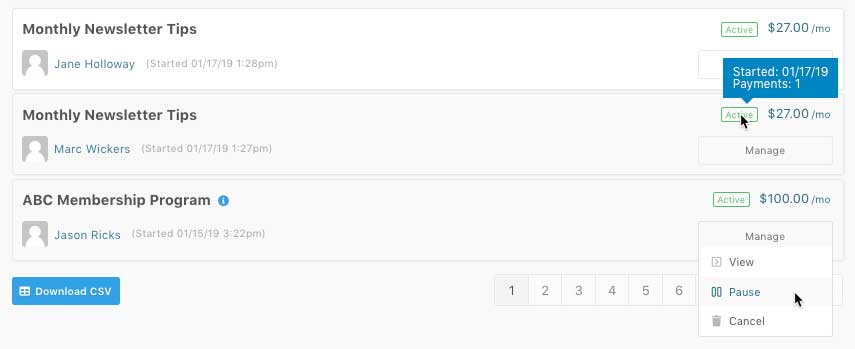
You can also manage recurring payments from this area by hovering over the Manage button and then selecting whether to pause or cancel the subscription.
You can easily download a CSV documentation of your ThriveCart customer subscriptions (based on the current search and filtering options) by clicking the Download CSV button at the bottom left of your subscription dashboard.
Subscription Statuses Explained
Hovering over the ‘status‘ of the subscription will give you further information such as when the subscription started and how many payments have been processed. If the subscription is paused and set to automatically resume, it will also show the date it’s set to resume there too.
You can assign the below status filters within the Subscriptions section in order to easily identify churning customers, track customers in their final paid period, and run end-of-cycle win-back campaigns.
- New Signups – all new subscriptions created within a specific time period (both trial and non-trial).
- Trial – includes any subscription that is currently within the trial period.
- Active – all currently paying subscriptions with upcoming subscription payments due.
- Cancelled – subscriptions that are fully cancelled (outside their billing period). See more on cancelling subscriptions here.
- Cancelled (still active) – identify customers who have cancelled their subscription but still have paid access until the end of their current billing period. Essentially, the customer has cancelled future renewals but still has access until their last paid date.
- Paused – billing has been paused either indefinitely or to resume on a specific date (see more on pausing here)
- Completed – a subscription with a set number of rebills has successfully completed all scheduled payments.
- Overdue – payment is outstanding. Essentially there are missed payments and the subscription is overdue.
Viewing subscriptions under the customer’s profile
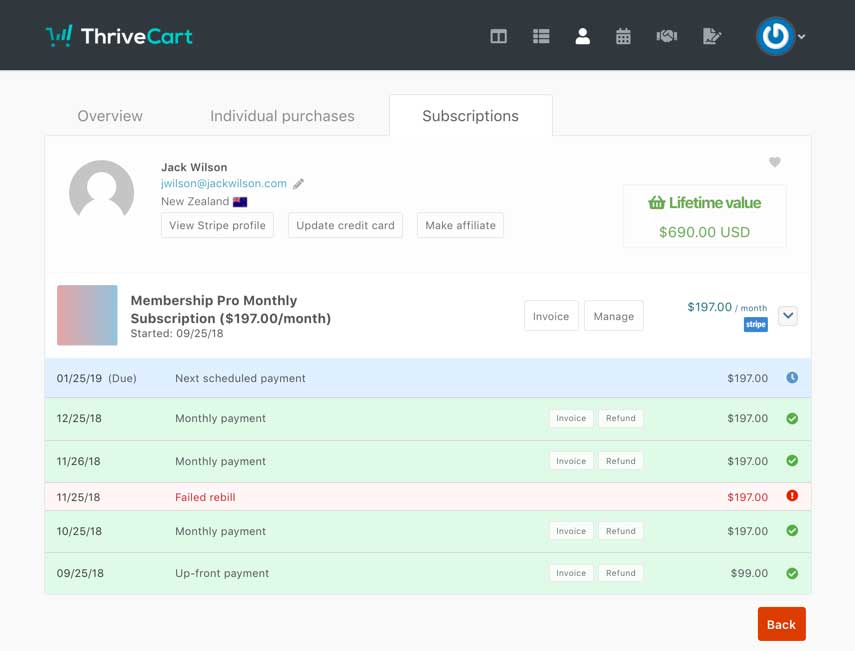
When viewing a customers individual subscription under their profile, we’ll detail all the events that have occurred and when. Including your payments, failed payments, refunds, if the subscription was paused/resumed, and then also when the next payment is scheduled.
This is all color coded so you can easily see at a glance the performance of your customer’s payments.
Frequently Asked Questions (FAQs)
- Q: Is it possible for customers to manage their subscriptions themselves?
- A: Yes and no. Customer’s can choose to cancel their own subscriptions by accessing your Customer Hub, (if you have subscription self-cancellations enabled) but pausing subscriptions is something that can be done only within the dashboard, by you as the vendor.
- Q: How can I manage recurring payments for a customer?
- A: Hover over the Manage button in your subscription dashboard to manage recurring payments, including pausing, resuming, or cancelling subscriptions.
- Q: How can I track overdue subscriptions?
- A: Use the built-in “overdue” filter and color-coded status indicators detailing “overdue” to quickly identify customers who have missed payments. You can then choose the “view” option from the dropdown to view the subscription on their profile for more details about payment attempts. Remember that it’s your payment gateway that will be retrying the customer, and you can always find more details about those payments and your attempt settings within your payment gateway directly.
Related Articles
- Pause Subscriptions
- Canceling customer subscriptions
- How subscriptions are processed in ThriveCart
- Automation Rules for Paused and Resumed Subscriptions
- Subscriptions – Customer self-cancellation & FTC Click to Cancel
- Customers & subscription self-cancellations
- Customer Hub
- How can Learn students manage their subscriptions and update billing information?