
ThriveCart offers vendors the ability to easily create beautiful high-converting checkout designs, upsell pages, and success pages, all directly within our easy to use editor.
You’re not restricted to just what you can create, ThriveCart’s unique feature set includes the ability for you to share and import checkout and funnel designs from other vendors using the platform.
If you have a great looking checkout that’s converting well for you, you may wish to sell it, or share it with your community by offering them a copy. Alternatively, you may be building funnels for your clients and their own ThriveCart accounts and you want to easily share with them funnel designs that will work well for them.
You can easily share your checkout and funnel designs in a couple of clicks, but the way you save your templates and access those share URLs depends on the template style you’ve selected. Whether you’ve selected one of our newer block-based templates and access the Enhanced editor, or are using one of our Legacy templates within the Classic editor.
Sharing your checkout (and funnel) designs from within the Enhanced editor
You can share your design from within the checkout editor itself, at the bottom-left of the editor is an option to save your design as a custom template.
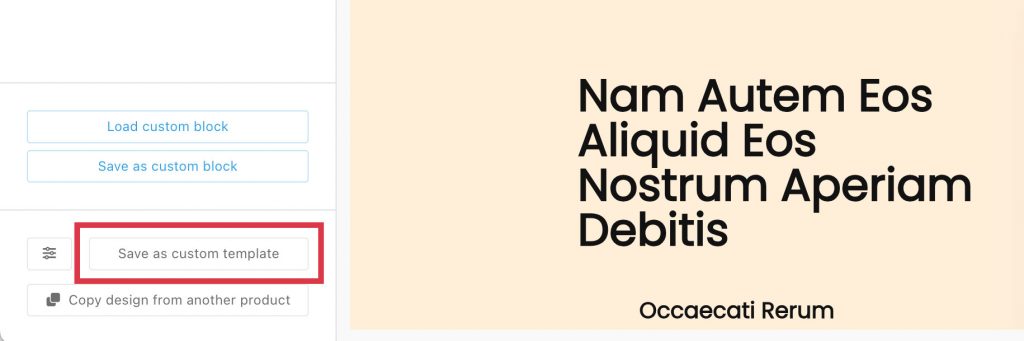
When saving a custom template, you can leave the “make template shareable” box unchecked if you simply want to re-use your design on other products within your account. Saving your template will make your design available under the Browse Gallery > My Templates tabs.
But you’ll have the option to make this shareable with others, checking that box will expand to give you some further fields and options:
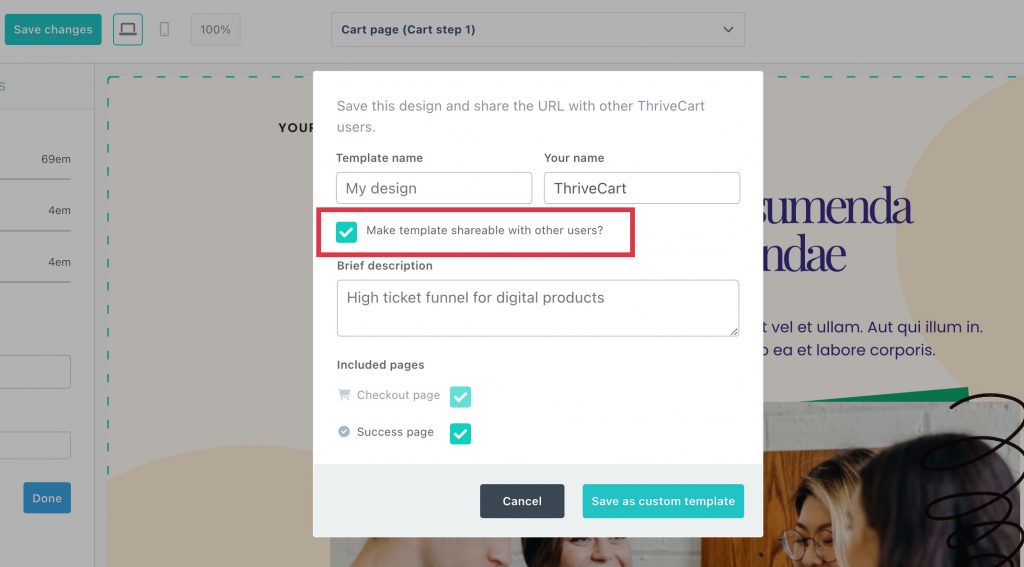
The minimum that will be shared is the checkout page, but you can opt to share funnel templates (if enabled on this product) and also the success page.
You can give your design a name, choose how your name will appear to those viewing the design’s preview, and then enter some information about the design, such as who it’s aimed at, and what’s included.
Finally, you can click the Get share link button to be given the unique URL for this design to share funnel templates.
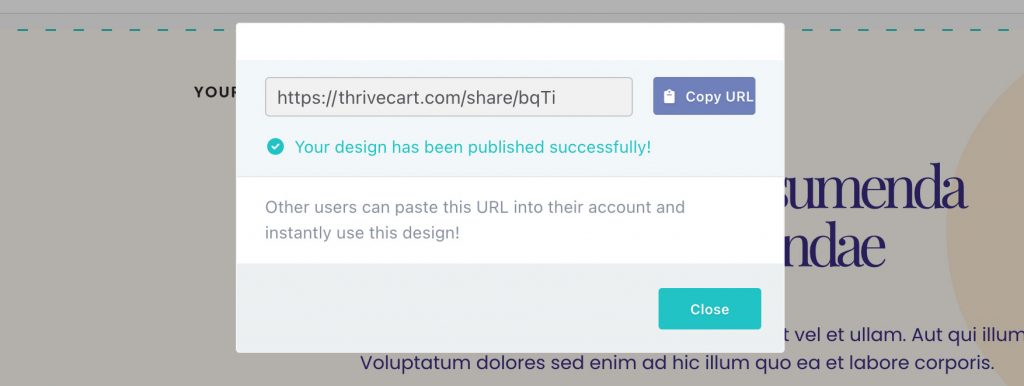
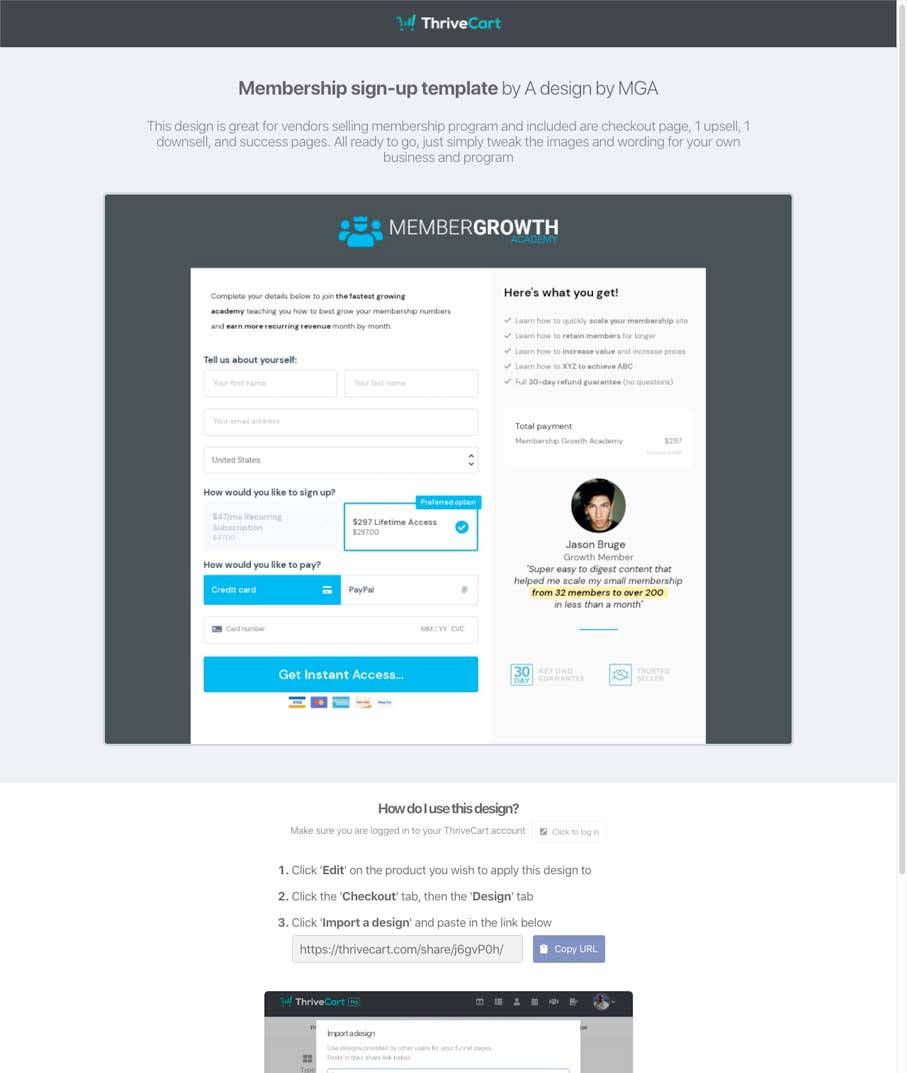
You can now share this URL with people and when visiting it, they’ll be given a preview of the checkout page, and instructions on how to import checkout templates.
Sharing your designs from the Classic editor
If you are using a Classic template, when navigating to your product’s Checkout tab, you’ll see an additional “Design” tab. From here, you’ll see the options to import or share a design:

From there, you can choose what to include in your share file – just the checkout, or your funnel and success pages as well:

You will need to save this URL somewhere as it is not saved elsewhere in your account and cannot be access again – unless you create another share file/URL again.
Access from your products save & get URL screen
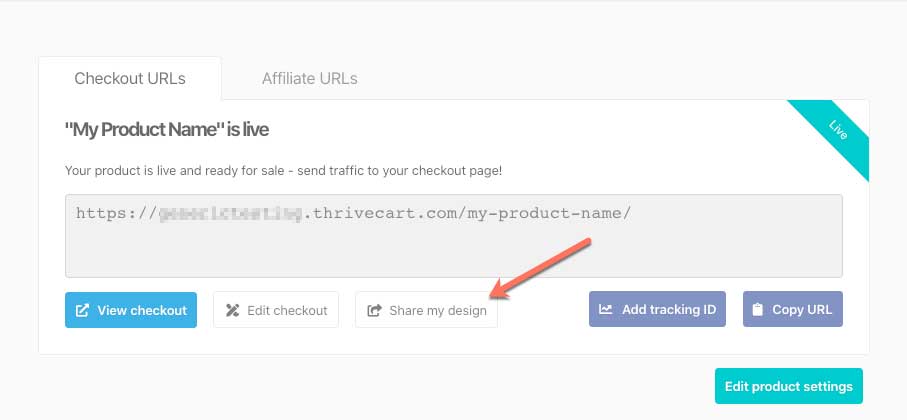
When clicking the “share my design” button, you’ll be shown a new window where you can select what pages to include and fields to enter information about your design.
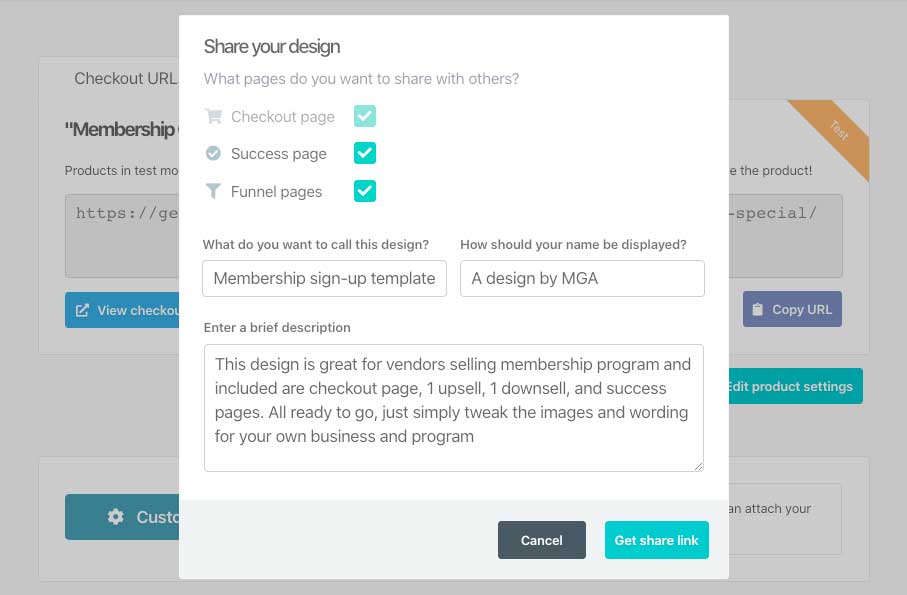
The minimum that will be shared is the checkout page, but you can opt to include the upsell pages from the funnel (if enabled on this product) and also the success page.
You can give you design a name, choose how your name will appear to those viewing the design’s preview, and then enter some information about the design, such as who it’s aimed at, and what’s included.
Finally, you can click the Get share link button to be given the unique URL for this design.
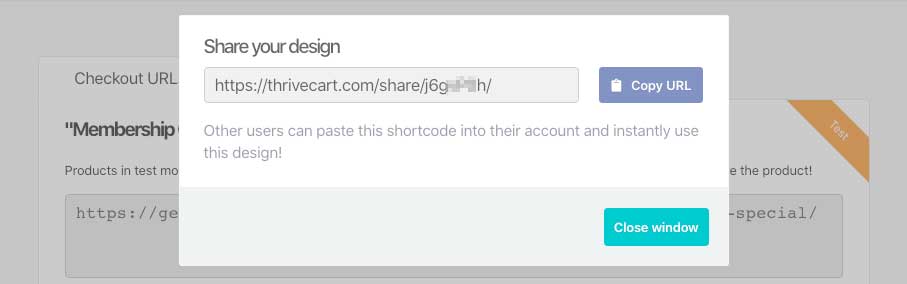
You can now share this URL with people and when visiting it, they’ll be given a preview of the checkout page, and instructions on how to import it (just like above).
Frequently Asked Questions (FAQs)
- Q: Can I include upsell and success pages when sharing a funnel?
- A: Yes, you can share funnel templates that include the checkout page, upsell pages, and success page if enabled on the product.
- Q: How can someone import my shared checkout design?
- A: They simply visit the import checkout templates link you provide, preview the page, and follow instructions to add it to their account. We also have a walkthrough on how to import a template in this guide.
- Q: What happens if I later update the template?
- A: When generating a share URL, these are considered a point-in-time snapshot of your design. The Share URL does not change or update based on changes made to your template later, and you can have multiple versions of the same template via different Share URLs.