
Managing a growing product catalog across main products, upsells, and downsells gets complex fast. Product Tags give you a flexible, consistent way to group related products under custom labels — then use those labels to filter your product lists, transactions, and reports instantly. Whether you’re tracking a campaign, separating product lines, or building out client funnels, tags make it easy to find what you need and understand how it’s performing.
What Are Product Tags?
Product Tags are custom labels you apply to any product in ThriveCart — including main products, bumps, upsells, and downsells.
Tags are different from existing label functionality, as tags are linked to reporting, not just search.
Once applied, tags appear as visual badges on your product list so you can identify grouped products at a glance. You can then use those tags to filter your product list, your transactions, and your reports — giving you a full picture of how a campaign, category, or product group is performing, regardless of where those products sit in your funnels.
Adding Product Tags
Tags can be added to all four product types from their individual settings.
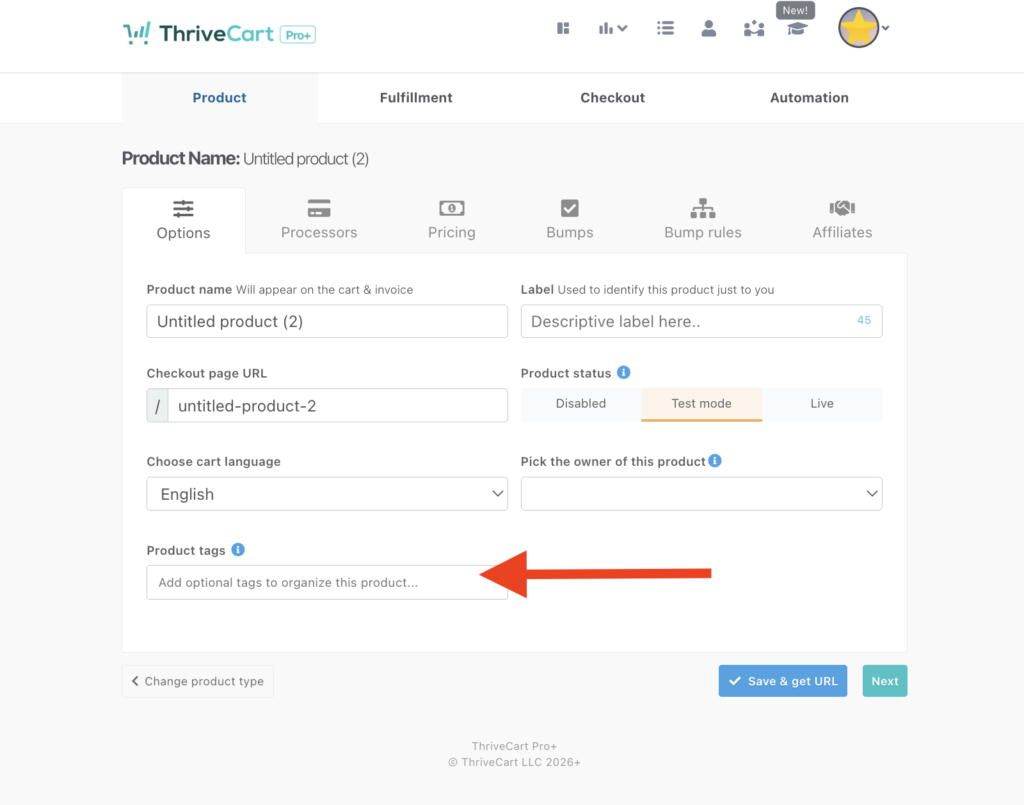
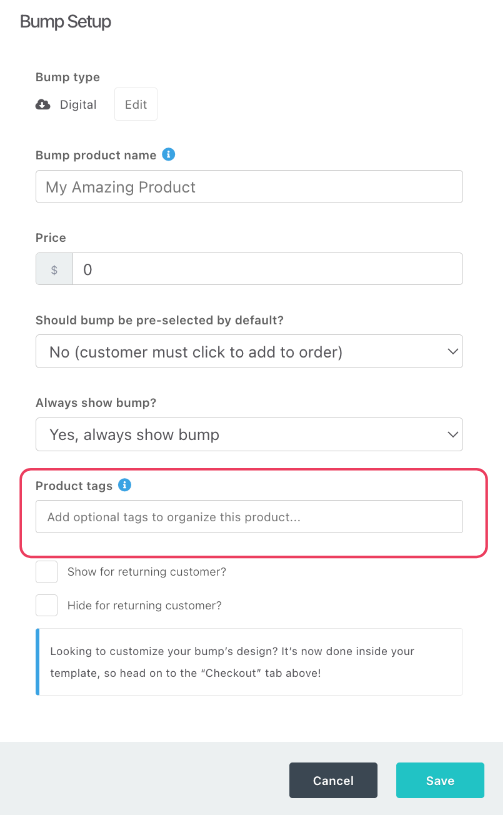
Type a tag name into the “Product tags” field and press Enter or add a comma (`,`) to confirm it. As you type, existing tags from your account will appear as autocomplete suggestions — select one to reuse it. You can add as many tags as needed to a single product. Tags are removed by clicking the X on the tag chip.
Add Tags to Products and Upsells/Downsells from the main “Options tab”:
Add tags to bumps via the Bump Setup modal window:
Note: Tags are sanitized automatically. Any special characters, spaces, or UTF-8 symbols will be stripped and the tag will be saved with only valid characters remaining.
Once tags are applied, they appear as read-only badge indicators directly below the product name in your product list — including on the Products, Upsells, and Downsells tabs. Products without tags display no badge.
Filtering Products, Transactions, and Reports
Once at least one product has a tag applied, a “Enter tags to filter product list…” field appears to the right of the “Recently Added” dropdown on the Products, Upsells, and Downsells pages.
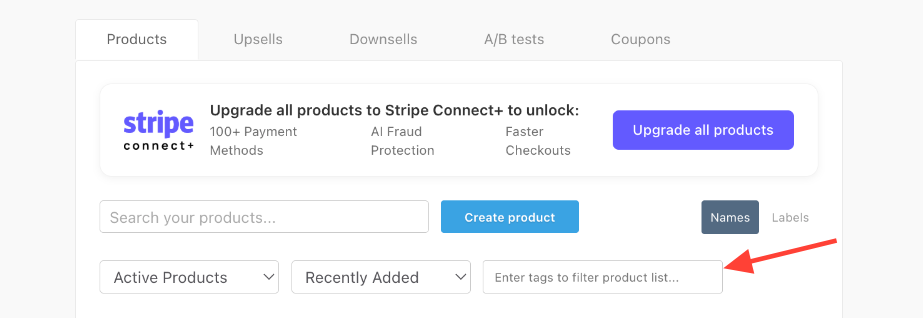
- Click the field and start typing to see autocomplete suggestions
- Select a tag — your product list updates instantly
- Add multiple tags to expand results (the list uses OR logic — any product matching any selected tag will appear)
- Combine with the “Search your products” text field to narrow down within your tag-filtered results (tag filtering runs first, then text search applies within those results)
- Tag filters reset automatically when switching between product tabs
Filtering Transactions by Tag
On the Transactions page, click the “All transactions” dropdown and select “Product tags.” A tag selection field appears to the right.
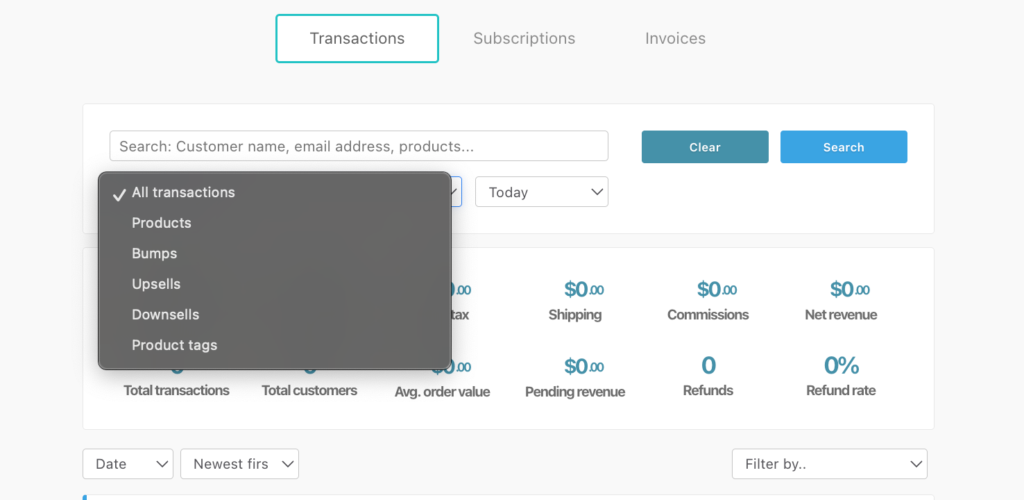
- Type to search and select one or more tags — only existing tags can be entered
- Check “Include all order transactions” to pull in every transaction from any order where at least one product has the selected tag — useful for seeing full order revenue rather than individual product revenue
- Apply additional filters (date range, search text) on top of your tag-filtered results as normal
- CSV exports reflect the tag-filtered data
Filtering Reports by Tag
Product tag filtering is available on three reporting pages: Reports > Product & Sales, Reports > Subscriptions, and Reports > Funnels. These pages are only available with Pro+ and when Connect+ is enabled on your products.
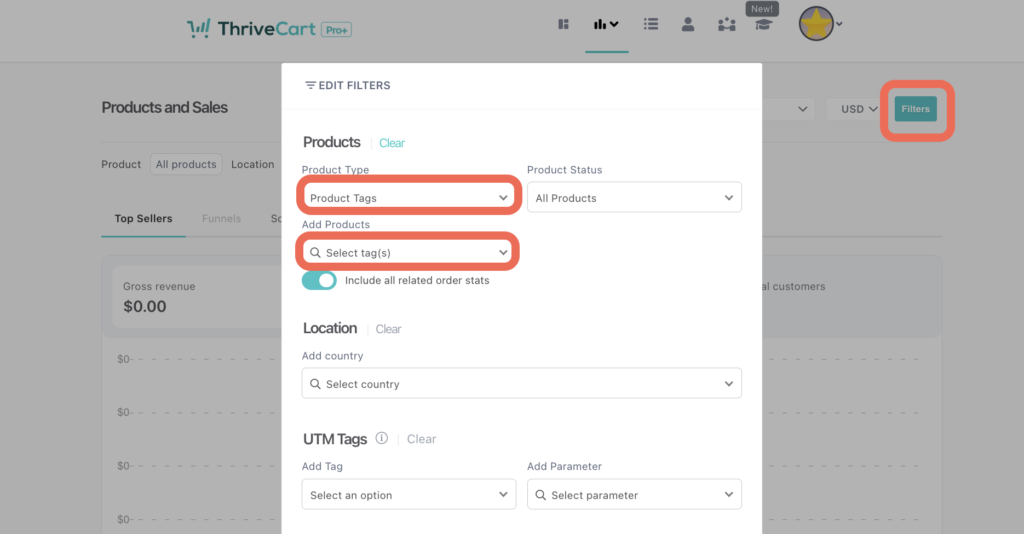
- Click filters on any reporting page
- Open the Product Type dropdown and select “Product Tags”
- A tag selection field appears — click it and select one or more tags (tags are listed alphabetically)
- Optionally enable “Include all related order stats” to aggregate revenue from all products in any order containing a tagged product (not just the tagged product’s revenue alone)
- Click Apply — the report header updates to show “Product tags: [your tags]” and all charts, tables, and metrics reflect the filtered dataset
- Reopen Filters at any time to modify or clear your tag selection
Customer Experience
Product tags are entirely back-end — your customers never see them. Tags have no impact on how checkout pages, receipts, or any customer-facing communications appear, and will not impact SEO in any way. They exist solely for your internal organization and reporting.
Tagging Best Practices
Start with a consistent naming convention early (e.g. product line names or launch dates). This saves time as your catalog grows.
Use tags to separate product lines or content categories — for example coaching, templates, mini-course. Apply the same tag across all funnel components (main, upsell, downsell) for each line so you can pull complete revenue views in reporting.
Use campaign-based tags like black-friday-2024 or spring-launch to track performance across every funnel component involved in a promotion.
Frequently Asked Questions (FAQs)
- Q: Why are my tags changing after saving?
- A: Tags are not case-sensitive, so VIP, Vip, and vip are all treated as the same tag. ThriveCart will match them automatically. Tags only support letters, numbers, and hyphens. Any other characters (spaces, symbols, accented letters) are automatically stripped when the tag is saved. Recreate the tag using only valid characters.
- Q: Will adding tags to my products affect anything on the checkout or customer side?
- A: No. Tags are purely internal and have no impact on customer-facing pages, receipts, notifications, or SEO.
- Q: Can I filter by more than one tag at once?
- A:Yes. You can select multiple tags in any filter field. The results use OR logic — products or transactions matching any of the selected tags will be included.
- Q: Why aren’t old transactions showing up after I added/changed a tag?
- A: filtering is retroactive, so historical transactions will display as long as the tag is currently applied to the product. If you removed a tag from a product and re-added it, filtering should still work. If transactions are missing, confirm the tag is actively saved on the correct product.