
Give your sales funnels a head start with high-converting checkout templates you can import instantly.
ThriveCart’s powerful editor makes it easy to build beautiful, optimized checkout, upsell, and success pages—yet you’re never limited to creating everything from scratch.
With ThriveCart, you have the option to import checkout designs with funnel template sharing functionality, so you can bring in proven layouts from other vendors. Launch faster, convert more, and customize every detail to fit your brand.
Importing a checkout (and funnel) design
Enhanced Editor
The first thing you’ll need is the share URL for the design. This looks like https://thrivecart.com/share/4df5fv5fG and would be accessed from the vendor you purchased the design from, or if they shared the URL with you directly. This URL is where you would first be able to preview the design you’re looking to import, but it’s also how you import the design into your own account.
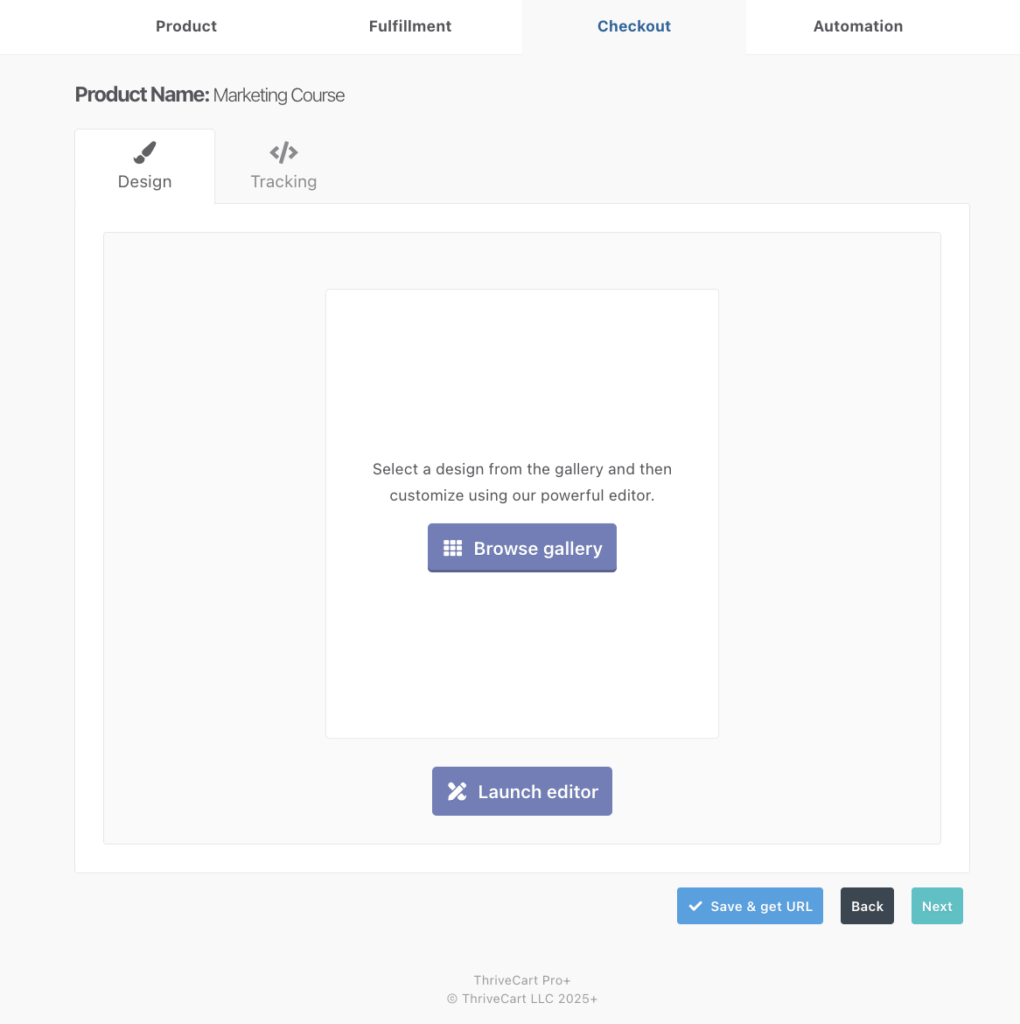
From an existing product, under your product settings in the Checkout > Design tab, you’ll want to hover over your checkout preview (or the white box) and click the button ‘Browse gallery’.
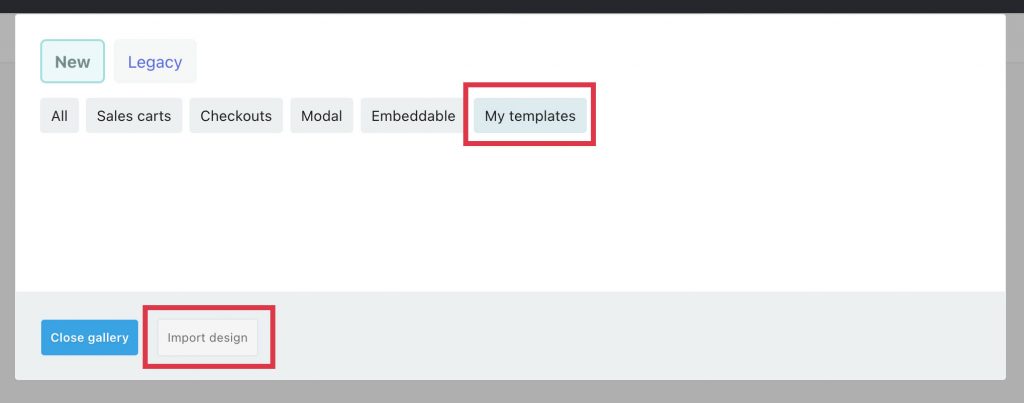
In the window that appears, you’ll then want to go to the ‘My templates’ tab and click the ‘Import design’ button at the bottom-left.
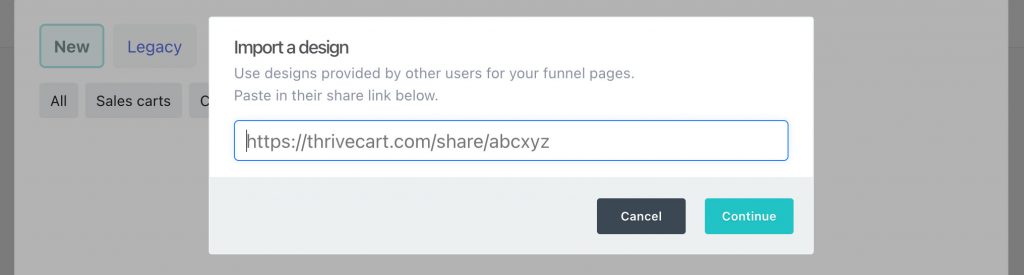
You’ll then be prompted to enter the URL for your template, where you can enter that share URL. When you click continue the platform will show you a preview of the design before importing.
Once you click ‘Import a design’, that template will be applied to your product (and any related upsells). It will then launch the editor allowing you to go ahead and make any changes and save your design.
See a quick run-through video below:
Classic Editor
Under your product settings in the Checkout & Design tab, you’ll want to click the ‘Import another design’ button.
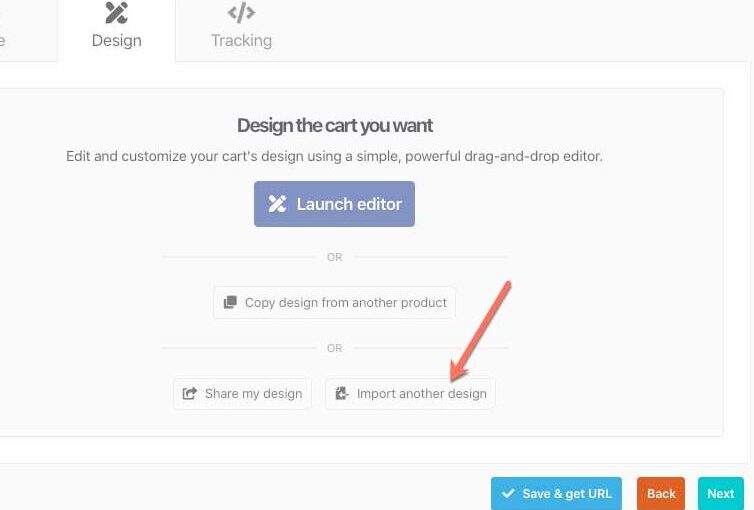
In the window that appears, you’ll then want to enter that share URL and click the ‘Continue’ button.
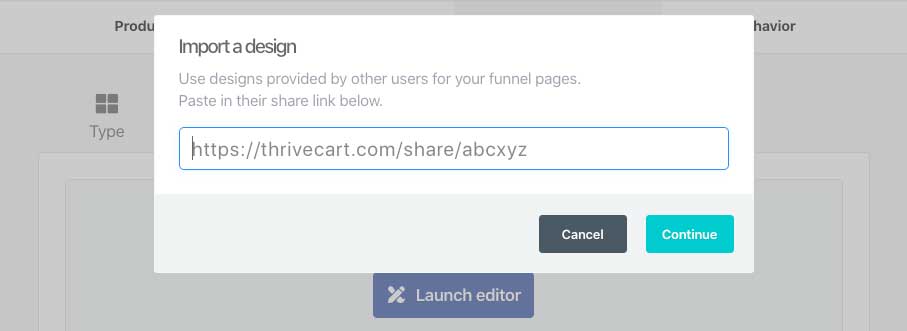
When you click continue, the system will show you a quick preview of the checkout to ensure it’s the right design and when clicking ‘import this design’, the system will launch the editor with that design ready to go and built out, letting you tweak it to your specific product.
Remember, when using a Classic template, your funnel designs will be accessible from the ‘Edit Funnel’ button on your product overview page.

Upsell page designs & success page designs
If the creator of the design has also included designs for upsells and success pages, they’ll be imported too.
However, you will need to already have a funnel created in order for the system to apply designs to those funnel items.
If the design has 2 upsell page templates included, then those will get imported to the related upsells in your funnel. So Upsell 1 design from the import will replace the design for Upsell 1 in your funnel, then Upsell 2 from the imported design will replace Upsell 2.
If there are no upsell designs included in the import (if the creator has not included these), then any existing upsell page designs will not be overwritten.
If you have no funnel items linked to your checkout, then no upsell designs will be imported.
Copy design from existing product
If the template you’re wanting to use exists already on a product within your own account, then you can choose to ‘Copy design from another product’. The location of these buttons is different depending on your template style:
Enhanced editor
Via the button on the bottom left of your checkout editor.

This will launch a modal allowing you to select from your existing products

You can also choose to include all current text and custom content that exists on that product into your current product.
This option is available on your funnel pages as well, where you can ‘Copy design from another offer page’ and choose from a list of your products that currently have funnel designs.
Classic Editor

To copy your upsell designs, you’ll want to click into the ‘Edit Funnel’ button from the product overview page, where you can then launch the classic upsell funnel builder and choose to copy a design from another upsell.

Frequently Asked Questions (FAQs)
- Q: Why am I not seeing the “My Templates” tab when browsing the gallery?
- A: If you are creating a product from scratch, this “My Templates” tab does not currently show up. As you could be importing funnel designs, you’ll want to set up a default checkout first and connect your upsells/downsells. You’ll want to select any design to launch the Enhanced editor, where you can then connect your funnel items (in the Enhanced editor), and simply move through the “Next” buttons to save that default design. Save your overall product, and then launch the gallery again.
- Q: My import is taking forever and the loading screen is still showing up, what do I do?
- A: You’ll want to log out of ThriveCart > Clear your browser cache > log back in > attempt to load up the editor again.