
You can create percentage-based coupons that apply only to bump offers on your checkout pages. This gives you more flexibility when running promotions – allowing you to discount add-ons while keeping your main product and upsells at full price.
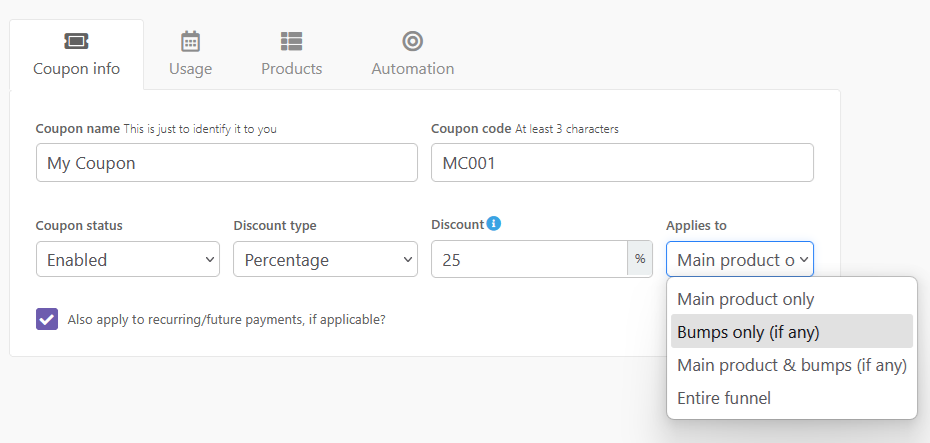
When creating a percentage discount coupon, you’ll see an option under Applies to:
- Main product only
- Bumps only (if any)
- Main product and bumps (if any)
- Entire funnel
Choosing Bumps only (if any) means the discount will apply exclusively to bump products added on the checkout page.
Important:
- This option is available only for Pro+ accounts.
- Your product must have Connect+ enabled for the coupon to apply.
- This setting only appears for percentage discounts (not fixed discounts).
How It Works
- Go to Products → Coupons → New/Edit Coupon.
- Select Percentage discount.
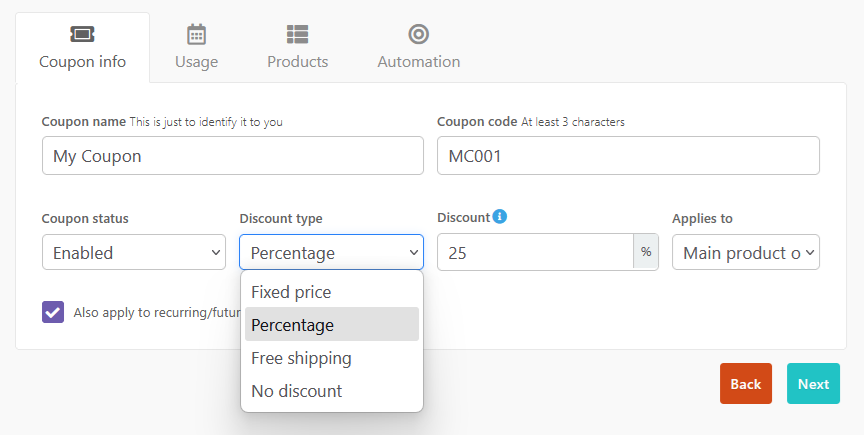
- Under Applies to, choose Bumps only (if any).
- Save your coupon.
When a customer enters the coupon at checkout:
- If one bump is added → the discount applies to that bump.
- If multiple bumps are added → each bump is discounted individually.
Example:
- Coupon set to be 50% off bumps only
- Main Product: $100
- Bump 1: $50
- Bump 2: $80
- Bump 3: $130
Customer pays $25 + $40 + $65 for the bumps, in addition to $100 for the main product, for a total order of $235 as the main product price remains unchanged.
Specific Products & Pricing Options
- By default, coupons apply to all products (main products). If a coupon is set to “bumps only,” it will work on any product with one or more bumps.
- You can also choose specific main products (and specific bump(s)) in the coupon settings.
- Example: If enabled for Product A, any bumps on that product will be shown and automatically selected. The coupon will apply to bumps on that setup.
- If you uncheck one of the bump offers, the coupon will not apply to that bump on the product.
No Bumps?
If a coupon is set to “bumps only” but the product doesn’t have any bumps, or if the bump selected in coupon setup is not what the customer is purchasing, customers will see the standard error message:
“This coupon does not apply to this order.”
Notes & Limitations
- Upsells & downsells: Coupons cannot apply to upsells or downsells individually (since coupon fields don’t appear on upsell pages). These remain covered under the Entire funnel option.
- Receipts: Discounts are shown as a total summary with the coupon code, not itemized by product.
- Minimum charge rules: Standard payment processor rules still apply. If a coupon reduces an item below the minimum but not free (e.g., Stripe’s 50¢ rule), the order may be adjusted accordingly.
- Fixed discount coupons do not have the Applies to dropdown—they continue to work as a balance across the front-end main product.
Frequently Asked Questions (FAQs)
- Q: Why can’t I see the “applies to” option on my coupon?
- A: You will need to use a percentage-based coupon in order to choose specific products or funnel steps for the coupon to apply to. Fixed amount coupons currently only apply to the initial (today) price for the main product.
- Q: Can I choose which specific bump my coupon applies to?
- A: Yes! You’ll want to set your coupon to “main product + bump” or “bumps only”, and then on the Products tab of your coupon set-up, you’ll be able to chose the main product and/or related bumps to apply your coupon to.
- Q: Can I set my coupon to discount every instance of a bump offer across products?
- A: No, bump offers are unique to the product that they are created on, and so you would need to select either “all products” within product settings, or choose the specific bumps available under each related product.