
If you or your students are seeing the below message when attempting to gain ThriveCart Learn course access, this article will help you identify and fix the root cause.

The course creator has not made the contents of this course live yet. Please come back later.
This course not live warning message will show when the student trying to access the course is unable to view any of the content within it. There are 3 reasons this message could appear:
- Lessons are not published: You have unpublished lessons that are still in draft mode and have not been published for instant access, or content is set to drip out at a later date.
- Content is restricted by tags: You are utilizing restricted course content, and the student does not have the required tag(s) to view them.
- The course is empty: You have not yet added any lessons to the course module.
1. No lessons in your course are ‘published’ for instant access
In this scenario, the lessons in your course are all set to ‘draft’ mode and you’ll need to adjust your lesson publishing to make them available.
You can see this in your list of modules and lessons for your course. In the right-hand column where your drip method is noted, if the content is set to ‘draft’ then students will not be able to see this:
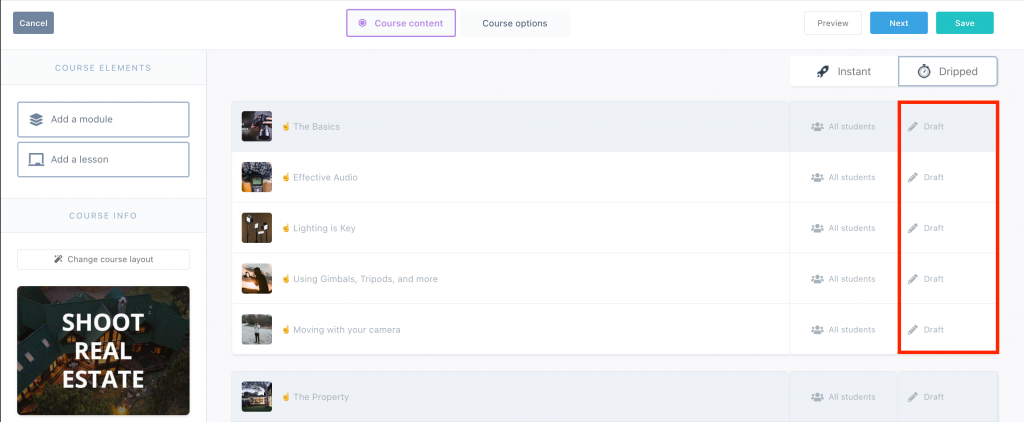
Content dripped out later
This can also happen if your lessons are published but set to drip out later. If your content is set to drip on Day 1, that would technically be the day after purchase. You can either set the content to drip on day 0, or set the first days lessons to “Published” for instant access.
2. All your lessons are tag restricted, and the student doesn’t have the required tag(s) to view the lesson(s)
In this scenario, you have lessons or modules which require the students to have specific tag(s) in order to view the content. Typically here, vendors have set all their modules and lessons to require 1 or more tags, but the student doesn’t have the tag required.
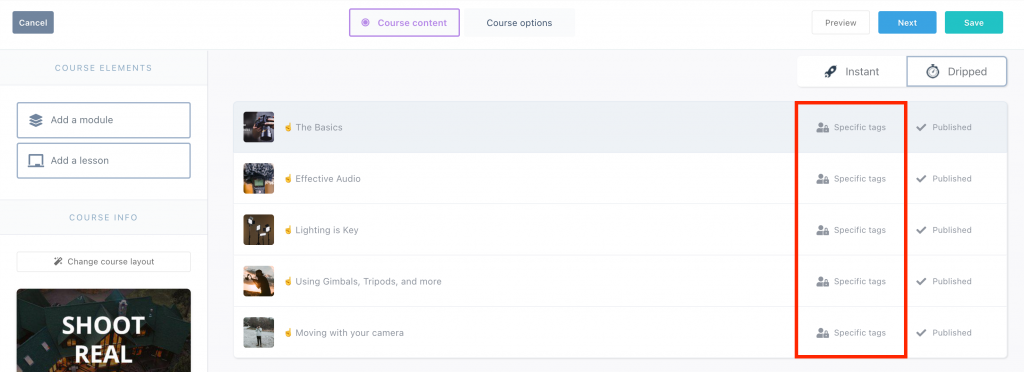
In this case, you either need to ensure your students get tagged appropriately based on what/how they’re purchasing, or remove the requirement for tags from the content.
Even with tag-restricted content, we recommend setting at least your first lesson or module as published for “all students” to ensure that there is content available when a student logs in.
It’s worth noting that by default your course and content is typically available for “all students”. This means all students of that course – not all students in your account. Using tags to limit access to content helps control restricted course content for specific students, such as bonus content or unique scenarios. More on understanding tags can found in our help desk article here.
3. The course is empty
If you click the “preview” button from your course dashboard, this error would be returned if there are no lessons within your course yet.
You need at least one lesson in your course to be able to preview it. A module does not count – you need at least a lesson within the module.
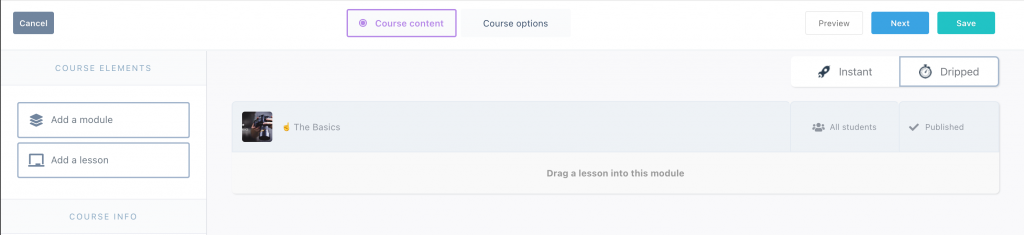
In the above image, the course has a module, but no lessons – this would result in that warning showing.
Frequently Asked Questions (FAQs)
- Q: How can I check if lessons are published for instant access?
- A: Go to your course modules, check the drip method column, and confirm that lessons are not in draft mode. Published lessons will appear as ready for students.
- Q: Can a module without lessons trigger the “course contents not live” message?
- A: Yes. You need at least one lesson within a module for students to access it. A module alone does not count as content.
- Q: How do I resolve issues with ThriveCart Learn course access quickly?
- A: Check for unpublished lessons, review tag restrictions, ensure at least one lesson exists per module, and contact support if the issue persists.