
Empower your promoters and boost your sales by providing everything they need inside ThriveCart with affiliate resources. With built-in tools for adding affiliate swipe copy, affiliate promo materials, and pre-written affiliate content, you can help your affiliates market your products more effectively—without extra back-and-forth.
Give your partners high-converting assets they can copy, paste, and use to start promoting instantly, making it easier than ever for them to drive traffic and generate more sales for your business.
How to add affiliate marketing assets
To set these up, go to the main Affiliates tab, and choose ‘Product options’. Locate the product you’d like to add promo materials for, hover over the ‘Manage’ button, and choose ‘Promo materials’ from the dropdown menu.

From here, you can enter some introductory text to welcome the affiliate to your product, and add promotional materials if you wish. Just click on the blue buttons to get started.
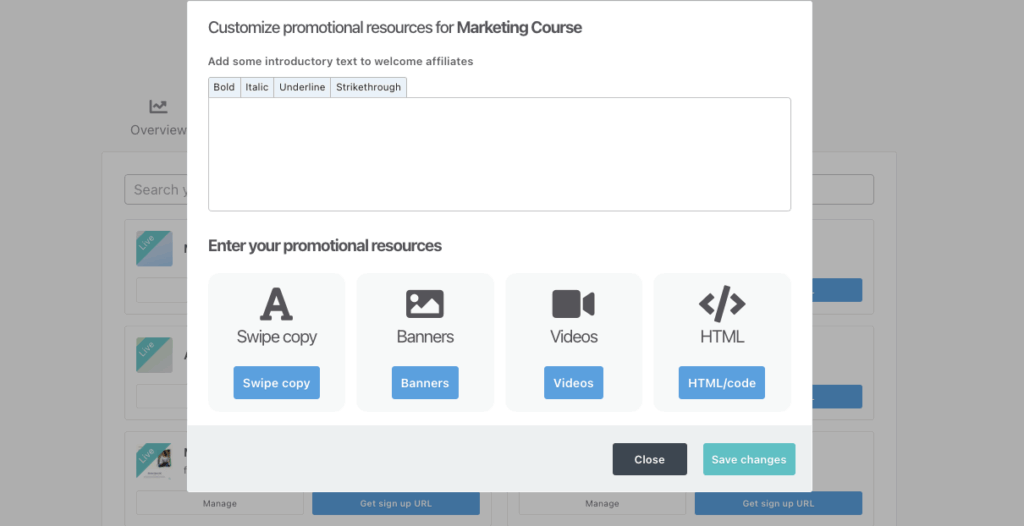
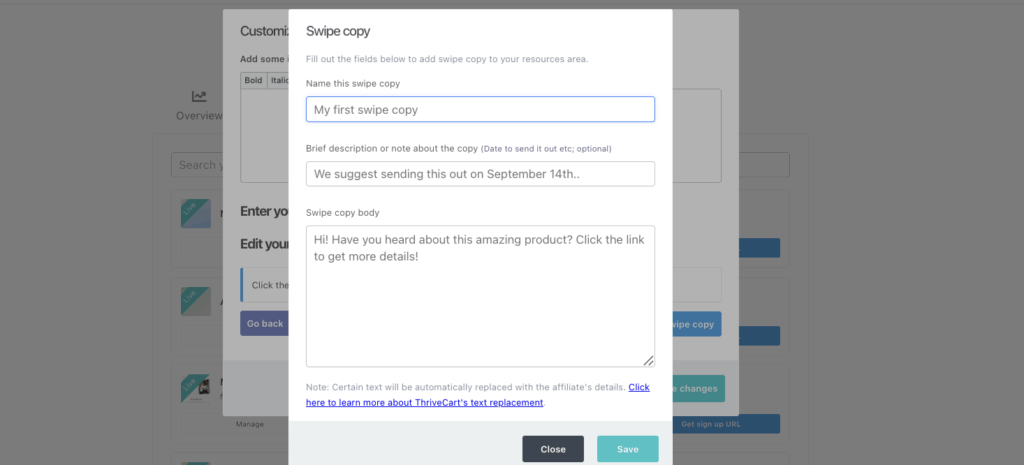
Affiliate Swipe copy
You can add swipe copy to help affiliates write out Facebook posts, email sequences, and more.
When doing this, you can also use the following short-codes which will get merged into your final text to customize the swipe copy for each affiliate!:
- {affiliate_firstname} – Your affiliate’s first name
- {affiliate_lastname} – Your affiliate’s last name
- {affiliate_name} – Your affiliate’s full name
- {affiliate_email} – Your affiliate’s email address
- {affiliate_link} – Your affiliate’s primary link
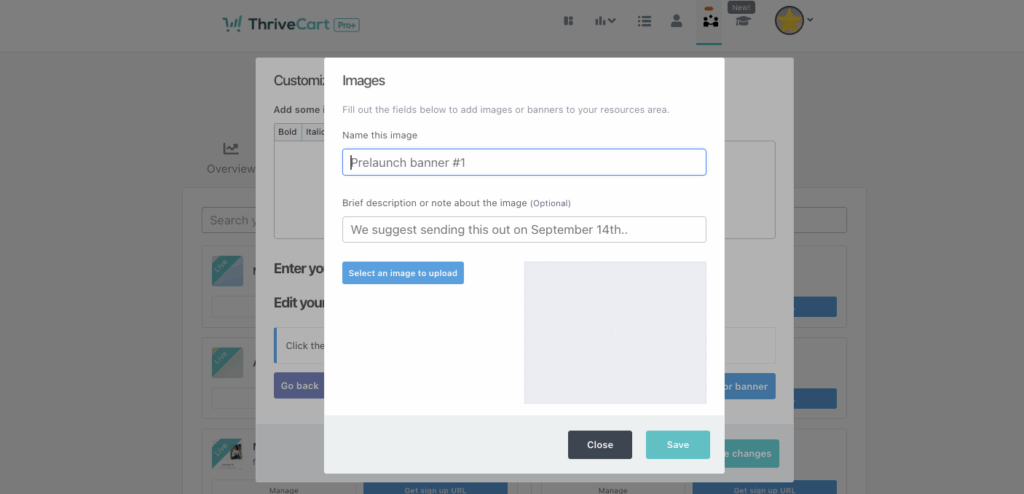
Banners
Upload banner images in this area and we will provide them with a link where they can either download the image or copy the embed code. Embedding an image via HTML will display the image and link it to their affiliate link automatically.
Videos
Enter the embed code for a video hosted on YouTube, Vimeo, Wistia etc and we will provide this code to the affiliate.
HTML
You can also add custom HTML – this is useful if you have a widget that affiliates can include on their pages. Give it a name and a description, and we’ll provide them with the embed code that you enter.
Frequently Asked Questions (FAQs)
- Q: Why am I not seeing access to the “Product Options” in the Affiliates section?
- A: Sub-users will be unable to access the product options section, as this is account-owner functionality only. It’s not possible to grant additional access to this section for users within the account, so this is something that will need to be done from the account owners account.
- Q: Are there limits to the number of images or videos I can provide as promo materials?
- A: There is no limit, however we recommend being concise and only including a few in order to help affiliates make quick decisions to promote your product in the best way possible.
- Q: What are the image size recommendations?
- A: The image sizes would be dependent on the platform, you could provide images to promote on specific platforms For example, Meta recommends 1080 x 1080 pixels for square (1:1 ratio) images, which works well for most placements like feeds. For Stories and Reels, use 1080 x 1920 pixels (9:16 ratio), and for mobile-focused feed ads use 1080 x 1350 pixels (4:5 ratio)