
Managing customer subscriptions effectively is key to maintaining trust and transparency with your customers. ThriveCart makes it simple to cancel recurring payments directly within your dashboard, ensuring a smooth process for both you and your customers.
How to cancel a subscription
Within ThriveCart, to cancel a subscription, the first thing you need to do is head to your transactions area and locate the transaction you want to cancel.

You can search using the customer’s name, email address, or invoice number to locate their transaction.
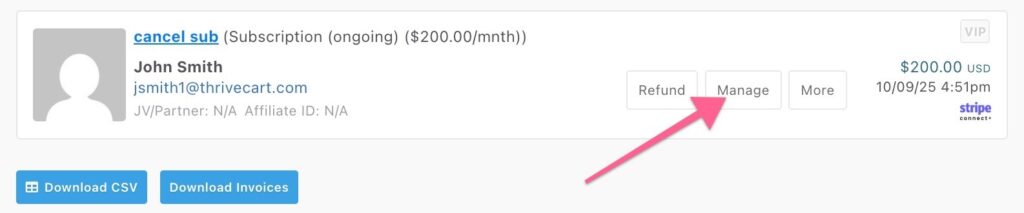
Once you’ve located the transaction, you’ll need to click on the Manage button, which will open a subscription management dashboard popup.
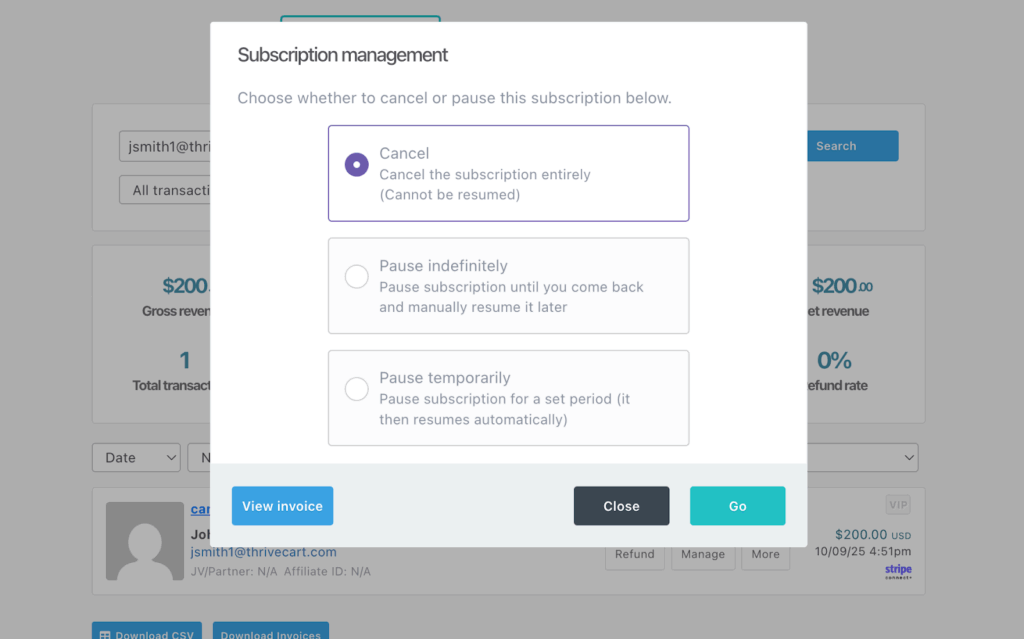
You’ll then be presented with the modal window with the choice of either cancelling your subscription entirely or pausing your subscription.
As you’re looking at canceling a subscription. You will choose the Cancel option, then click Go.
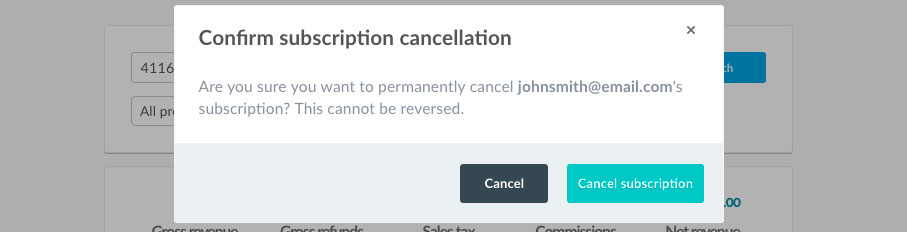
You’ll be informed that this action will permanently cancel the subscription and that it cannot be reversed. If you are happy to continue you will need to click the Cancel subscription button.
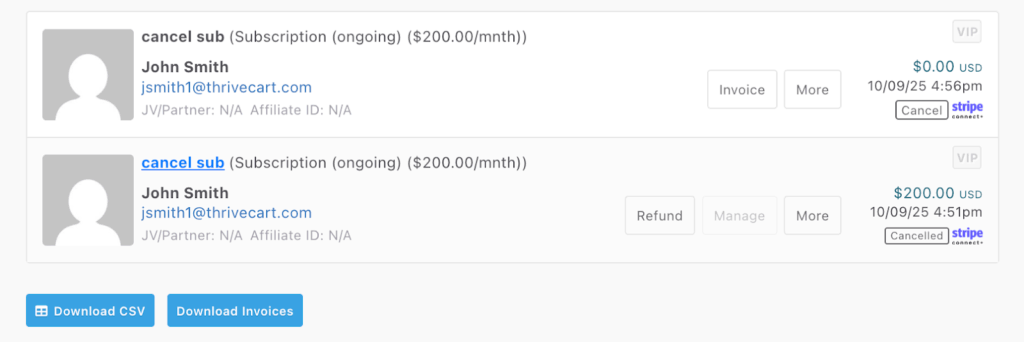
Notification will be sent to your payment processor and the transaction will be cancelled. The original transaction will update to display a cancelled tag on the right-hand side so you can easily see if a subscription is active, cancelled or paused. In addition, a $0.00 transaction will also be created on the day that the subscription was cancelled, to mark the date and time of this cancellation action.
Understanding Subscription Cancellations in ThriveCart
Subscriptions may be cancelled in several ways. As a vendor, it’s important to know how a customer’s subscription was cancelled – not just the date and time of the event. ThriveCart now tracks and displays the cancellation source, giving you clearer insight into customer activity and reducing confusion around why a subscription ended.
How Subscriptions Can Be Cancelled
ThriveCart now records and surfaces the source of cancellation across multiple areas in your account. Possible cancellation sources include:
- Vendor or sub-user action – a subscription cancelled directly in the ThriveCart dashboard.
- Customer action via Customer Hub – cancelled by the customer through their Customer Hub (or Learn Customer Hub).
- Payment processor action – If a subscription is cancelled within the payment processor itself, this can be due to a number of reasons, but we’re unable to confirm exactly why. This could be due to the number of failed rebills hitting your processor limit and it cancelling the subscription, it could be due to yourself or a team member cancelling within the processor, or in the case of PayPal the customer could have cancelled the subscription from their PayPal dashboard.
- API trigger – cancellation triggered through the ThriveCart API.
- Unknown reason (fallback) – if the cancellation occurs outside of the scenarios above.
Where You’ll See the Cancellation Reason
Whenever a subscription is cancelled, the reason and source will appear in multiple areas for consistency:
- Vendor cancellation email notifications
- Transactions area (shown as a tooltip on the cancellation event)
- Customer profile (inline with the subscription cancellation event)
- Downloadable transaction CSVs
- Webhook data
- API data
- Zapier integrations
Example
If a vendor cancels a customer’s subscription in the dashboard, the cancellation reason will read:
Cancelled in the ThriveCart dashboard by user john@company.com
This message will then be displayed consistently across the transactions area, customer profile, email notifications, and included in exported data.
Notifications for Subscription Cancellations
ThriveCart notifies you, as the vendor, whenever a customer’s subscription or recurring payment plan is cancelled. This ensures you’re always kept in the loop about changes to your recurring revenue.
The customer is not automatically emailed about their cancellation.
You can see more about managing notifications for your subscriptions in our guide: Notifications for Subscription Cancellations
Frequently Asked Questions (FAQs)
- Q: Will the customer be emailed about their cancellation?
- A: In short, no. ThriveCart does not send automatic subscription cancellation emails to customers, but these can be sent from either your payment gateway or by setting an Automation rule on your product.
You can also click the “Invoice” button from a customer’s transaction within ThriveCart to then click “Re-send” to email that final invoice to your customer.
- A: In short, no. ThriveCart does not send automatic subscription cancellation emails to customers, but these can be sent from either your payment gateway or by setting an Automation rule on your product.
- Q: Does cancelling also refund the customer?
- A: No. If you want to refund a customer as well, this would be a separate action.
- Q: I accidentally cancelled a subscription, can I re-activate it?
- A: Once a subscription is cancelled, it’s not possible within ThriveCart to reactivate it, as the integration with your payment gateway prevents this. The customer would need to re-purchase a subscription product in order to be billed in the future.
- Q: I’m getting an error when trying to cancel a subscription
- A: For any error message returned when attempting to cancel, you’ll want to review the subscription within your payment gateway directly. Typically, errors mean that the subscription has already been cancelled in the gateway but may not have communicated this cancellation to us.
Reach out to support by sharing a screenshot of the cancelled subscription in your payment gateway, as well as the customer’s email address/invoice ID and the team can look to manually adjust this for you.
- Q: How can my customer’s cancel their own subscriptions?
- A: Your customers can access the Customer Hub to cancel their own subscriptions. The link to access this is available on their invoice, and Pro+ users can control the types of recurring payments, as well as regional self-cancellation options.
- Q: Can the customer retain access until the end of their billing cycle?
- A: They can! If you’re a Pro+ user with Connect+ enabled on your product, Learn students who cancel their subscriptions can retain access until the end of their current paid billing cycle. See more on how to enable that setting here.
- Q: The customer paid with SEPA and there’s a pending payment, does cancelling their subscription cancel that pending payment as well?
- A: Yes! When cancelling subscriptions paid with the non-instant SEPA method, any initiated SEPA payments are now tracking to Stripe in order to cancel those pending payments as well and prevent over-charging. See more information on these adjustments in our guide here.
- A: Yes! When cancelling subscriptions paid with the non-instant SEPA method, any initiated SEPA payments are now tracking to Stripe in order to cancel those pending payments as well and prevent over-charging. See more information on these adjustments in our guide here.