
Unlock smarter sales strategies with built-in UTM tracking
With Pro+ and Stripe Connect+, you can now track where your traffic is coming from and which marketing channels are actually driving results, directly from your ThriveCart dashboard.
Whether you’re investing in paid ads, partnerships, email campaigns, or organic content, UTM Tracking gives you the performance insights you need to make smarter decisions and maximize your return on investment.
It’s fully GDPR-compliant and seamlessly integrates with your checkout flow.
Track your traffic. Tune your strategy.
Use UTM Tracking to build data-backed funnels, optimize your ad spend, and finally connect marketing efforts with revenue outcomes—no external tools required.
What UTM parameters are supported?
Right now, ThriveCart supports the five standard UTM tags:
- Campaign – Names the specific campaign or promotion.
- Content – Used to help differentiate similar content or ads within the same campaign, if necessary.
- Source – Identifies the referrer, such as a specific website or search engine.
- Term – Used to identify paid search keywords, if any.
- Medium – Indicates the marketing medium, such as email, social, or a cost-per-click campaign.
When a customer visits your checkout page with UTM parameters in the URL, those tags are automatically tied to their order on the backend. From there, you can filter your reporting by any of the tags above to evaluate campaign performance.
The Sources reporting page also shows you which terms are driving the most orders and revenue—making it easy to double down on what works.
How to set up UTM Tracking URLs
To start using UTM tracking, you’ll want to create URLs that include the data you’re tracking, formatted with “utm_” and the data type, followed by = for your parameters. The most common UTM parameters that people use to track campaigns are Source, Medium, and Campaign.
For example:
https://yoursubdomain.thrivecart.com/your-awesome-product/?utm_source=ig-link&utm_medium=instagram&tutm_campaign=summer-sale
The above URL would need to be customized with your specific product URL and data, but the above would capture the source as “ig-link”, the medium as “instagram” and the campaign as “summer-sale”.
Another example using all of the available UTM variables would be:
https://yoursubdomain.thrivecart.com/your-awesome-product/?utm_source=ig-link&utm_medium=instagram&utm_campaign=summer-sale&utm_content=ig-promo0815&utm_term=camping-essentials-for-summer
This URL would track the same as the previous example, as well as the content “ig-promo0815” and the term “camping-essentials-for-summer”
UTM Reporting
To view your UTM data, you’ll be accessing this from the New Segmentation Reports section in your Pro+ dashboard.
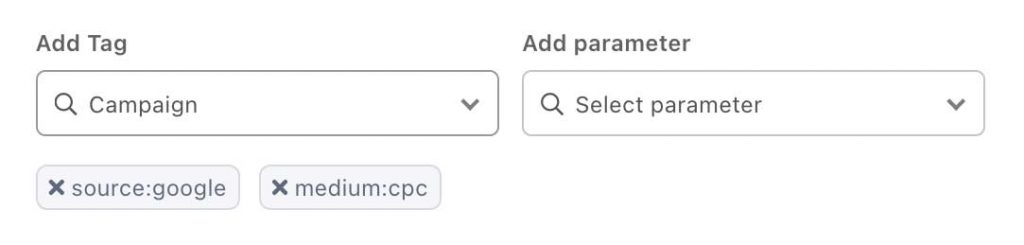
You can select specific products, or all products, and then select the desired data that you’re looking to preview:

Assigning this filter via the “confirm” button will only show purchases of the “Marketing Course” product with the “testsource” UTM assigned to it.
What’s Coming Next?
We’re actively working on even more UTM capabilities, including:
- Seeing UTM data directly under customer order details
- Including UTM values in your downloadable transaction CSV
- Filtering transactions by UTM value in reporting
Frequently Asked Questions (FAQs)
- Q: Where can I see my UTM values?
- A: You can filter your reporting section by UTM as part of our Segmentation Reporting functionality. The “Sources” page lets you filter by all UTM values for a wholistic overview of your UTM parameters and their success.
- Q: My URLs are formatted correctly, but why am I not seeing UTMs in my reporting.
- A: UTMs will only be populated once live (not test) transactions have been processed on products with Stripe Connect+ enabled. Transactions can be processed using PayPal, but Stripe Connect+ must be enabled alongside PayPal on the product.
- Q: Why are UTMs greyed out in the filtering options?
- A: UTM filtering requires Stripe Connect+ enabled on your product(s). If your filter options are set to all products and at least one product does not have Connect+ enabled, this option will be disabled.
You will want to either update your products to Stripe Connect+, or select a specific group and selection of products from the product filter above.
- A: UTM filtering requires Stripe Connect+ enabled on your product(s). If your filter options are set to all products and at least one product does not have Connect+ enabled, this option will be disabled.
- Q: When using a custom landing/sales page, do I need to make sure parameters are passed to the ThriveCart checkout page?
- Yes! You will need to check that your platform of choice automatically passes the UTM parameters to the ThriveCart checkout page. For example, Convertri.com has a setting to “Pass URL Parameters” that you can configure on that page.
- If there is no setting for this, you may need to amend the code within your custom page. For example, in SquareSpace where parameters are not passed automatically, and there is no setting to do so, you may wish to add the below code to your header (Credit: Jamar Diggs):
<script>
window.addEventListener('load', function() {
 const params = new URLSearchParams(window.location.search);
 const utmKeys = ['utm_source','utm_medium','utm_campaign','utm_content','utm_term'];
 const utmPairs = utmKeys
  .filter(k => params.get(k))
  .map(k => k + '=' + encodeURIComponent(params.get(k)))
  .join('&');

 if (utmPairs) {
  document.querySelectorAll('a[href*="thrivecart"]').forEach(function(link) {
   link.href += (link.href.includes('?') ? '&' : '?') + utmPairs;
  });
 }
});
</script>