
Different countries display and apply sales tax in different ways. In places like the US and Canada, customers expect tax to be added at checkout.
In many EU countries, the price shown is expected to be tax-inclusive, with no extra amount added during checkout.
To support these regional expectations, ThriveCart now allows you to create tax profiles that define how tax should be applied based on the customer’s country — giving you full flexibility to match local norms, all from a single product setup.
What Are Tax Profiles?
Tax profiles let you decide which countries should have tax added to the price and which should have tax included in the price, all within one profile.
Once created, these profiles can be selected on any product with Connect+ enabled, allowing ThriveCart to dynamically apply tax based on the customer’s location.
For example:
- A Canadian customer may see tax added at checkout.
- A French customer may see tax included in the displayed price.
ThriveCart will automatically detect the customer’s country based on IP, and will update tax dynamically if the customer manually changes their country at checkout.
Creating a Tax Profile
You can create and edit tax profiles inside your account-wide tax settings.
Go to: Settings → Account-wide settings → Finances → Tax
In this area, you’ll now find a new Tax Profiles section where you can create a new profile, edit an existing profile, or delete profiles you no longer need.

To create a tax profile, click + Add a tax profile.
A modal will appear where you can set:
- Profile name
- Whether the profile is primarily for inclusive taxes or exclusive taxes
- Countries excluded from the rule

In the above example, this profile would automatically have sales taxes included in the price unless the customer is located in Canada or the United States.
Once saved, your new profile will now appear in the list of available profiles and can be selected inside any product’s tax setup.
You can create up to 10 tax profiles.
Selecting a Tax Profile on a Product
When editing a product, first make sure that Stripe Connect+ is enabled on that product, then:
- Enable Sales tax.
- In the tax dropdown, you’ll now be able to choose:
- Add to price
- Include in price
- Any custom tax profiles you’ve created
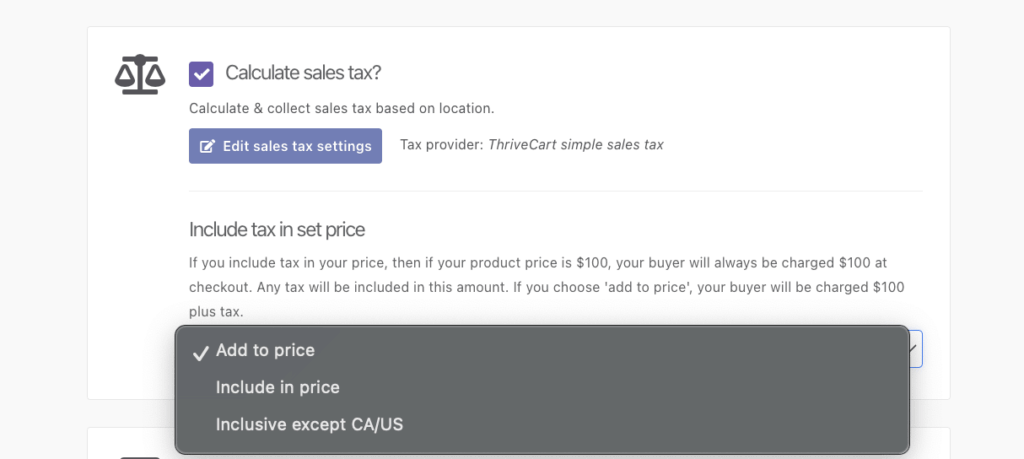
ThriveCart will automatically apply the correct tax method at checkout based on the customer’s location.
To test your profile, you can open your checkout and change the country (and assigning state/province where required) to confirm whether your profile and sales taxes are properly applied based on the country entered.
Frequently Asked Questions (FAQs)
- Q: What Happens If a Tax Profile Is Deleted?
- A: To ensure no customer ever sees missing or incorrect tax if a tax profile is deleted but is still assigned to one or more products:
- The product will fallback to your default tax setting.
- Tax will continue to calculate correctly.
- You may choose to update the product settings if you want it to use a different profile.
- A: To ensure no customer ever sees missing or incorrect tax if a tax profile is deleted but is still assigned to one or more products:
- Q: How does the checkout identify the customer’s location?
- A: The checkout auto-applies the customer’s country based on the customer’s browser location settings, but sales taxes are calculated based on the address the customer enters in checkout.