
The ThriveCart Shippo integration eliminates the guesswork from shipping costs by connecting your account directly to Shippo’s multi-carrier shipping platform. Instead of manually setting fixed shipping rates that either leave money on the table or drive customers away with overcharges, you can now display precise, carrier-calculated rates at checkout. This integration gives you access to discounted rates from USPS, FedEx, UPS, DHL, and dozens of other carriers—all while automatically generating shipping labels and tracking numbers the moment an order completes.
With Shippo dynamic shipping rates, your checkout page calculates real-time shipping costs based on each customer’s exact address, package weight, and dimensions. As customers type their shipping information, rates update instantly to reflect the true cost of delivery, whether they’re ordering from across town or across the globe. You can even configure the system to automatically select the cheapest, fastest, or best-value carrier option, ensuring you never overpay for shipping while keeping delivery promises accurate.
This automation saves you hours of manual rate calculations while reducing cart abandonment from unexpected shipping costs. Shippo works seamlessly with ThriveCart’s checkout, subscription, and upsell flows, making it simple to sell and ship physical products without the operational headaches that typically come with physical product fulfillment.
Connecting Your Shippo Account to ThriveCart
Shippo uses API key authentication to securely connect with ThriveCart. You’ll need both live and test API keys from your Shippo account.
Getting Your Shippo API Keys
- Log in to your Shippo dashboard at goshippo.com
- Navigate to Settings > Advanced > API
- Locate your Live API Token (starts with shippo_live_)
- Locate your Test API Token (starts with shippo_test_)
- Copy both tokens—you’ll need them in the next steps
Adding Shippo to ThriveCart
Once you have your API keys ready:
- In your ThriveCart dashboard, click Settings (top-right corner) > Integrations > Shippo
- Click the “Add new Shippo account” button
- Fill in the account details:
- Account name: Give it a recognizable name like “My Shippo Account”
- API Live Token: Paste your live token (must start with shippo_live_)
- API Test Token: Paste your test token (must start with shippo_test_)
- Click “Save this Shippo account”
ThriveCart validates your credentials instantly. If successful, you’ll see a confirmation message and your new account listed in the Shippo integration settings.
Managing Multiple Shippo Accounts
You can connect multiple Shippo accounts to one ThriveCart account—useful if you manage different businesses or product lines.
To add another account:
- Return to Settings > Integrations > Shippo Integration
- Click “Add new Shippo account” again
- Enter different API credentials and give it a unique name
- Each account appears in your connected accounts list
You can then assign different Shippo accounts to different products based on your fulfillment setup.
Setting Up Products with Shippo Fulfillment
Now that Shippo is connected, configure your physical products to use dynamic shipping rates at checkout.
Configuring Shippo Shipping for a Product
- Open any physical product in edit mode
- Navigate to the Fulfillment tab in product settings
- Scroll to the Physical Shipping Options section
- Click “Add shipping rate” (or edit an existing rate)
In the shipping rate configuration modal:
- Public name for shipping rate: Enter what customers will see in checkout (e.g., “Standard Shipping”)
- Choose your fulfillment provider: Select Shippo from the dropdown.
Another modal will open allowing you to:
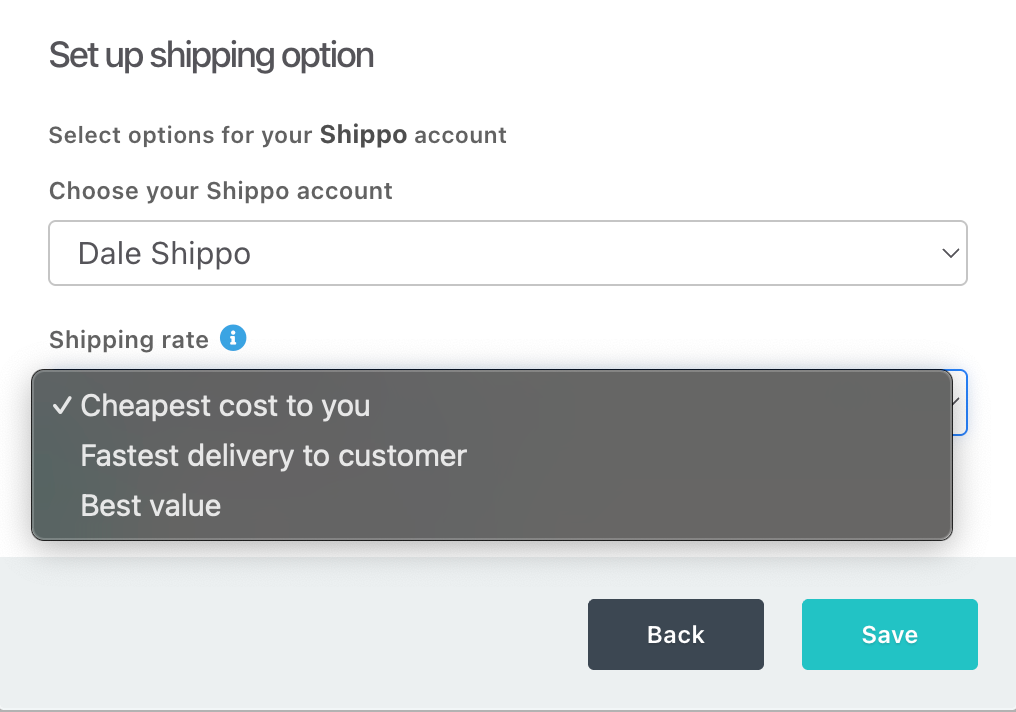
- Choose which Shippo account to use
- Choose how ThriveCart selects from available Shippo rates:
- Cheapest cost to you: Lowest shipping cost (default, recommended)
- Fastest delivery: Quickest arrival time
- Best value: Balance of cost and speed
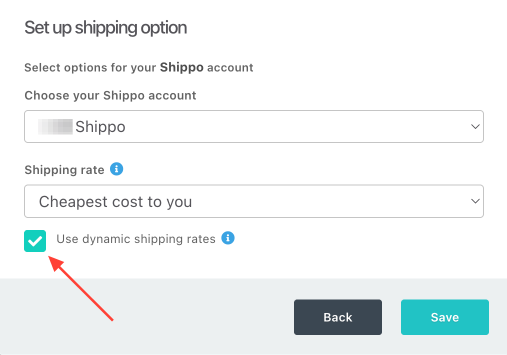
- Use dynamic shipping rates: Toggle this checkbox ON if you would like to enable real-time rate calculation from Shippo directly
- Click save to return to the pricing setup modal
Adding Product Weight and Dimensions
Shippo requires accurate product measurements to calculate carrier rates. This is required regardless of whether you are using dynamic rates in checkout or not, so fill these in carefully.
- Enter numerical weight value (e.g., 2.5)
- Select unit: Kilograms (kg), Grams (g), Pounds (lb), or Ounces (oz)
- Dimensions (Length × Width × Height): Enter three numerical values and select unit: Inches (in) or Centimeters (cm)
- Example: A box that’s 12″ × 8″ × 6″ would be entered as 12, 8, 6 with unit set to inches
Important: Inaccurate dimensions can cause Shippo to return rates that don’t match actual carrier costs. Always measure your final packaged products, including boxes and padding.
Finally, you can choose where in the world the shipping rate will be available, and set your amount to charge or the fallback rate (if using dynamic pricing).

When clicking “next” through the modal, you’ll be able to configure your shipping rates further.
For example, you can set different shipping rates based on which pricing option the customer purchases, whether they purchase the bump or not, or if they purchase multiple quantities of your product.
Subscription pricing options will give you additional options, such as the ability to ship different products for different rebills:

Dynamic Shipping Rates at Checkout
Dynamic shipping rates appear to customers automatically based on the configuration you set up. Here’s how the checkout experience works.
How Customers See Dynamic Rates
When a customer reaches checkout:
- They enter their shipping address in the address fields
- ThriveCart automatically sends a request to Shippo with:
- Customer’s destination address
- Product weight and dimensions from your settings
- Your origin address (from your ThriveCart profile)
- Selected rate criteria (cheapest/fastest/best value)
- Shippo returns available carrier rates
- The selected rate (based on your criteria) displays to the customer (if no response within 15 seconds, the fallback rate is shown instead)
- Customer completes purchase with accurate, real-time shipping cost
Address-Based Rate Recalculation
Dynamic rates update automatically when customers:
- Change their shipping address
- Select a different shipping destination
- Switch from billing to separate shipping address
A loading spinner appears briefly while rates recalculate. This typically takes 1-3 seconds.
Understanding Dynamic Pricing & Fallback Rates vs. Manual Shipping
When dynamic shipping is enabled:
- ThriveCart sends customer address, product weight/dimensions, and your origin address to Shippo at checkout
- Shippo queries connected carriers (USPS, FedEx, UPS, etc.) for live rates
- Customer sees actual carrier pricing based on their destination
- If Shippo doesn’t respond within 15 seconds, ThriveCart charges the fallback amount you entered during shipping rate setup
- Once the order is complete, the order is created in Shippo, where you can then purchase and print the shipping label
When dynamic shipping is disabled:
- ThriveCart charges the fixed amount you enter
- No API calls to Shippo at checkout
- The order is created in Shippo and you would then purchase the applicable shipping label
- Useful for flat-rate shipping or when you want to offer predictable costs
Dynamic Shipping Rates and Funnels
When creating your physical upsells/downsells, you’ll have the ability to set up Shippo rates similarly to your front-end product. You can choose between Dynamic Pricing or Manually enter in your rates, and the customer will see those shipping rates on your funnel page.
If the main product was digital, they will also be shown additional shipping information fields.
Setting Different Shipping Rates for Different Pricing Options
If you have multiple pricing options that would be for different products, then you may want to set different shipping settings for those different products.
For example:
- Pricing option #1 – The full hardcover book + bonus materials
- Pricing option #2 – Just the hardcover book
- Pricing options #3 – The softcover book
Each of those pricing options is going to have different weights, and therefore different shipping costs.
To set this up, you’ll want to set different shipping rates for each pricing option individually.
Within the modal, you’ll choose the “This shipping option is available…” and choose the pricing option that matches the weights and fallback shipping price you’ve set.

For the above hardcover vs. softcover example, you would then have at minimum 3 shipping rules set within your product’s fulfillment settings.
Additional shipping configurations can be seen in our Setting Your Physical Fulfillment Shipping Options Guide here.
Troubleshooting
| Issue | Solution |
| No shipping rates returned at checkout | This typically indicates missing or invalid origin address information. Navigate to Settings > My Profile and verify your complete address is filled out, including street address, city, state/province, ZIP/postal code, and country. Shippo requires a valid origin address to calculate carrier rates. Also verify your Shippo account has at least one carrier connected and active. Also make sure that you have rates set for the customers location. If you only have US-based rates, for example, and a customer from Canada visits your checkout, they will not see any shipping rates because there is no configuration for shipping to Canada. |
| “Requires update” or expired API connection | Your API credentials may have changed or expired. Go to Settings > Integrations > Shippo Integration, locate the account showing the error, and click “Edit”. Re-enter your current live and test API tokens from your Shippo dashboard. Save the changes. Then update each product’s shipping settings to re-select the updated Shippo account. |
| Rates displaying but orders not creating shipments in Shippo | Dynamic rates at checkout are separate from shipment creation. ThriveCart calculates rates via Shippo’s API but creates actual orders for shipping labels through a different process. Verify in your product’s Fulfillment settings that: * The shipping rate provider is set to Shippo (not another fulfillment service) * Product type is set to Physical (not Digital) * Check your Shippo dashboard for any error messages or failed shipment attempts |
| Dynamic rates show loading spinner indefinitely | This occurs when Shippo’s API doesn’t respond within the 15-second timeout window. Common causes include: * Shippo server issues (check status.goshippo.com) * Invalid product dimensions (negative values, missing units) for your connected carrier * Restricted shipping destination (carrier doesn’t serve that region) * No carriers activated in your Shippo account. When this happens, ThriveCart would automatically show your configured fallback shipping amount. If this happens frequently, verify your product weight/dimensions are realistic and your Shippo account has carriers properly connected. |
Frequently Asked Questions
- Q: Do I need a paid Shippo account to use dynamic shipping rates?
- A: No. Shippo’s free plan supports dynamic rate calculation via API. You only pay Shippo’s per-label fee when you actually purchase shipping labels (separate from rate calculation). However, you do need at least one carrier account connected in Shippo to receive rates.
- Q: Which carriers does ThriveCart support through Shippo?
- A: ThriveCart requests rates from all carriers you’ve connected and activated in your Shippo dashboard. This includes USPS, FedEx, UPS, DHL, Canada Post, and dozens of international carriers. Configure your carrier preferences directly in Shippo—ThriveCart will automatically pull rates from your active carriers.
- Q: Can I charge customers more than the actual Shippo rate to cover handling?
- A: Not directly with dynamic rates. The rate Shippo returns is what customers pay. If you need to add handling fees, consider using the fixed fallback amount instead of dynamic rates.
- Q: What happens if Shippo’s API is down during checkout?
- A: ThriveCart waits 15 seconds for a response from Shippo. If no rates return within that window, the checkout automatically uses your configured fallback shipping amount. This prevents customers from being unable to complete purchases due to temporary API issues. You can see which orders used fallback rates in your order details.
- Q: Can I use different Shippo accounts for different products?
- A: Yes. When setting up each product’s shipping rate, select which connected Shippo account to use from the “Provider Account Selection” dropdown. This is useful if you fulfill different product lines from different warehouses or under different business entities.