
Take control of your customer data like never before. With ThriveCart’s Infusionsoft (Keap) integration, your checkout and CRM can work together effortlessly in syncing products, tracking orders, and updating contacts automatically. It’s a seamless, data-driven connection that turns every transaction into a smarter marketing opportunity.
This deep, two-way connection goes beyond basic tagging; it syncs customer data, maps products, tracks orders, and updates contact records automatically. Whether you’re running complex campaigns or simple automations, ThriveCart ensures your Infusionsoft setup stays clean, consistent, and conversion-focused.
How to Connect Infusionsoft to ThriveCart
To connect your Infusionsoft autoresponder to ThriveCart, follow these simple steps:
- Sign in to your ThriveCart account.
- Click Settings at the top of your dashboard.
- Select Integrations.
- Choose Autoresponders.
- Select Infusionsoft from the list.
- Click the Authorize button.
- Sign in to your Infusionsoft account and grant permissions.
- Once connected, you’ll be returned to ThriveCart, where your Infusionsoft account will now appear under authorized integrations.
Once connected, you can start using Infusionsoft actions inside your automation rules, allowing you to automate how leads and customers are managed based on their journey through your checkout and funnels.
Click here to see how to add your customers to Infusionsoft after it’s been connected.
What This Integration Supports
ThriveCart’s integration with Infusionsoft allows you to automatically manage and update contacts through multiple triggers, including:
- Add to Tag – Apply specific tags when customers complete actions such as purchases, upsells, or sign-ups.
- Remove from Tag – Remove tags when customers cancel, refund, or change products.
- Order Tracking – Sync purchase data and product details directly into Infusionsoft for accurate reporting and segmentation.
Data Passed to Infusionsoft
ThriveCart passes detailed customer information into Infusionsoft, ensuring you have a complete view of every contact:
- Customer name
- Customer email address
- Customer address
- Customer phone number
- Customer business name
- Custom fields (where applicable)
Infusionsoft Deep Data Integration
Unlike basic integrations that only push tags, ThriveCart’s Deep Data Integration gives you full control over how data and products are synced. This ensures your CRM stays organized, with no duplicate products or mismatched information.
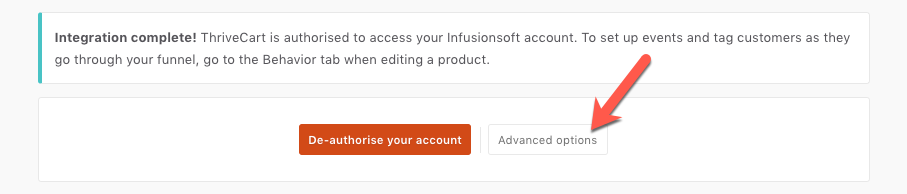
Under this advanced integration, you can configure the following:
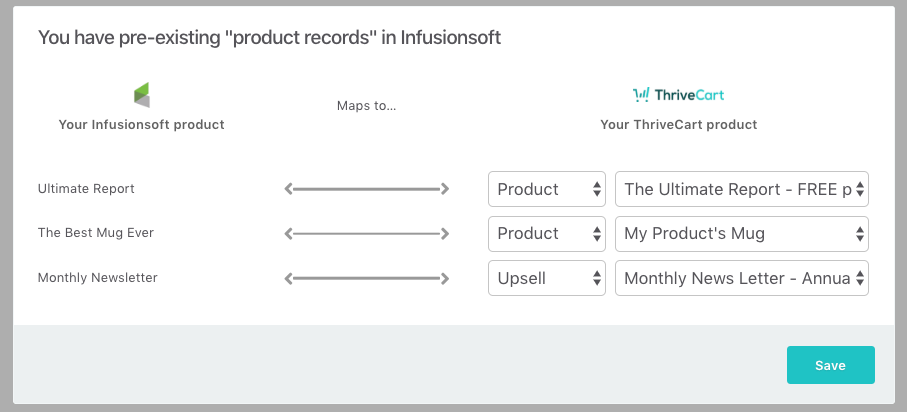
Product mapping
By default, ThriveCart automatically creates new products in your Infusionsoft account when customers purchase through your checkout. However, if you already have existing products in Infusionsoft, you can map them directly to your ThriveCart products. This prevents duplication and ensures accurate revenue tracking across both platforms.
Customer data storage
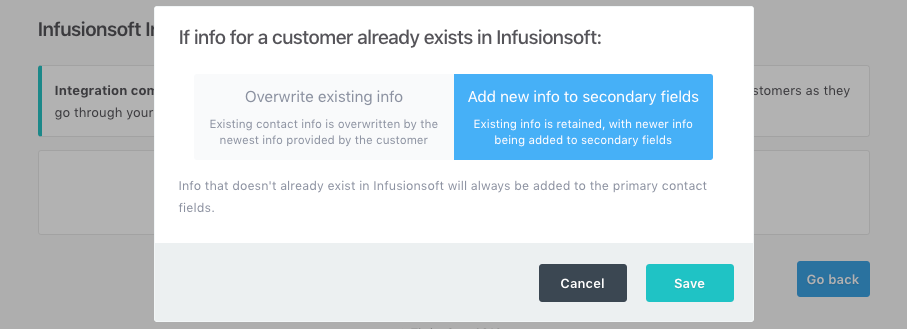
If a contact already exists in Infusionsoft, ThriveCart gives you flexibility over how updates occur.
- Default: New checkout data is stored in secondary fields (address and phone) without overwriting existing primary data.
- Optional: Choose to overwrite existing primary fields with updated customer information from ThriveCart.
This gives you total control over how customer profiles are updated and maintained.
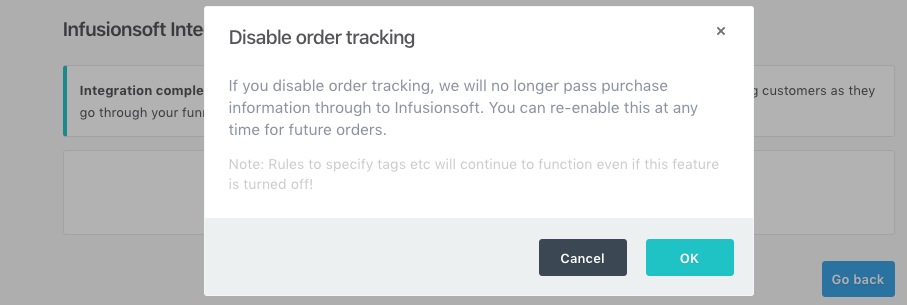
Order tracking
ThriveCart sends complete order details to Infusionsoft, including:
- Product name and ID
- Transaction amount
- Recurring payment details
You can enable or disable order tracking based on your preferences. Even if you disable this, all behavior rule automations (e.g., tag management) will continue to function as normal.
Custom Field Support
ThriveCart supports the passing of custom field data to Infusionsoft for more advanced segmentation and personalization.
To set this up, watch the instructional video included on the integration page. This guide walks you through mapping custom fields correctly to capture the exact data points you need inside your CRM.
Why This Integration Matters
When your checkout and CRM work together seamlessly, you gain a full picture of your customer journey. With ThriveCart and Infusionsoft, you can:
- Automate lead nurturing based on purchase behavior.
- Personalize campaigns using deep customer data.
- Reduce manual data entry with automatic syncing.
- Keep products and contacts organized without duplication.
- Track recurring revenue and order activity directly inside Infusionsoft.
This is automation made intelligent, designed for growing businesses that need precision, not just connection.
Frequently Asked Questions (FAQs)
- Q: How do I connect my Infusionsoft (Keap) account to ThriveCart?
- A: Go to Settings → Integrations in your ThriveCart dashboard, choose Autoresponders, select Infusionsoft, and click Authorize. Sign in to your Infusionsoft account, grant access, and your integration will be complete.
- Q: What customer data does ThriveCart send to Infusionsoft?
- A: ThriveCart passes customer name, email, phone number, address, business name, and applicable custom fields, ensuring your CRM records are complete and accurate.
- Q: Can I map existing Infusionsoft products to ThriveCart products?
- A: Yes. You can manually map ThriveCart products to existing products in Infusionsoft to avoid duplicates and ensure accurate tracking. If not mapped, ThriveCart will create new products by default.
- Q: What actions can I automate with this integration?
- A: You can add or remove tags based on customer behavior (purchases, refunds, cancellations), sync order data, and update contact records automatically during the checkout process.
- Q: Will ThriveCart overwrite existing contact information in Infusionsoft?
- A: By default, ThriveCart stores new data in secondary fields without overwriting primary contact details. You can optionally enable data overwriting if preferred, giving you full control over customer record updates.