
Easily set up your PayPal account for seamless commission payouts with the ThriveCart affiliate PayPal setup. This ThriveCart affiliate integration allows you to connect PayPal directly within your affiliate dashboard setup, ensuring that your affiliate commission payments are sent smoothly and reliably based on the vendor’s payment terms.
Looking to change your connected PayPal account? See the end of this article.
Most businesses using ThriveCart to power their affiliate programs look to pay their affiliates (you) commission via the integrated PayPal option. You may wish to check this helpdesk article on how/when your commissions are paid.
In order to get paid, you’ll want to connect a PayPal Business account to your affiliate dashboard.
First, you will need to log into thrivecart.com to access your affiliate dashboard by clicking the login- button at the top-right of the page. Alternatively, you can bookmark thrivecart.com/signin to easily access the login page.
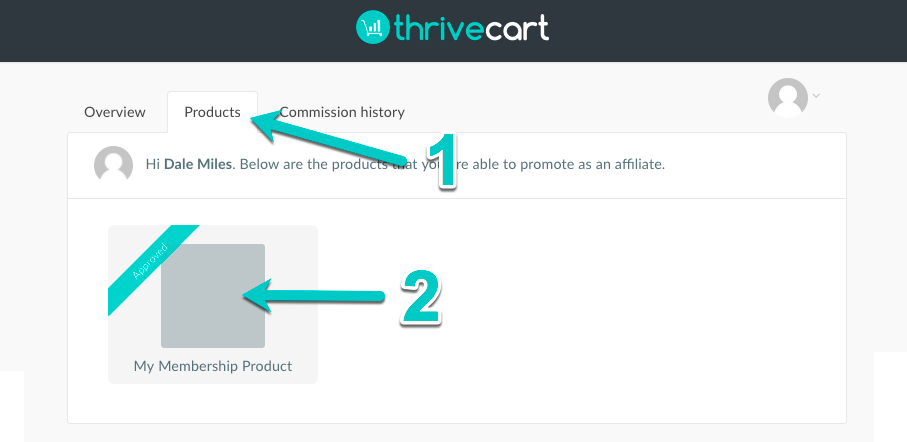
Once signed in you will be taken to the overview page and you will need to click on the Products tab (1).
You then need to click a product in the vendor’s account you have signed up to promote (2).
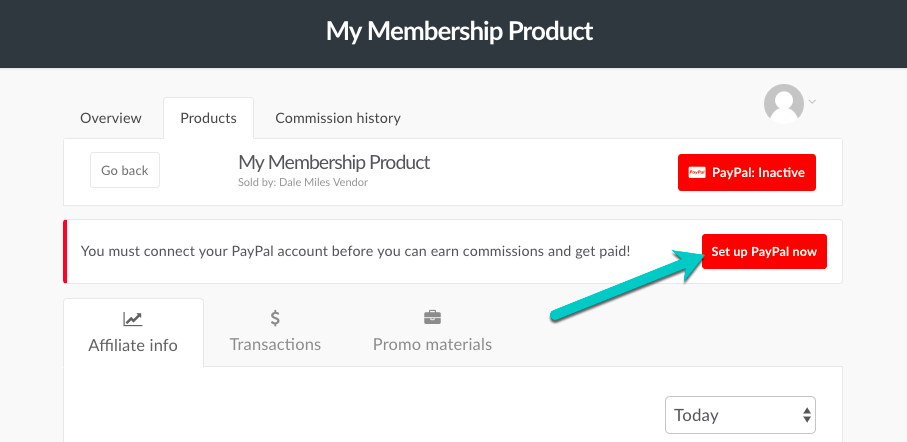
If you have not yet connected your PayPal account for PayPal payout setup, and the vendor’s product settings require you to do so before you can promote, you will need to click the red button Set up PayPal now. This will take you to the page where you can connect your Business PayPal account to your affiliate account.

It’s also worth noting that if you are required to connect your PayPal account before you can promote, you will not have access to your affiliate link. as seen above.
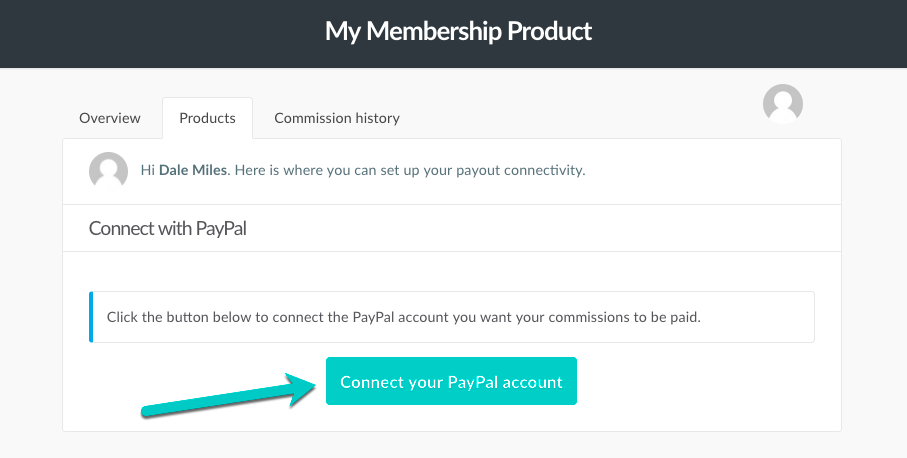
From this screen, you can click the button to be taken to PayPal to go through the integration.
PayPal Business Account Requirements:
- You must also Verify PayPal for Affiliate Payments (see more on PayPal’s steps to verify your credit card, email, and bank account)
- You must accept all conditions as part of the connection process
Affiliates cannot connect a personal PayPal account. A Business PayPal account is required to ensure the advanced features of ThriveCart’s affiliate platform work as intended. If an affiliate tries to connect a personal PayPal account they will be advised to upgrade or connect a business PayPal account. Affiliates cannot connect a personal PayPal account.
A walkthrough of the PayPal integration steps
When clicking the Connect your PayPal account button, you’ll be redirected to PayPal and shown the following steps.
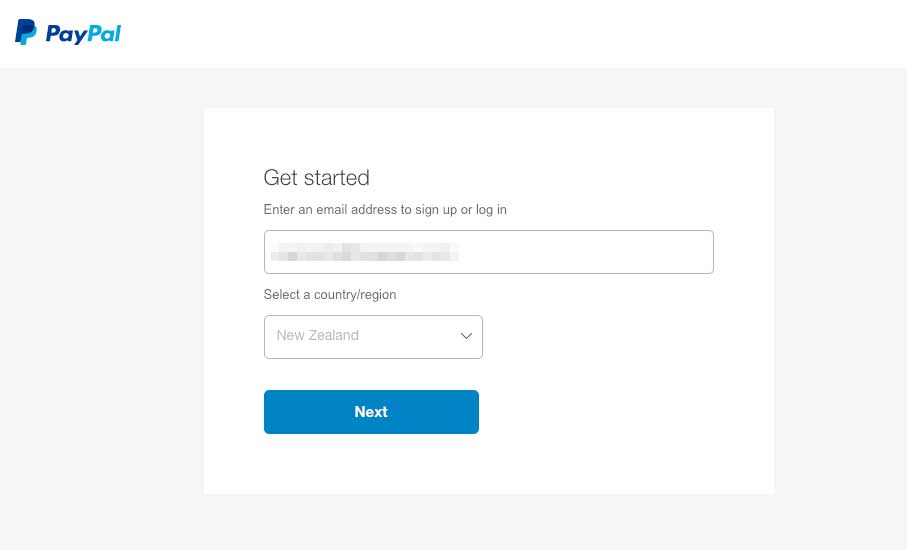
Step 1. Enter your PayPal Business account email, select your country, and click Next.
Step 2. PayPal will then redirect you to their login page, you’ll need to log into your Business PayPal account that you entered on the screen before.
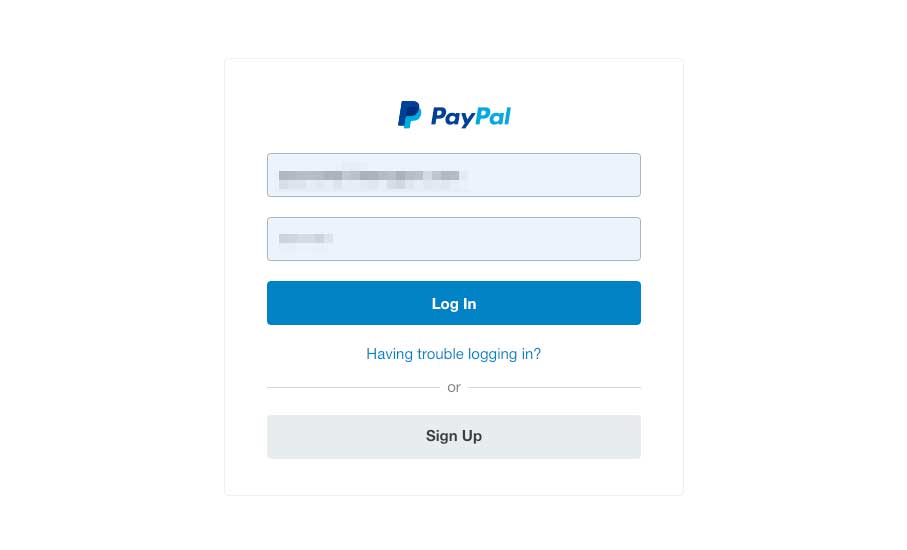
Step 3. Next step is to agree to the PayPal permissions.
These permissions allow the system to have vendors pay your commissions manually and automatically through PayPal and return commissions should your referred customer refund their purchase.

For additional context, you can click “View all actions” on the above screen, where you’ll see the permissions that you’re granting:

Step 4. Once you’ve agreed to the permissions via the “Allow”, you’ll then see the below success screen where you can click the button “Return to ThriveCart LLC” (This will return you to your ThriveCart affiliate dashboard).

Step 5. You’re all complete and you should see something like the screen below. This confirms your Business PayPal account is correctly integrated with ThriveCart, ready to be paid commissions from the vendors of products you’re promoting (If they’re paying you via PayPal through the system, see this article on learning how and when you can expect payment from vendors).

Changing the connected PayPal account
If you’re needing to change the connected PayPal account for commission payouts are made to, then you can easily do this from your dashboard.
Like at the start of this article, where there is a red PayPal: Inactive button, when you have PayPal connected, this will show a green PayPal: Active button.
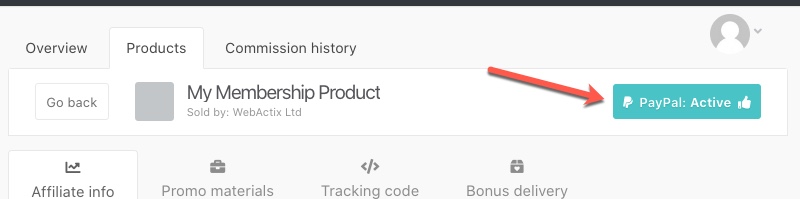
Clicking that will take you through to the page noted above in Step 6 where the PayPal account merchant ID is shown. You can then click the ‘Disconnect PayPal’ button, go back to a product’s affiliate link page and follow the steps from the start to connect a new PayPal account.
Troubleshoot PayPal Integration
| Problem | Solution |
|---|---|
| I’m having trouble connecting my PayPal account. | One of the most common reasons why you cannot integrate your PayPal account to your affiliate account is because it isn’t fully verified yet. To resolve this, we would recommend following PayPal’s support article here to get your account fully verified. If you’re still having trouble connecting your PayPal account, then please make sure that you’re using the primary email address of your PayPal account during the integration as PayPal allows you to have secondary emails, but these don’t have the same level of permissions. |
How to view your Affiliate’s PayPal Business Email
As a vendor, you can view an affiliate’s PayPal business email directly on their account page within the Affiliates tab of your Affiliate dashboard.
- Navigate to Affiliates → and click on the My Affiliates tab. Then hover over the affiliates profile image, and click on View Profile for the affiliate you want to view.

- On the affiliate details page, if the affiliate has connected a PayPal account, you’ll see a new field: PayPal business email

- This is displayed as read-only text and automatically updated from PayPal whenever the affiliate updates their account. This lets you quickly confirm PayPal details before sending manual payments.