
Growing your email list has never been easier with the ThriveCart Mailchimp integration that automatically syncs every customer directly into your Mailchimp account in real-time—no manual imports or data entry required.
When you connect Mailchimp to ThriveCart, customer information flows seamlessly to trigger automated campaigns the moment a sale is made. Your autoresponder setup takes just minutes with powerful flexibility: tag customers based on products purchased, add them to specific lists or segments, and configure unique Mailchimp actions so buyers flow into sequences and start receiving campaign emails, all automatically. It’s email marketing automation that actually works, giving you more time to focus on creating great content, while ThriveCart handles the connection between your sales and email campaigns.
To connect with Mailchimp, simply follow these steps:
- Sign in to ThriveCart
- Click on Settings at the top
- Choose Integrations
- Choose Autoresponders
- Choose Mailchimp
- Click on the Authorize button
- Sign in to your Mailchimp account and grant permissions
You’ll be returned to ThriveCart and your Mailchimp account will now show in the list.
After connecting your Mailchimp account with ThriveCart, you will be able to make use of it within the automation rules in your account. Click here to see how to add your customers to Mailchimp after it’s been connected.
What does this integration support?
Using ThriveCart’s integration with Mailchimp you can easily manage contacts for a wide number of triggers with:
- Add to List (audience)
- Remove from List (audience)
- Add tag(s)
- Remove tag(s)
For data that is passed through to Mailchimp, we currently pass through:
- Customer name
- Customer email address
Frequently Asked Questions (FAQs)
- Q: Why are Users not being added to my lists?
- A: First make sure that your product has an automation rule set to trigger based on the ThriveCart action.
We also suggest checking your list settings within Mailchimp. Notably your signup forms. You will need to ensure that none of your fields are set to “required” other than the default email field. If any of the fields are set to required then users will may be correctly added to your Mailchimp list.
- A: First make sure that your product has an automation rule set to trigger based on the ThriveCart action.
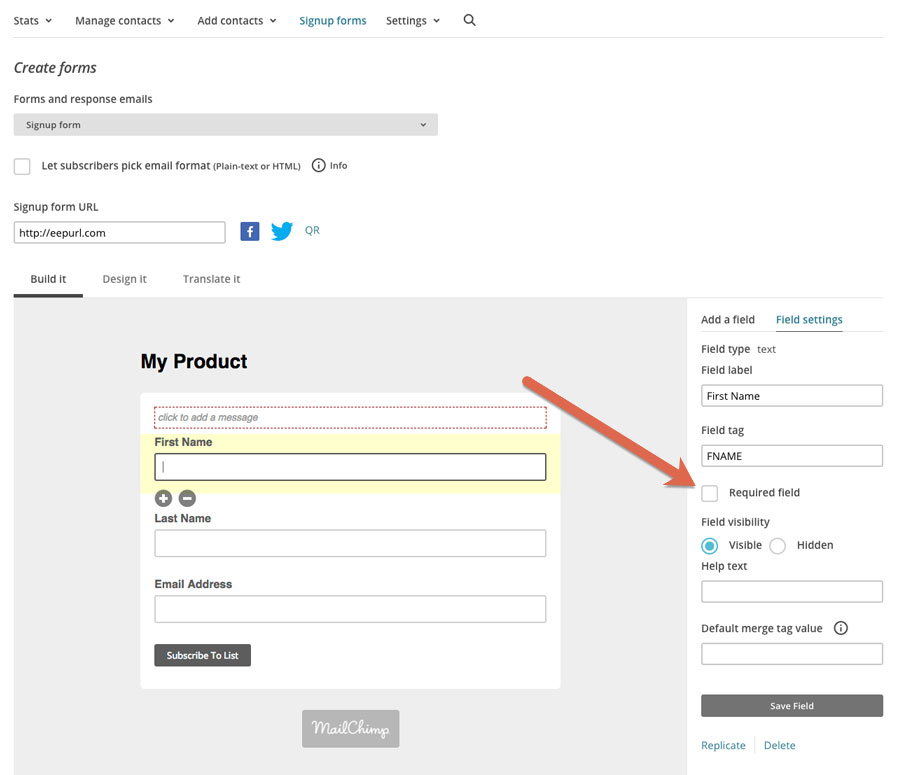
Unchecking the box shown above, and then saving your fields should resolve this issue.
- Q: Do existing contacts get updated?
- A: Yes, if the email already exists in the audience, Mailchimp updates that contact’s profile and adds any new tags. Your automations can use those tags to trigger flows.
- Q: How does marketing consent work?
- A: For contacts who have previously unsubscribed: Mailchimp will not automatically re-subscribe someone who previously unsubscribed. They’ll remain unsubscribed unless they explicitly re-opt in via Mailchimp’s compliant process (for example, a confirmation email or a Mailchimp-hosted form). ThriveCart cannot override this.
Double opt-in and compliance: Mailchimp follows the audience’s opt-in settings and local compliance rules. If your Mailchimp audience requires confirmation, new contacts added via ThriveCart will follow that process. For regulated regions, ensure your checkout captures appropriate marketing consent and only trigger Mailchimp subscription rules when consent is present.