
If you’ve ever renamed a product, retired an old offer, or consolidated multiple product versions into one checkout, you know the pain of broken links. Smart Links solve this by letting you designate a master product and then route any number of other products directly to it. The moment a customer clicks a redirect product’s URL, they land on the master product’s checkout instead. Affiliate links, bookmarked URLs, and existing checkout links all resolve correctly with no manual link-swapping required.
What Are Smart Links?
A Smart Link groups one master product with one or more redirect products. The master product is the destination: the checkout where customers will land and complete their purchase.
The redirect products are the sources: any product whose checkout URL you want to automatically forward to the master.
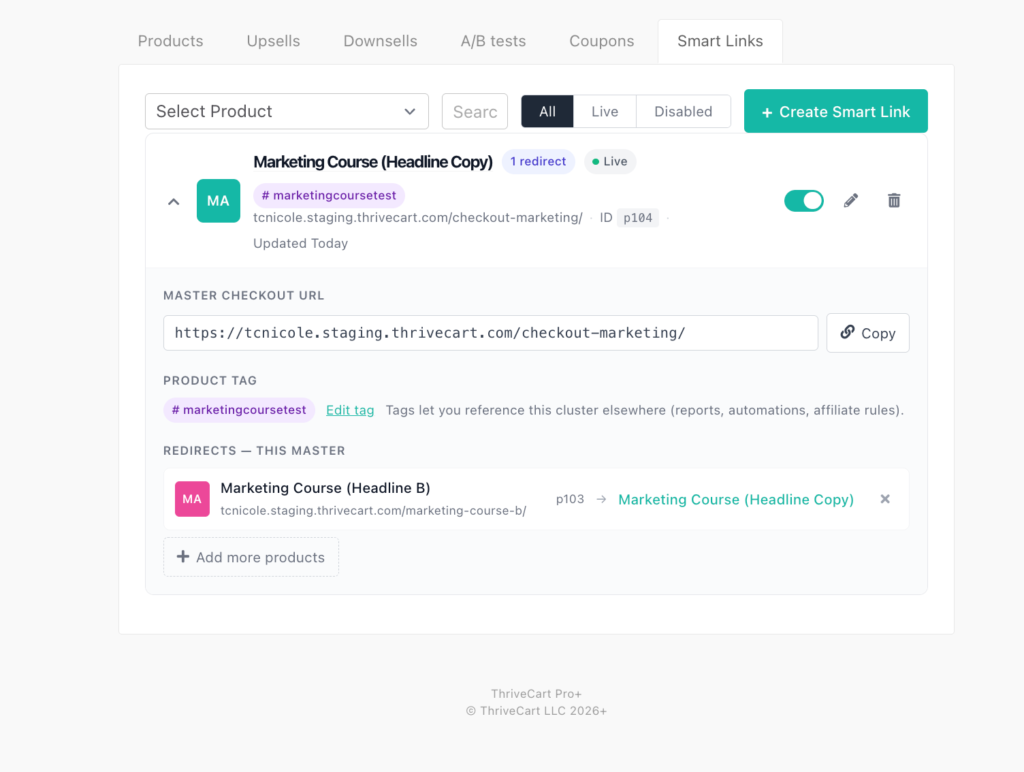
When a visitor clicks or enters a redirect product’s URL, ThriveCart issues a 302 redirect to the master product’s checkout slug. All URL parameters (including UTM values, coupon codes, and affiliate IDs) are carried through automatically.
Key rules to know:
- Each product can belong to only one active Smart Link at a time, either as a master or as a redirect
- Archived products can be used as redirect sources but cannot be set as a master
- Redirects fire before Adaptive Pricing geo-resolution, so geographic pricing on the master product applies correctly
Quick Setup
Step 1: Open Smart Links
In your ThriveCart dashboard, navigate to Products, then select the Smart Links tab. Click Create Smart Link.
Step 2: Choose your master product and redirects
The 3-step wizard walks you through selecting your master product first, then choosing which products to redirect into it. Review your configuration on the final screen, then click Save Smart Link.
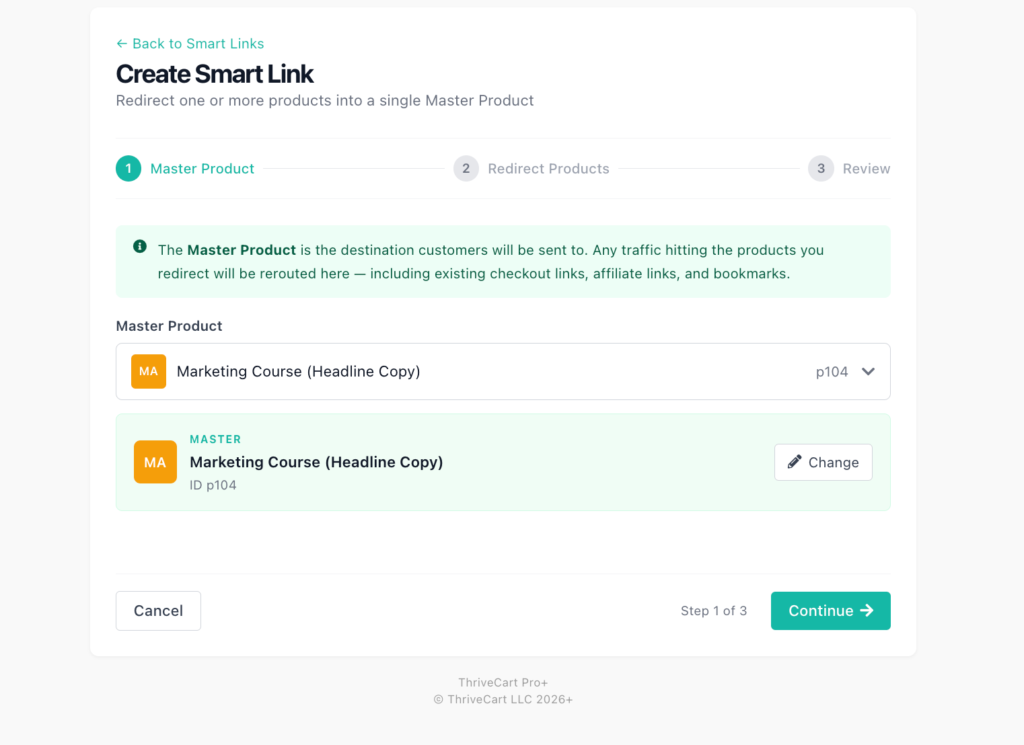
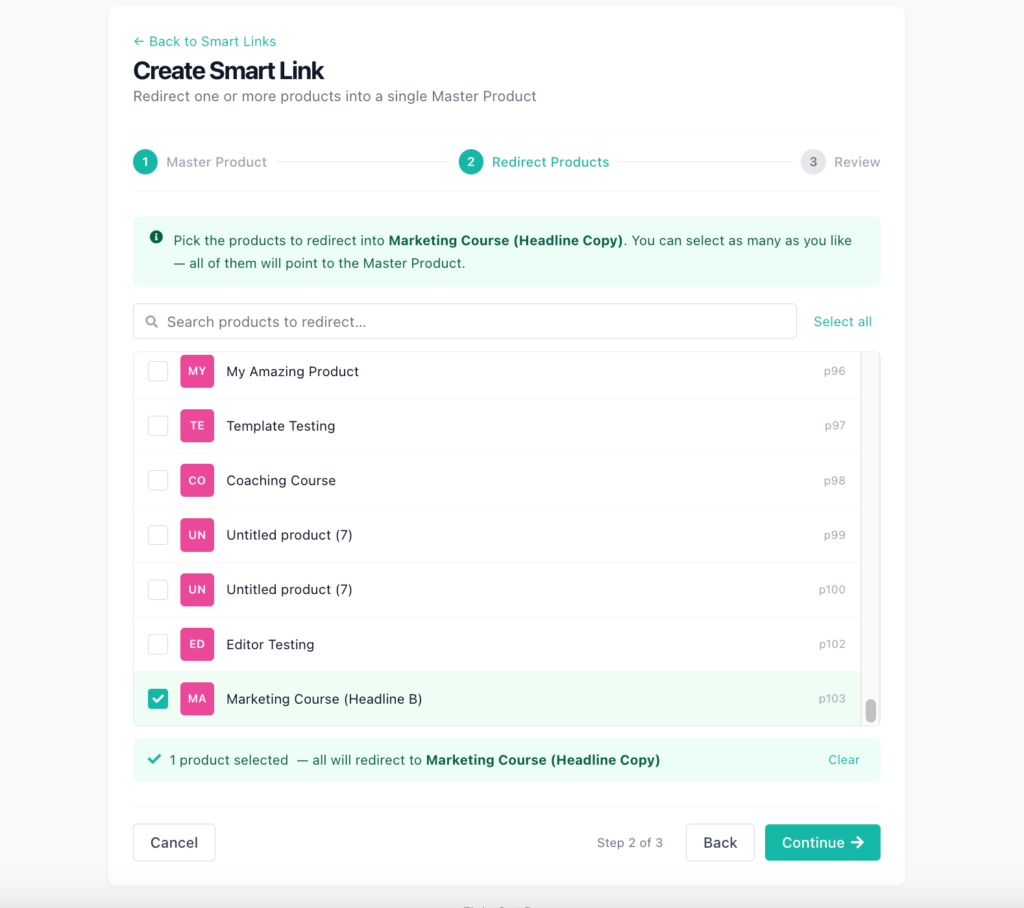
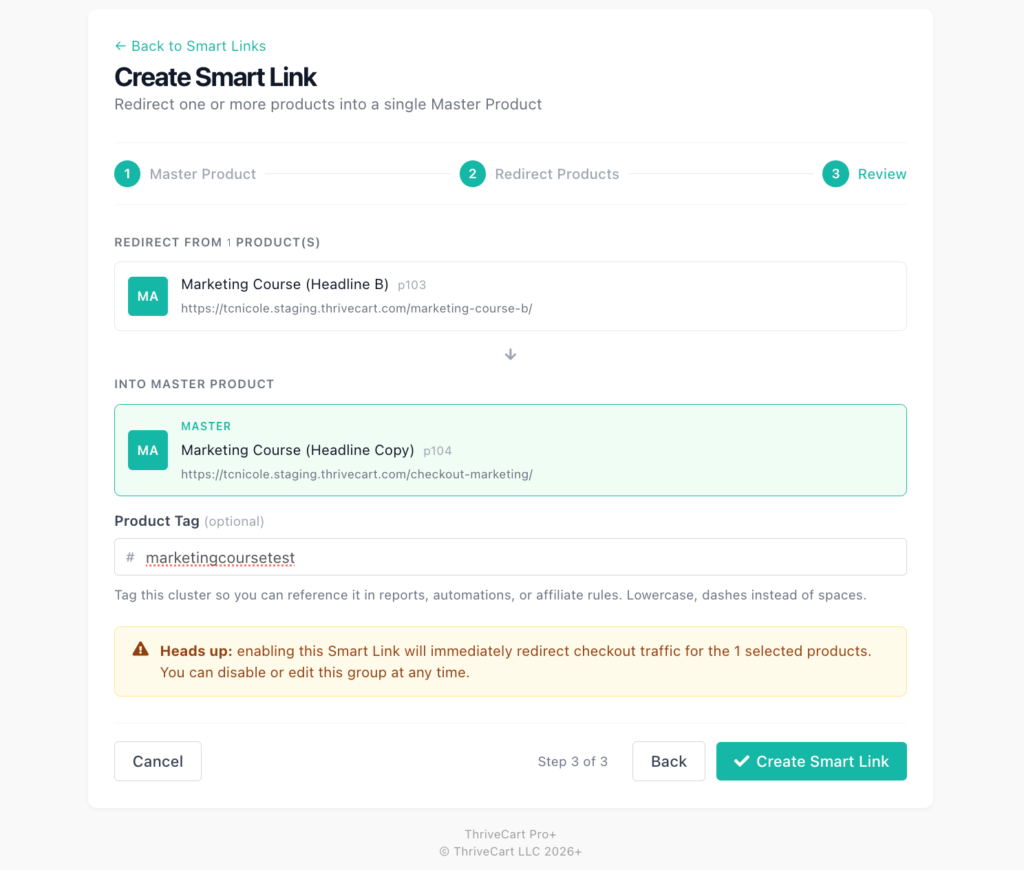
Step 3: Verify the redirects are active
Back on the Smart Links list, confirm the toggle next to your new Smart Link is switched on. Your redirect products’ checkout URLs are now live and forwarding traffic to the master product.
Configuring Settings
Basic Configuration
Adding a product tag (optional)
During the wizard’s Review step, you can add an optional product tag to the master product. Tags appear in the hash format (for example, #summer-sale-2026) and let you filter by this group in Reports and automations. Use lowercase letters and hyphens instead of spaces.
Toggling a Smart Link on or off
Each Smart Link has an on/off toggle on the main Smart Links list. Disabling a Smart Link stops all redirects immediately. Traffic to redirect product URLs will no longer be forwarded until you re-enable it.
Adding more redirect products to an existing Smart Link
Open the Smart Link from the list view and click Add more products in the Redirects section. Search for the product you want to add and confirm. The new redirect activates immediately without any changes to the master product.
Removing a redirect product
In the same Redirects section, click the remove (x) button next to any redirect product to stop it from redirecting. The redirect is removed instantly. That product is then free to be added to a different Smart Link or used as a master in a new one.
Editing the product tag
Click Edit tag in the Smart Link detail panel to update the tag text. Changing the tag on the Smart Link updates it on the master product. This does not affect any tags you have manually added to your products.
Archiving a redirect product
If a redirect product gets archived after it’s added to a Smart Link, it remains functional as a redirect source. The Smart Links list shows archived products with an “(archived)” label for visibility. The redirect continues to work.
Customer Experience
From a customer’s perspective, the redirect is transparent. They click a product link (from an email, ad, affiliate, or bookmark) and land directly on the master product’s checkout. No intermediate page or loading screen appears. All URL parameters they arrived with (coupons, affiliate IDs, UTM tags) are preserved and applied to the master checkout.
This means:
- Existing affiliate links continue to earn commissions correctly
- Coupon codes passed in the URL apply to the master product’s pricing as long as the coupon is assigned to your master product or set to apply to all products in your account
- Customers with bookmarked product URLs arrive at the current, active checkout without error pages
FAQs
- Q: Can a product be in more than one Smart Link at the same time?
- A: No. Each product can participate in only one active Smart Link at a time, whether as a master or as a redirect. If you try to add a product that is already part of an active Smart Link, ThriveCart will block the action and prompt you to remove it from its current Smart Link first.
- Q: What happens to redirect products’ checkout pages?
- A: Visitors are immediately forwarded to the master product’s checkout. The redirect product’s own checkout page is not shown while the Smart Link is active. Disabling the Smart Link restores normal access to both products’ individual checkouts.
- Q: Can I use a redirect product as the master in a different Smart Link?
- A: No. A product that is already serving as a redirect in one active Smart Link cannot simultaneously be the master of another. Remove it from its current Smart Link first, then set it as the master of a new one.
- Q: What if I disable a Smart Link and someone visits a redirect product’s URL?
- A: They will land on the redirect product’s own checkout page as normal. Disabling a Smart Link simply stops the forwarding behavior without breaking either product’s individual URL.
- Q: Why is my redirect not working after I set it up?
- A: First, confirm the Smart Link toggle is switched on. If the toggle is on and the redirect still does not work, check that the redirect product you’re testing is listed in the Redirects section of the Smart Link detail panel. Also confirm the product is not archived while assigned as the master. If the issue persists, contact ThriveCart support with the product ID of your master product.