
Experience effortless connectivity with the ThriveCart Encharge Integration, a fully seamless connection that requires no manual automation rules. Instantly sync orders & customer data between ThriveCart and Encharge to power your marketing automation setup with precision. This direct integration ensures every purchase, refund, and customer detail flows smoothly into your campaigns, enabling you to deliver personalized marketing, streamline workflows, and engage customers at every stage of their journey—automatically.
In the video above, we look at how you can connect your Encharge account with ThriveCart.
After connecting your Encharge account with ThriveCart, we will automatically start syncing orders and customer data to Encharge.
What does this integration support?
Using ThriveCart’s integration with Encharge, we trigger the following events within Encharge:
ThriveCart order, triggered once per orderThriveCart purchase, triggered X times, once for each item purchased in funnelThriveCart rebill, triggered on each rebillThriveCart refund, triggered on each refund
In the Purchase, Rebill and Refund events, we also pass the following properties:
item_type, which isproduct,bump,upsellordownsellitem_id, which is the numeric ID of the itemitem_reference, which is the above two properties joined by a-(e.g.upsell-13orbump-2)amount, which is the relevant amount charged or refunded, in cents (e.g.4995)amount_str, which is the relevant amount charged or refunded, as a string (e.g. 49.95)
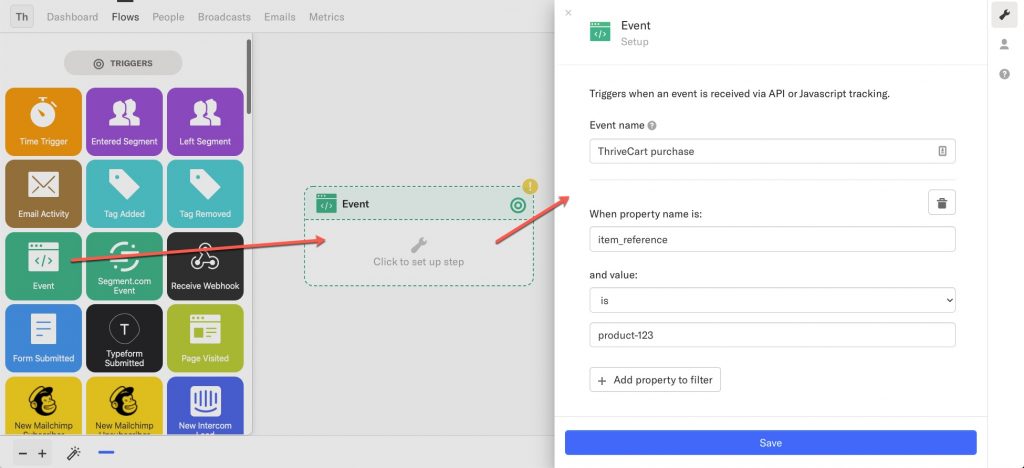
This enables you to see up a Flow in Encharge directly, which triggers when an Event called ‘ThriveCart purchase’ happens, if the item_reference is product-123 for example.
Additional Use Case Examples:
- If the
item_referenceisupsell, the flow will trigger on every single upsell.- However, if the
item_referenceisupsell-3, the flow will only trigger when upsell ID #3 is purchased.
- However, if the
- When an Event called ‘ThriveCart refund’ happens, where the
item_referenceis product-5 the flow will trigger only whenproduct-5is refunded.- However, if the
item_referenceisproduct, the flow will trigger when any product is refunded.
- However, if the
Frequently Asked Questions (FAQs)
- Q: If I’m not using automation rules, does it mean the integration can’t add students to a list, tag, or segment?
- A: It can still add, tag, or segment contacts — but this setup happens within Encharge, not through ThriveCart’s built-in automation rules. ThriveCart just passes the purchase data to Encharge, and you configure what happens next on Encharge’s side.
- Q: How can I get the product/upsell reference ID?
- A: When viewing your product overview, you’ll see the product ID beside your product name (see more details here). These ID’s are available for all products, upsells, coupons, etc in your dashboard when viewing the item and looking in the URL in your browser.
- For example, a product URL in your dashboard is formatted like so: thrivecart.com/your-account/#/products/93. That 93 in the URL is the product ID. Additionally, an upsell URL in your dashboard is formatted similarly: thrivecart.com/your-account/#/upsells/3. That 3 in the URL is the upsell ID.
- A: When viewing your product overview, you’ll see the product ID beside your product name (see more details here). These ID’s are available for all products, upsells, coupons, etc in your dashboard when viewing the item and looking in the URL in your browser.