
Editor 2.0 gives you complete creative control over your sales funnels with a professional canvas-based page builder that eliminates design guesswork. The 48-column grid system ensures pixel-perfect alignment across all funnel pages while maintaining responsive design, letting you build high-converting checkout experiences that scale from your first sale to enterprise volume without technical expertise or developer costs.
What is Editor 2.0?
Editor 2.0 is ThriveCart’s canvas-based page builder for creating complete sales funnels. Unlike previous editors where you worked on individual pages, Editor 2.0 provides a unified workspace where you design all funnel pages—checkout, upsells, downsells, and success pages—in one interface.
Users familiar with Convertri will be familiar with the layout and functionality of this editor that uses a 48-column grid system that automatically aligns elements with precision. You build pages using sections (full-width containers) and elements (text, images, buttons, videos, checkout forms) that snap to the grid. This gives you the freedom to move elements around, but no fighting with rulers to ensure perfect alignment. Build professional layouts from scratch, or use our pre-built templates. No design experience necessary.
Key capabilities:
- Full funnel editing – Access all pages in your funnel from one interface
- Canvas-based design – Visual workspace at 1280px width with grid guidance
- Flexible positioning – Place elements anywhere within the 48-column grid
- Responsive by default – Pages automatically adapt to mobile, but offer a separate mobile editor for fine-tuning
- Modern performance – React-based architecture for faster editing
- Consistent experience – Same editor works across all ThriveCart apps
The canvas is 1280px wide (optimal desktop viewing width). On larger screens, your page background color displays around the content. On smaller screens, pages automatically adapt using responsive design rules and a mobile-specific 12-column grid.
Understanding the Editor Interface
The Editor 2.0 workspace contains three main areas that work together for efficient page building.
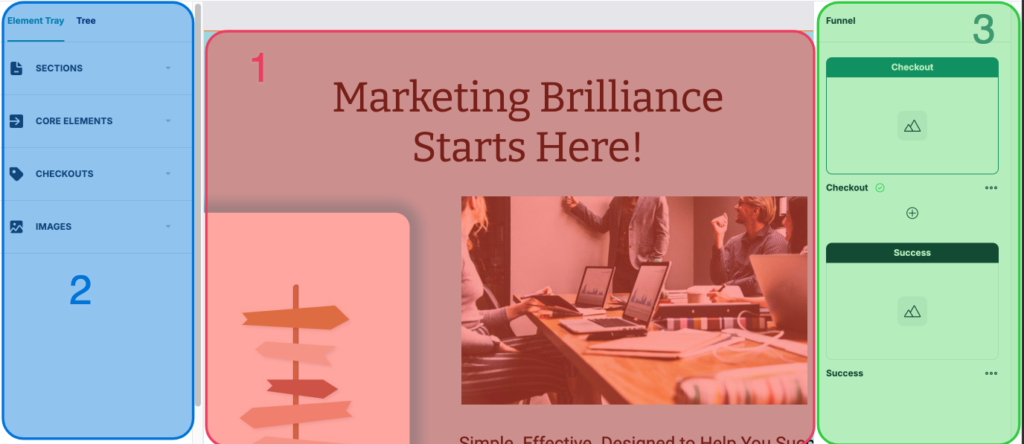
1. Canvas (Center)
Your 1280px-wide design workspace displays exactly how pages will appear to desktop customers. Scroll vertically to see the full page. Click elements to select them, and drag them to reposition within the grid.
This width represents optimal desktop viewing. On larger screens (e.g., 1920px), your page content stays centered at 1280px with the page background color/image displaying on either side. This creates a professional frame around your content.
On smaller screens (tablets, phones), pages automatically adapt using responsive design. The canvas always displays at 1280px during editing so your layout doesn’t shift while you work.
2. Left Sidebar
The Element Tray is where you’ll be able to browse all available elements. Drag and drop those elements onto your canvas and they’ll automatically snap to the grid.
The Tree allows you to view your page structure hierarchically, based on all the elements that you’ve added. This allowed you to navigate complex pages quickly and click any item to automatically open the properties panel for that element.
3. Funnel Panel (Right Sidebar)
Manage your entire funnel structure. From here, choose to add pages, and click into a page to switch the editor to that specific page:
- Funnel navigation – Thumbnails of all pages, click thumbnail to edit that page
- Page types: Checkout, Upsell, Downsell, Success clearly labeled
- Add pages – Click + buttons to insert new pages anywhere
- Reorder pages – Drag thumbnails to rearrange funnel sequence
- … to delete a page
In addition to these main work areas, the top toolbars have a number of tools related to editing your specific elements and navigating your funnel pages:
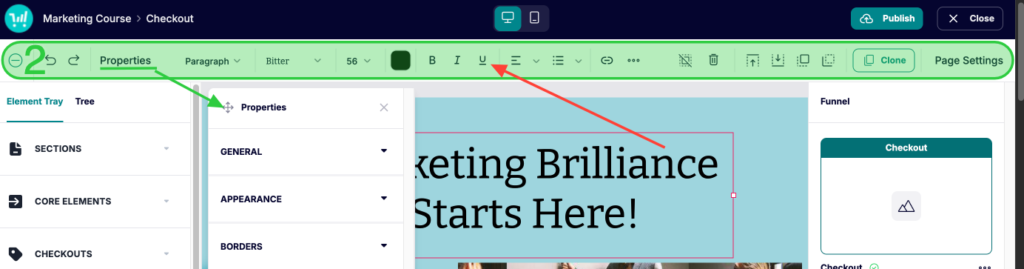
1. Top Blue Toolbar
Quick access to essential tools:
- Product Name > The page you’re editing – helps to distinguish whether you’re currently on an upsell, downsell, checkout page, or success page
- Device selector – Toggle between Desktop and Mobile editing modes
- Publish – Save changes and publish entire funnel (all pages publish together)
- Close – Exits out of the editor and back to your ThriveCart dashboard product settings. If there are unsaved changes, you’ll be prompted to save & exit.
2. Second Level Toolbar
- Minimize Element Tray – Hide the tray to view/edit the full canvas
- Undo/Redo – Reverse or reapply changes (Ctrl/Cmd + Z / Shift + Z)
- Properties – Open the Properties panel for the selected section/element to adjust the look and feel of that selection
- Text Settings – Set font styling and colours (visible only when text is selected – see red arrow)
- Trash Can – delete the selected element/section
- Layering Options – Move elements forward/back by one, or straight to the back/front of other elements
- Clone – Click to clone an element or section
- Page Settings – Your overall page defaults
The Canvas Grid System
Each section in your canvas contains an invisible 48-column grid that guides element placement for professional alignment. These columns/rows in the grid will show up as you move content around your canvas, but are hidden when not moving content around.
Grid specifications:
- Columns: 48 columns across section width
- Column width: ~20px (at 1280px page width)
- Row height: ~16px (0.8 × column width for proportion)
- Cell spacing: 6px on all sides of each cell
- Section padding: 19px left/right, 25px top/bottom
- Rows: Unlimited—sections expand automatically if you add long content, but can also be adjusted manually
Why 48 columns?
48 is divisible by 2, 3, 4, 6, 8, 12, 16, 24—making common layouts effortless:
- 2-column layout: 24 columns each
- 3-column layout: 16 columns each
- 4-column layout: 12 columns each
- Sidebar layout: 32 + 16 columns
How elements snap to grid:
When you place or move elements, they automatically snap to the nearest grid cell. Elements can’t be positioned between cells—only on whole cells. The minimum element size is 1 column × 1 row, and resizing happens in cell increments (not pixels).
This automatic snapping ensures perfect alignment without manual measurement. Multiple elements naturally line up because they all follow the same grid.
Common element sizes:
Understanding typical element sizes helps you plan layouts:
| Element Type | Width (cells) | Height (rows) | Pixel size at 1280px |
| Button | 8-12 | 2-3 | ~160-240px × ~32-48px |
| Headline | 24-48 | 2-4 | ~480-960px × ~32-64px |
| Image (small) | 12 | Variable | ~240px wide |
| Image (medium) | 24 | Variable | ~480px wide |
| Image (large) | 36-48 | Variable | ~720-960px wide |
| Checkout element | 18-48 | Variable | ~480-960px wide (expands with content) |
| Countdown Timer | 20 | 6 |
Grid spacing:
The 6px spacing on all sides of each cell creates natural gaps between elements—preventing elements from touching and maintaining visual breathing room. Section padding (19px left/right, 25px top/bottom) keeps content away from section edges for a professional appearance.
Grid-Based Layout Techniques
There are no rigid templates forcing you into a predetermined structure. Even if you choose one of our pre-designed templates, you can build on it to create exactly the layout you have in mind. Drag elements into position and resize them to fit to realize your vision.
The result is total creative freedom without the chaos, because the grid helps keep everything aligned and proportional, no matter how complex your layout gets.
Example Column-based layouts:
Create multi-column layouts using the grid divisions:
- 2-column: Two panels at 24 cells wide each
- 3-column: Three panels at 16 cells wide each
- 4-column: Four panels/elements at 12 cells wide each
- Asymmetric: 32 cells (main content) + 16 cells (sidebar)
Align starting columns across rows to create visual order. For example, if your headline starts at column 1, start your body text at column 1 as well.
Mix and match the above structures within your page for visual difference, and consider resizing to add spacing between columns. For example, a 2-column page could have two 18-cell panels of content with 4 cells of spacing on all sides.
Nested element structures:
Some elements can contain other elements. Use this for advanced layouts:
- Place Text and Button elements inside a Panel to create callout boxes
- Group related elements by positioning them close together (the grid spacing creates visual grouping)
How the Canvas and Grid Appear to Customers
Customers never see the canvas editor interface or grid lines. They see your published page with elements positioned exactly as you designed them.
Desktop experience (600px+ screen width):
- Page displays at up to 1280px wide, centered on screen
- On screens wider than 1280px, page background color/image displays on either side
- Elements are positioned according to your grid layout
- Spacing and alignment matches what you see in the editor
Mobile experience (below 600px screen width):
- Page automatically adapts using a 12-column mobile grid (not the 48-column desktop grid)
- Elements reflow top-to-bottom, left-to-right based on desktop positioning
- You can customize mobile layouts independently using the Mobile editor mode (see Article: Mobile & Responsive Design)
Tablet experience (600-1280px screen width):
- Page displays using desktop layout (48-column grid)
- Content scales proportionally to screen width
- Elements maintain relative to positioning from desktop design
The grid is purely for editing—it’s your design tool for precision alignment. Published pages look clean and professional without visible grid lines.
How Your Product Setup Controls the Funnel Structure
Product settings are the source of truth for your product configuration. Within the product options editor is where you can set the product’s price, enable bump offers, and set the fulfillment method to link to your products.
Fulfillment Methods
Each of your funnels is always tied to one main product. This main product cannot be changed once the funnel is created, and you’ll be adding upsell/downsell/bump offers to this main product’s funnel. This means that customers will be purchasing this main product before and/or purchasing the additional items in your funnel.
This product’s fulfillment settings determine the fulfillment of the rest of your funnel. So if your main product is a course, then your bumps, upsells, downsells would also use the add to course fulfillment method.
The available fulfillment methods that you can set on your main product include:
- Show Invoice – No fulfillment actions will process, simply the invoice will display on the success page
- Send to URL – URL displayed on success page, with optional URL expiration as determined by product settings
- Add to Membership Site – Automatic enrollment in ThriveCart Learn courses/bundles, or add to 3rd-party platform (WishList Member, MemberMouse, etc.). Will link to Learn login or URL provided in product settings.
Frequently Asked Questions (FAQs):
- Q: Can I change the grid from 48 columns to a different number?
- A: No, the 48-column grid is fixed for all users. This ensures consistency and makes it easier to align elements across different pages and funnels. 48 columns provides enough flexibility for any layout while maintaining simplicity.
- Q: Do customers see the grid on my published pages?
- A: No. The grid is purely an editing tool visible only in the Editor 2.0 interface. Published pages show your content without grid lines, creating a clean, professional appearance.
- Q: How do I know which section I’m editing on a complex page?
- A: When you select a section, it displays an orange border. Section controls (drag handle, settings, delete) appear at the top-right. You can also use the Layer Tree in the left sidebar to see page structure and click sections by name. Name your sections descriptively in the Properties Panel → Element name field for easier navigation.
- Q: Can I copy sections from one page to another?
- A: Yes. Select the section, press Ctrl/Cmd + C to copy, then switch to another page in the Funnel Panel and press Ctrl/Cmd + V to paste. The section and all its elements will be duplicated to the new page with the same grid positioning.
- Q: What happens if I make my canvas wider than 1280px by adding very wide elements?
- A: You can’t exceed the 1280px canvas width. Sections are locked to 1280px (48 columns at ~20px each, plus padding). This ensures your pages look consistent across devices and don’t break responsive design.